
AI Tools for Mac Users: The Best Apps
Mac users have access to a surprisingly capable AI setup in 2026 — much of it free or already installed. Here's what's actually worth using.

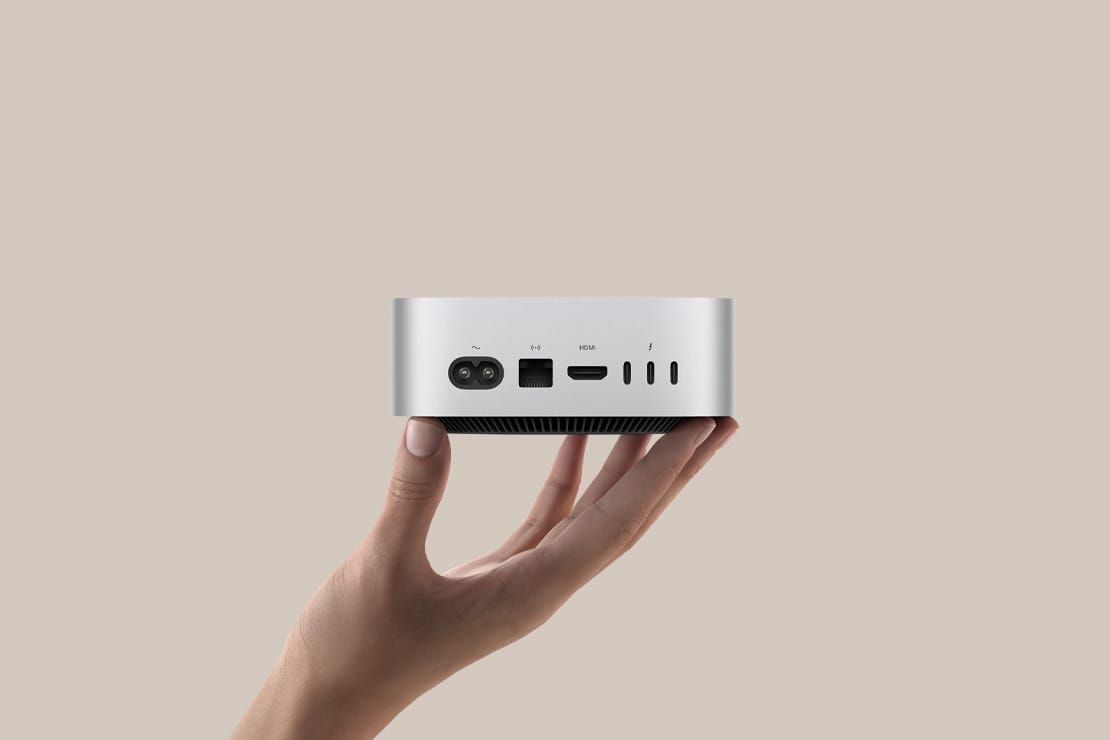
Mac users have quietly built one of the best AI-powered computing setups available. Between Apple's own intelligence features baked into the OS, a mature ecosystem of third-party apps, and the ability to run powerful AI models locally without a subscription, macOS is arguably the most capable AI-friendly desktop platform right now — especially on Apple Silicon.
Here's a practical breakdown of the best AI tools available to Mac users in 2026, what each one actually does, and where the trade-offs are.
Apple Intelligence: What's Actually Worth Using
Apple Intelligence rolled out gradually from 2024 onward, and by 2026 it's a meaningful part of the macOS experience for anyone running an Apple Silicon Mac. Not every feature is worth your attention — but a few are genuinely useful day-to-day.
System-Wide Writing Tools
The Writing Tools panel is available in virtually any text field across macOS. Select any text, right-click, and you'll see options to rewrite, proofread, summarise, or adjust the tone. These work in Mail, Notes, Pages, Safari, and most third-party apps that support standard macOS text fields.
This is most useful for quick edits — tightening a paragraph, fixing tone in an email, or getting a plain-English summary of a long paste. It's not a replacement for a dedicated AI writing assistant, but it's zero friction and already installed.
Trade-off: Apple's Writing Tools are shallow for serious writing work. They don't handle complex instructions, long documents, or nuanced rewrites as well as Claude or ChatGPT. Use them for quick fixes, not deep drafts.
Siri with On-Screen Awareness
Siri can now handle multi-step requests with awareness of what's on your screen and in your apps. Ask it to "summarise the email I'm looking at and add the meeting it mentions to my calendar" and it can piece that together without you copying anything manually.
It's still inconsistent — some requests land perfectly, others miss — but the capability has improved meaningfully from where Siri was two years ago.
Notification Summaries and Priority Mail
Apple Intelligence summarises notification stacks in plain English ("3 messages from your team about the project deadline") and surfaces priority emails in Mail. If you've been ignoring these features, it takes about ten minutes to turn them on in System Settings and tune them. For anyone with a busy inbox or active group chats, this is a genuine time-saver.
Raycast AI: The Power User Favourite
Raycast is a launcher app — a Spotlight replacement — with deep AI integration built in. You can open an AI chat window from any app with a keyboard shortcut, run AI commands directly on selected text, and build custom workflows called extensions.
Practical things Raycast AI can do that Spotlight cannot:
- Select a block of text in any app and run commands like "Translate to French" or "Simplify this writing" without opening a browser
- Ask a quick question from anywhere on your Mac without switching context
- Generate or rewrite text inside your current app without copy-pasting into a chat window
- Set up custom AI commands for things you do repeatedly — summarising, formatting, converting
Raycast's AI features integrate with Claude and OpenAI, so you're using frontier models rather than a proprietary locked-down assistant.
Trade-off: Raycast has a real learning curve, and the best AI features require the paid AI Pro tier. If you're happy with Spotlight and don't use keyboard shortcuts heavily, Raycast may feel like overhead rather than a gain.
Running AI Locally with Ollama
For Mac users who want to run AI without sending data to the cloud — or without paying monthly subscription fees — Ollama is the tool to know. It lets you download and run open-source models like Llama 3, Mistral, Gemma, and Phi-3 directly on your Mac with a single command.
On an M-series chip, local inference is surprisingly fast. A capable small model like Phi-3 Mini runs in real time on an M2 MacBook Air with no internet connection required. For privacy-sensitive tasks — drafting confidential documents, working with client data — this is genuinely valuable.
Ollama pairs well with several front-ends and tools:
- Open WebUI — a browser-based chat interface that looks and feels like ChatGPT, but runs entirely on your machine
- Raycast — you can point Raycast AI at a local Ollama model instead of OpenAI
- Cursor — developers can route the code editor's AI to a local model for offline or private coding sessions
Trade-off: Local models are noticeably less capable than GPT-4o or Claude for complex reasoning, nuanced writing, and multi-step tasks. They're excellent for simple tasks, offline use, and privacy-sensitive work — but don't expect the same quality as a frontier model.
AI Note-Taking and Knowledge Tools on Mac
Notion AI
If your notes, wikis, and project documentation already live in Notion, the AI layer adds genuine value. Ask it to summarise a long page, generate an action list from rough notes, fill in a project brief from bullet points, or search across your entire workspace in natural language.
Trade-off: Notion AI is only worth it if you're already committed to Notion as your primary workspace. It won't justify a Notion subscription on its own — but if you're already paying for Notion, enabling AI is a straightforward upgrade.
Obsidian with AI Plugins
Obsidian is a local-first note-taking app popular with researchers, writers, and developers who want full control over their data. Plugins like Copilot for Obsidian add AI chat that references your entire note library — giving you a private AI assistant that can surface and connect your own ideas.
Trade-off: Obsidian has a steeper setup process than most notes apps. The AI plugins require some configuration to connect to your preferred model. This is a tool for people who enjoy customising their setup — if you want something that just works out of the box, look elsewhere.
Apple Notes with Writing Tools
For lighter note-taking, Apple Notes with Apple Intelligence's Writing Tools is a capable combination that's free, fast, and keeps everything private on your device. It won't replace a dedicated knowledge base, but for quick notes, meeting summaries, and rough drafts, it's underrated.
AI Writing Apps Worth Installing
iA Writer
iA Writer is a focused, distraction-free writing app that has integrated AI features for drafting and rewriting while keeping a clean interface. It's popular with journalists, bloggers, and long-form writers who want AI assistance without the noise of a full browser-based chat tool crowding their screen.
Trade-off: iA Writer's AI features are simpler than using Claude or ChatGPT directly. It's best for writers who already love the app's focused environment, not as a primary AI tool.
Craft
Craft is a beautifully designed document app with a Mac-native feel and genuine attention to detail. Its AI assistant can draft documents, summarise content, and improve writing inside the app. For users who want something that feels more polished than Notion and more capable than Apple Notes, Craft is worth a look.
Trade-off: Craft's AI is good but not exceptional compared to using a dedicated AI assistant. Its main advantage is integration with the document experience — the AI feels natural to use rather than bolted on.
The Practical Takeaway
If you're on Apple Silicon, you're already in a strong position. Start by turning on Apple Intelligence in System Settings and spending ten minutes with the Writing Tools — they're already installed and cost nothing extra. That alone covers a large share of quick AI tasks most Mac users need.
Add Raycast if you want faster, more powerful AI access system-wide without switching apps. Install Ollama and Open WebUI if you want to run AI privately and offline — the setup takes about 15 minutes and is well worth it. And for note-taking and writing, commit to one app rather than using three: Notion, Obsidian, or Apple Notes each work well depending on how much customisation you want.
The Mac AI stack in 2026 doesn't require spending a lot of money. Most of what's described here is free or already paid for. Start there before adding subscriptions.