The project
Create an input folder, drop text files or transcripts into it, run a local model to summarize them, and save clean Markdown notes into an output folder. This is boring in the best way: it proves the lab can save time before you buy more hardware.
Meeting transcripts, YouTube notes, call summaries, exported chats, and research snippets.
A Mac Mini or existing desktop is enough for the first version if the model fits memory.
Start with predictable input and output. Add scheduling and routing only after the simple version works.
Build this before buying more gear
This project proves whether you need a quiet Mac Mini, a GPU box, or just a better workflow. Use it as the first checkpoint in the local AI roadmap.
Folder structure
Keep the first version plain enough that you can inspect every file by hand. A good layout separates waiting work, completed output, failures, prompts, and logs.
| Folder | What goes there | Why it matters |
|---|---|---|
| /inbox | New text files, transcripts, notes, and exports | The only folder you manually drop files into. |
| /output | Clean Markdown summaries | Creates searchable notes you can reuse later. |
| /done | Original files after successful processing | Prevents duplicate runs without deleting source material. |
| /failed | Files that error, time out, or produce unusable output | Lets you debug without losing the input. |
| /prompts | Versioned prompt templates | Makes changes intentional instead of invisible. |
Workflow
| Step | Action | Pass condition | What to avoid |
|---|---|---|---|
| 1. Watch | Scan the inbox folder for new files. | The file is detected once and only once. | Processing half-written files. |
| 2. Read | Load text and capture the source filename. | The automation keeps the original filename in the output. | Losing source context. |
| 3. Process | Send the content to a local model with a strict prompt. | The output follows the same Markdown structure every time. | Open-ended prompts that create messy notes. |
| 4. Save | Write the summary, then move the original. | Good files land in output and done; bad files land in failed. | Deleting source files after a bad run. |
Prompt and output rules
The prompt should force a stable format. For a first pass, ask the model for a title, a 5-bullet summary, action items, named tools or products, and open questions. That structure makes the output easy to skim and compare.
Output checklist
- Start every note with the source filename and processing date.
- Use the same headings every time: Summary, Actions, Tools, Questions, Follow-up.
- Move uncertain claims into Questions instead of pretending the model knows.
- Keep the original file after processing so you can rerun with a better prompt.
Ollama or LM Studio?
Start with the app that matches your workflow: a friendly desktop interface for testing, or a local server that automation scripts can call.
Useful gear
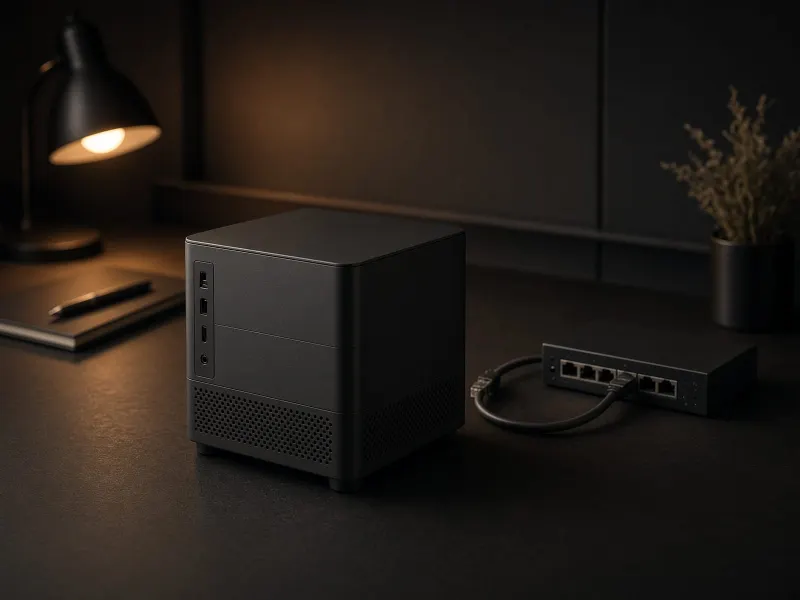
This project runs best on an always-on machine with reliable storage. A Mac Mini is excellent here because it is quiet and efficient. A GPU box works too, but it is overkill unless you also need heavy image, batch, or large-model workloads.
| Item | Why it helps | Priority |
|---|---|---|
| Mac Mini or always-on PC | Keeps the automation available without tying up your main laptop. | High if this runs daily |
| 2TB+ external SSD | Stores source files, summaries, models, and future datasets cleanly. | High |
| UPS battery backup | Protects always-on jobs and prevents interrupted long runs. | Medium |
| GPU tower | Useful only when the automation expands into image or VRAM-heavy jobs. | Later |
Quiet machine guide
If this automation will run every day, the Mac Mini is the cleanest always-on starting point.
Upgrade path
Once the basic folder workflow works, upgrade it in this order: add a queue, log every run, add a dashboard, then add routing by file type. Only after that should you consider agents, multi-step planning, or bigger hardware.
Add next
- Run log with model, prompt version, filename, and status.
- Queue state: waiting, running, done, failed.
- Manual retry button for failed files.
- Searchable output folder or note app sync.
Delay until later
- Autonomous agents.
- Multi-model routing.
- GPU buying.
- Complex dashboards before the summaries are useful.
Local AI automation FAQ
What is the best first local AI automation project?
The best first project is a folder workflow: drop text files, transcripts, or notes into an input folder, run a local model, and save clean Markdown summaries into an output folder. It is simple, private, repeatable, and useful immediately.
Do I need a GPU for local AI automation?
No. Many useful text automations can run on a Mac Mini or ordinary PC with a small local model. A GPU becomes useful when the automation depends on image generation, larger local models, batching, or VRAM-heavy workflows.
Should I use Ollama or LM Studio for automation?
Use Ollama when you want scripts, local APIs, and repeatable background workflows. Use LM Studio when you want to test models visually first or prefer a desktop chat workflow before automating.
How do I know this local AI automation is working well?
A good first automation should produce consistent Markdown, preserve the source filename, handle errors without losing files, and create useful output at least several times before you add dashboards, queues, or more hardware.
Final advice
Do not start automation with agents. Start with a repeatable file workflow. Once it works every time, add queues, dashboards, scheduling, and more ambitious routing. The first win is not intelligence; it is reliability.