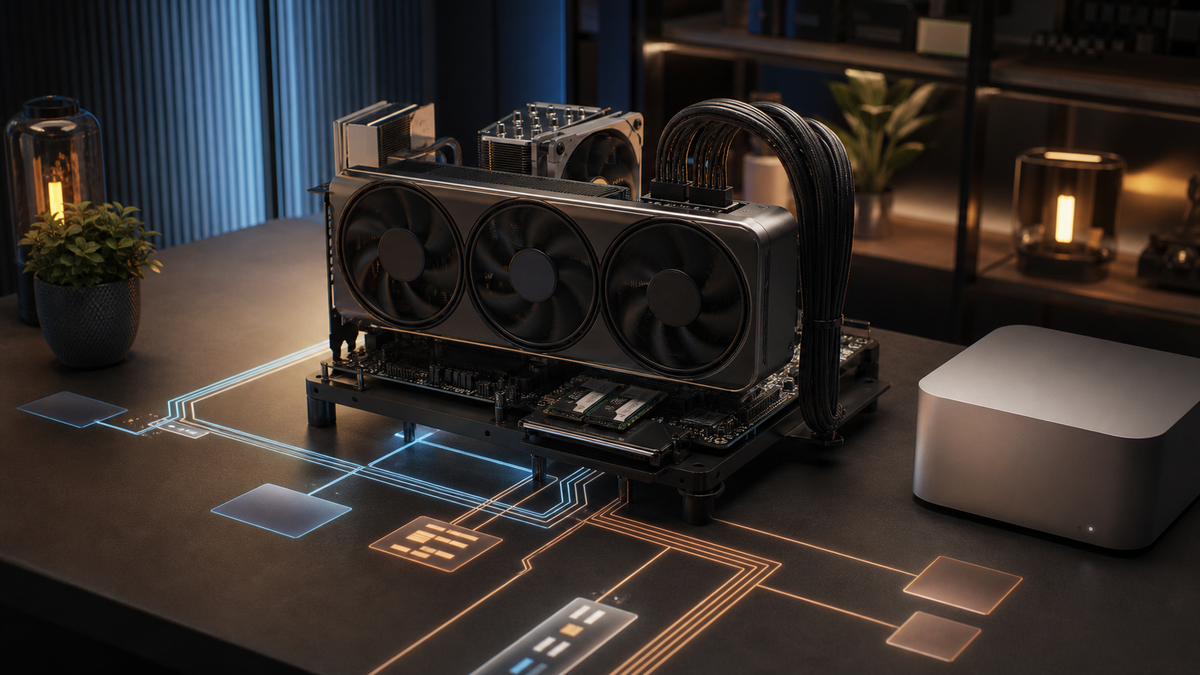
The easiest way to waste money on a local AI build is to buy the GPU too small. The second easiest way is quieter: turning the CPU, motherboard, and platform into a trophy build when the RTX card is the part doing the hard work.
That does not mean the CPU is irrelevant. A bad platform can make an expensive GPU build feel annoying every day. It can limit storage, starve expansion slots, run hot, make remote use flaky, or leave you with no clean upgrade path. But most home-lab AI builders do not need to chase the fastest gaming CPU just because they are buying a serious graphics card.
This guide is researched buying guidance, not a TokenByte benchmark report. TokenByte has not measured every CPU below in a controlled lab. The practical message is simple: for one RTX 3090, 4090, 5090, or similar local AI box, spend first on VRAM, cooling, power, RAM, storage, and a sane motherboard. Buy a strong enough CPU. Do not let the CPU budget eat the GPU budget.
Affiliate disclosure: TokenByte may earn a commission when you buy through links on this site. That never changes the price you pay, and it does not change the recommendation: buy the platform that supports the workload, not the most expensive platform that looks good in a spec table.
What the CPU actually does in a local AI box
In a typical RTX home-lab build, the CPU handles the boring but important work around the model. It runs the operating system, Python, web servers, Docker, browser sessions, model downloads, file indexing, image previews, decompression, background services, remote access, and whatever else you forgot was open.
The GPU handles the part people usually care about most: the heavy tensor work for ComfyUI, CUDA-backed local models, image generation, and many accelerated inference workloads. That is why an RTX 4090 or RTX 5090 class build should not be judged like a pure CPU workstation.
The official NVIDIA pages are a reminder of where the money is going. NVIDIA lists the RTX 4090 with 24GB of GDDR6X memory and the RTX 5090 with 32GB of GDDR7 memory. For local image workflows, that memory pool often changes the experience more than moving from a good midrange CPU to a flagship CPU.
If you are still choosing the GPU tier, start with the TokenByte build picker and the ComfyUI GPU guide. The CPU decision should support that choice, not reverse it.
The short version
For a one-GPU RTX local AI box, a current 6-core or 8-core desktop CPU is usually the sensible floor. It is enough for the OS, ComfyUI, Ollama-side tasks, file movement, light preprocessing, and remote access without turning the build into a furnace.
An 8-core to 12-core CPU is the comfortable middle. This is where I would land for a machine that runs ComfyUI, Ollama, Open WebUI, containers, downloads, and storage jobs without constant babysitting.
A 16-core CPU can make sense if the box also does CPU-heavy work: compiling, video transcodes, dataset prep, many containers, several users, heavy background automation, or CPU inference on purpose. AMD's Ryzen 9 9950X page, for example, lists a 16-core, 32-thread desktop part on the AM5 platform. That can be useful, but it is not automatically better for a GPU-bound ComfyUI session than a cheaper platform with the same GPU and enough RAM.
Threadripper, Xeon, EPYC, and workstation platforms are specialist buys for most TokenByte readers. They can be excellent when you need many PCIe slots, multiple GPUs, large memory capacity, capture cards, high-speed NICs, and serious storage. They are overkill if the plan is one consumer RTX card, two NVMe drives, and a web UI.
Do not confuse local AI with a gaming CPU race
Gaming CPU reviews are useful, but they can mislead local AI builders. Games often care about frame pacing, cache behavior, high boost clocks, and a fast path between CPU and GPU. Local AI tools can care about those things too, but not in the same way.
A ComfyUI workflow that is waiting on a large model step is usually not rescued by the world's fastest gaming CPU. A local LLM running on the GPU is usually constrained by model size, quantization, memory bandwidth, and GPU memory before it cares about a few more CPU frames per second. A file server feeding model weights is often happier with good storage and networking than with another premium CPU tier.
There are exceptions. CPU can matter when you are doing heavy preprocessing, batch file conversion, video work, CPU-only inference, large archive extraction, compilation, or many simultaneous services. It also matters when the machine is used as a general workstation. But for a dedicated RTX local AI appliance, the CPU should be balanced, not worshiped.
Put the extra money where it changes daily use:
- More VRAM on the GPU.
- More system RAM if you run several tools at once.
- Better cooling and quieter fans.
- A reliable power supply with the right connector plan.
- NVMe storage that can hold models without constant cleanup.
- A motherboard with slots and networking you will actually use.
That is less glamorous than a flagship CPU badge. It is also usually a better local AI box.
PCIe lanes matter, but not the way people panic about them
PCIe is where the platform conversation becomes useful. A single high-end GPU wants a proper physical x16 slot, good case clearance, strong slot support, and enough room for power cables. That part is obvious. The subtler question is what happens after the GPU is installed.
Do you still have room for two NVMe drives? Can you add a 10GbE card later? Does the second M.2 slot steal lanes from the GPU on that specific board? Does the case let a four-slot card breathe? Does the motherboard put the main slot too close to the bottom of the chassis? These details are more important than chasing the most expensive chipset.
For one GPU, mainstream desktop platforms are usually fine if you choose the board carefully. You are not trying to build a four-GPU training server. You are trying to give one large RTX card a stable home with enough storage and networking around it.
Read the motherboard manual before buying. Not the marketing page. The manual. Look for the lane-sharing table, M.2 slot behavior, PCIe slot electrical modes, clearances, BIOS update process, and whether using certain slots disables others.
This is where a slightly more expensive motherboard can be worth it. Not because it adds RGB or a louder product name, but because it gives you clean slot layout, better VRM cooling, more usable M.2 placement, 2.5GbE or 10GbE networking, BIOS flashback, and fewer surprises.
RAM is the platform part people underbuy
VRAM is the first limit for many ComfyUI and local image workflows, but system RAM still matters. It holds the operating system, Python environment, browser, containers, model downloads, decompression tasks, file caches, and CPU fallback work when the GPU is tight.
ComfyUI's current command-line source includes memory-related options such as low-VRAM modes, CPU VAE options, and FP8-related flags. These are helpful, but they can shift pressure onto the rest of the machine. If your GPU is cramped and your system RAM is also cramped, every workaround feels worse.
For a fresh RTX local AI build, 32GB of system RAM is the realistic floor. It can work for a focused one-user box, especially if you are disciplined about what runs at the same time.
Sixty-four gigabytes is the comfortable recommendation for many home-lab builders. It gives you room for ComfyUI, a browser, Ollama or Open WebUI experiments, Docker, model downloads, and normal OS background tasks without turning every session into memory management.
One hundred twenty-eight gigabytes is for heavier users: large CPU-side preprocessing, multiple users, many containers, big datasets, virtual machines, or a box that doubles as a general workstation. It is useful when the workload exists. It is wasted if you only bought it because the motherboard had four slots.
The Mac Mini local AI guide is relevant here even if you are building a PC. It explains a useful mental model: keep the front-end machine pleasant, and let the GPU box do the heavy local AI work. The platform should serve the workflow, not become the workflow.
Storage beats CPU more often than people expect
Local AI feels bad when storage is treated as an afterthought. Models are large. Checkpoints multiply. Output folders grow without permission. Docker layers, Python environments, Hugging Face caches, LoRAs, upscalers, and datasets all compete for space.
A faster CPU will not fix a tiny system drive that is always full. A premium CPU will not make an awkward storage layout pleasant. A build with one small NVMe drive can become irritating faster than a build with a modest CPU and a clean two-drive plan.
For a practical RTX local AI box, I like this layout:
- A 1TB or 2TB NVMe boot and applications drive.
- A separate 2TB to 4TB NVMe model and active project drive.
- Optional NAS or external storage for archive, backup, and less-used models.
That separation makes cleanup easier. It also reduces the chance that a model-download spree breaks the OS drive. If you plan to use a NAS, keep active workflows local when speed matters, then sync or archive finished assets elsewhere.
The recommended gear page is a better place to think about storage, drives, and accessories than trying to solve everything from the CPU spec sheet.
When a bigger CPU is actually worth it
There are real reasons to buy more CPU. The trick is naming them before checkout.
Buy more CPU if the box will compile software often, transcode video, run many containers, host several users, process datasets, run local databases, serve as a workstation, or do CPU inference intentionally. Buy more CPU if you use the system for creative apps that have CPU-heavy stages. Buy more CPU if uptime and multitasking matter more than the last few dollars.
Also buy more platform if you need expansion. A 10GbE NIC, capture card, HBA, extra NVMe adapter, and one oversized GPU can make a mainstream board feel crowded. At that point the issue is not "AI needs Threadripper." The issue is "this build needs more lanes and slots."
What you should avoid is buying the biggest CPU because the GPU is big. A 32GB RTX 5090 class card does not automatically require a flagship desktop CPU for ComfyUI. A used 24GB RTX 3090 build does not become better because you paired it with an expensive processor and then cheaped out on the power supply, RAM, case, and storage.
If you care about repeatable testing, document the full platform. The TokenByte how-we-test page is a good reminder that useful benchmark data needs context: GPU, driver, OS, model, quant, settings, storage, power behavior, and thermals.
Monitoring is part of the platform
A local AI box should tell you what it is doing. NVIDIA's System Management Interface documentation covers nvidia-smi, the standard tool many builders use to inspect GPU utilization, memory use, power, temperature, and related device state. That belongs in your normal operating routine.
CPU monitoring matters too. Watch temperatures, fan behavior, power draw, RAM use, disk space, and network throughput. You do not need an enterprise dashboard on day one, but you do need enough visibility to answer simple questions:
- Is the GPU actually busy?
- Is VRAM full?
- Is the CPU pegged for a real reason?
- Is the model drive nearly full?
- Is the box thermal throttling?
- Is another service sitting on the GPU?
Without monitoring, people blame the wrong part. They upgrade the CPU when the model drive is full. They blame ComfyUI when another service is holding VRAM. They blame the network when the storage layout is the bottleneck.
Three good platform targets
The budget target is a 6-core or 8-core CPU, 32GB to 64GB of RAM, one large RTX card, two NVMe drives if possible, and a motherboard with a clean x16 slot layout. This is the right answer for many first serious builds, especially if the GPU gets the budget priority.
The comfortable target is an 8-core to 12-core CPU, 64GB of RAM, a better motherboard, 2.5GbE or 10GbE networking depending on your storage plan, and a power/case layout built around the GPU rather than around aesthetics. This is the setup I would choose for a daily ComfyUI and local LLM box.
The expansion target is a 16-core CPU or workstation-class platform, 128GB or more RAM, several NVMe drives, high-speed networking, and enough slots for future cards. This makes sense when the box is more than a one-GPU AI appliance. It does not make sense just because the internet made mainstream hardware feel boring.
The buying rule
Start with the GPU and workload. Then buy the platform that lets that GPU run cleanly.
If the choice is between a better CPU and more VRAM, choose VRAM for a ComfyUI-first image box. If the choice is between a flagship CPU and a quieter case plus better power supply, take the quieter, more reliable build. If the choice is between a showy motherboard and a board whose manual proves the slots and M.2 layout fit your plan, choose the boring manual.
The best local AI platform is not the one with the loudest spec sheet. It is the one that disappears while you use the GPU.
For most TokenByte readers, that means a balanced desktop CPU, 64GB of RAM if the budget allows, fast local NVMe storage, a motherboard with honest expansion, and the largest practical GPU memory pool you can justify. Build that first. Upgrade the CPU only when your own workload proves it is the part holding you back.