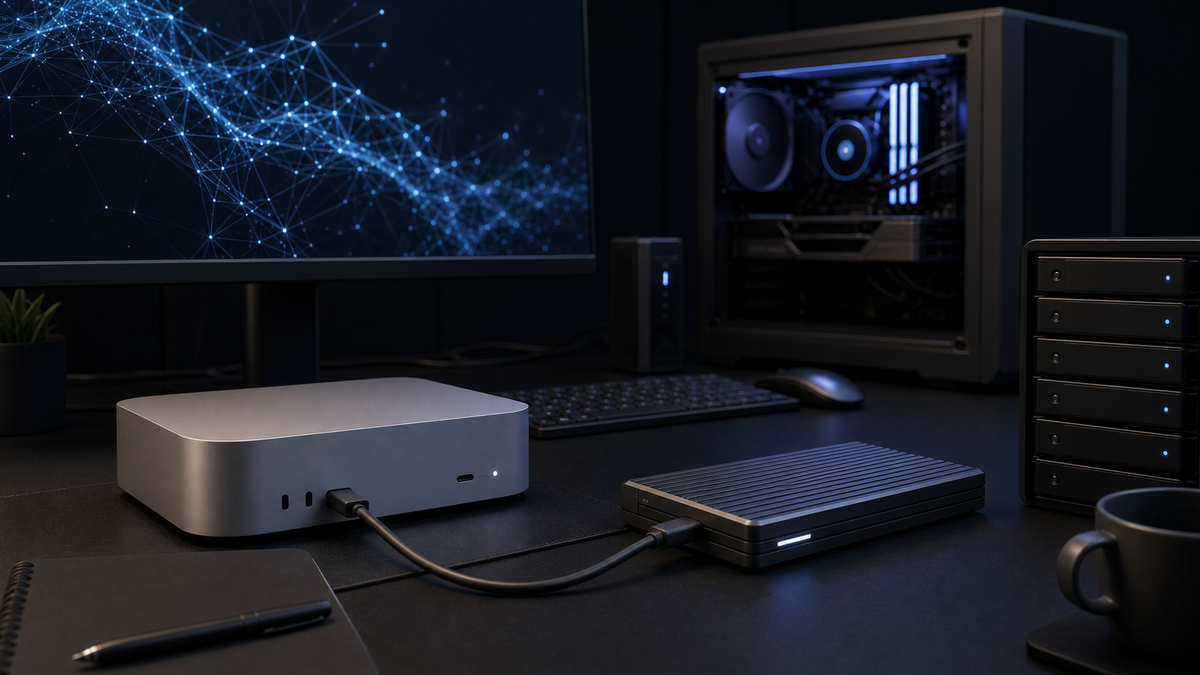
Most local AI storage advice is too vague. It says “buy a fast SSD,” then leaves you to guess whether that means a $100 portable drive, a Thunderbolt enclosure, a Gen5 NVMe stick, or a small NAS that now sounds suspiciously like a second hobby.
The better question is narrower: where does storage actually slow down a home-lab AI workflow?
For TokenByte readers, the answer is usually not “everywhere.” Your SSD is not going to make a model think faster once it is loaded into RAM or VRAM. It will not turn an 8GB GPU into a 24GB GPU. It will not fix a messy ComfyUI graph. But storage absolutely matters when you are juggling model files, checkpoints, LoRAs, upscalers, datasets, output folders, benchmark notes, and backups across a Mac Mini, a GPU workstation, and maybe a future GB10-style desktop AI box.
Affiliate disclosure: TokenByte may earn from gear links when they are added. The recommendations below are based on workload fit, interface limits, upgrade order, and reasons not to overspend.
The Fast Verdict
For most local AI labs, buy storage in this order:
- A reliable 2TB or 4TB model drive before a tiny “fast” drive.
- USB 20Gbps or Thunderbolt 3/4 storage for normal model libraries, Ollama, LM Studio, and ComfyUI assets.
- Thunderbolt 5 only if your machine supports it and your workflow really moves large files often.
- Internal NVMe first for a dedicated GPU workstation, especially if you are building the machine anyway.
- A NAS later, when backup and sharing matter more than raw launch speed.
If your first local AI setup is a Mac Mini, an external SSD is one of the most useful early upgrades. If your first setup is a desktop GPU workstation, internal NVMe usually gives better value and cleaner cable management. If you are still deciding which kind of build you need, start with the TokenByte local AI build picker.
What The Drive Actually Does
A local AI model drive has four jobs:
- Keep model files in one predictable place.
- Load large checkpoints, GGUF files, LoRAs, VAEs, upscalers, and workflow assets without painful waiting.
- Absorb output folders that grow faster than expected.
- Make backup and migration less annoying when you change machines.
That last point is underrated. A good external model drive lets you move from a Mac Mini to a GPU tower without rebuilding your file structure from scratch. It also keeps the boot drive from becoming a junk drawer of half-tested models.
What it does not do: increase tokens per second after a local LLM is loaded, or increase ComfyUI generation speed after the checkpoint and workflow are in memory. CPU, GPU, VRAM, unified memory, quantization, model size, and workflow complexity matter more there.
Interface Speeds: The Practical Translation
Here is the plain-English version.
USB 10Gbps portable SSDs are fine for basic storage, documents, outputs, and smaller model libraries. They are not the first choice if you move huge model folders every day.
USB 20Gbps portable SSDs are a good practical middle. Samsung lists the Portable SSD T9 at up to 2,000 MB/s sequential read/write under its advertised conditions, which is enough for most local AI asset libraries and day-to-day ComfyUI work.
Thunderbolt 3 and Thunderbolt 4 drives are still very usable for a Mac Mini local AI desk. They are typically fast enough that your next bottleneck is model size, memory, VRAM, or workflow design, not the cable.
Thunderbolt 5 is the new high-end option. Intel describes Thunderbolt 5 as providing 80Gbps bi-directional bandwidth, with Bandwidth Boost up to 120Gbps for display-heavy scenarios. Apple’s current Mac mini technical specs also separate the ports by chip: the M4 Mac mini lists Thunderbolt 4, while the M4 Pro Mac mini lists Thunderbolt 5.
That matters because a Thunderbolt 5 SSD only pays off when the host supports it. Plugging a premium Thunderbolt 5 drive into a slower port does not magically give you Thunderbolt 5 results.
When Thunderbolt 5 Makes Sense
Thunderbolt 5 makes sense if you can say yes to most of these:
- You own or plan to buy a machine with Thunderbolt 5 ports.
- You move large model libraries, datasets, video, or project folders often.
- You want one premium portable drive that can move between a Mac Mini desk and a higher-end workstation.
- You care about waiting less during file copies, migrations, backups, and asset organization.
- The extra cost does not steal budget from RAM, VRAM, or a better GPU.
OWC’s Envoy Ultra is a good example of the class: it launched as a Thunderbolt 5 portable SSD with claimed real-world speeds over 6,000 MB/s, in 2TB and 4TB capacities. That is serious external-drive performance. It is also overkill for a lot of starter labs.
The question is not whether Thunderbolt 5 is fast. It is. The question is whether your local AI workflow is storage-transfer limited often enough to deserve the money.
When A Cheaper USB SSD Is Enough
A good USB 20Gbps SSD is enough when your workflow looks like this:
- You run Ollama or LM Studio and keep a few local model files.
- You use ComfyUI casually and do not maintain a giant checkpoint library yet.
- You mostly need a clean place for models, outputs, and project folders.
- You are on a base Mac Mini with Thunderbolt 4, not an M4 Pro model with Thunderbolt 5.
- You would rather spend the savings on more capacity.
Capacity matters more than peak speed for beginners. A small ultra-fast drive fills up quickly once you start downloading image models, LoRAs, upscalers, GGUF variants, test outputs, and workflow exports.
For a first model drive, 2TB is the floor I would consider. 4TB is the comfort pick if you plan to use ComfyUI seriously. 1TB looks cheaper until the model folder starts making decisions for you.
Internal NVMe Still Wins In A GPU Workstation
If you are building a desktop GPU workstation, do not ignore internal NVMe.
Samsung lists the 990 PRO at up to 7,450 MB/s sequential read and 6,900 MB/s sequential write, depending on capacity and test conditions. Crucial’s T705 Gen5 NVMe line pushes much higher on compatible PCIe 5.0 systems; Crucial lists up to 14,500 MB/s sequential read on the 2TB T705 variant.
Those numbers are not a promise that ComfyUI generations will suddenly double. They are a reminder that, inside a desktop, internal storage is usually cleaner, faster, and cheaper per performance tier than premium external storage.
For a GPU workstation, I would rather see:
- 1TB or 2TB boot/app NVMe.
- 2TB or 4TB internal model/project NVMe.
- External SSD for backups, transfers, and portable project work.
That gives you speed where it matters and portability where it helps.
If your storage decision is tied to GPU choice, read the TokenByte ComfyUI GPU guide before buying the drive. VRAM limits will often shape the workflow more than SSD speed.
A Simple Buying Matrix
| Setup | Best first storage move | Why |
|---|---|---|
| Base Mac Mini local AI desk | 2TB or 4TB USB 20Gbps / Thunderbolt 4 SSD | Clean model library without overspending |
| M4 Pro Mac Mini | Thunderbolt 4 or Thunderbolt 5 SSD, depending on budget | Thunderbolt 5 support makes premium drives more defensible |
| GPU workstation | Internal NVMe model drive first | Better fit for fixed desktop workloads |
| ComfyUI-heavy lab | 4TB model/output drive | Checkpoints, LoRAs, previews, and outputs grow quickly |
| Ollama / LM Studio lab | 2TB model drive | Enough room for multiple GGUF models and notes |
| Multi-machine home lab | External SSD plus later NAS backup | Portability first, shared storage later |
The Folder Structure Matters More Than The Box
The fastest SSD in the world will not save a chaotic model library.
Use a boring structure:
AI-Lab/
  models/
    llm/
    comfyui-checkpoints/
    loras/
    vae/
    upscalers/
  workflows/
    comfyui/
  outputs/
    comfyui/
    benchmarks/
  datasets/
  notes/
  backups/
Then write down what each folder is for. This sounds obvious until you have five copies of the same model with slightly different names and no idea which one your workflow used.
For ComfyUI, keep exported workflows with the outputs they produced. For local LLM testing, keep model name, quantization, machine, memory/VRAM notes, and the prompt used. That is the difference between a useful home lab and a folder full of mystery files.
TokenByte’s How We Test page is the model here: repeatable notes beat impressive screenshots.
What I Would Buy First
For most readers starting today:
- Mac Mini or quiet starter lab: a reliable 2TB or 4TB external SSD before premium Thunderbolt 5.
- Serious ComfyUI user: 4TB capacity first, then interface speed.
- Desktop GPU builder: internal NVMe model drive first, external SSD second.
- M4 Pro Mac Mini owner with budget: Thunderbolt 5 is worth considering, but only after RAM/storage capacity are already handled.
- Multi-machine lab: portable SSD now, NAS later.
The mistake is buying the fastest external SSD because it feels like the “AI” choice. The practical move is buying the drive that keeps your models organized, your boot disk clean, and your next machine migration painless.
Bottom Line
External SSDs matter for local AI, but not in the simplistic way most buying guides imply.
Buy enough capacity. Match the interface to the machine you actually own. Do not pay for Thunderbolt 5 unless your host and workflow can use it. Keep a sane folder structure. Back up the models and workflows you cannot easily recreate.
That is the storage layer a practical local AI lab needs: not exotic, not glamorous, but fast enough that the work stays moving.
Next reads: