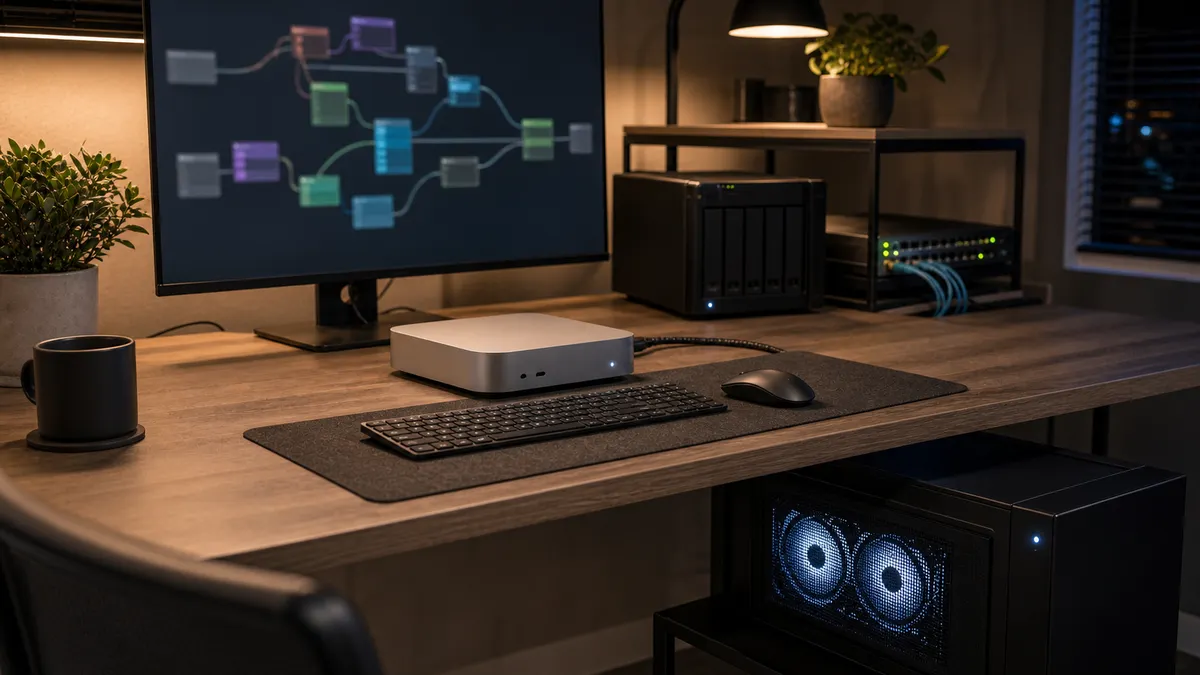
The cleanest local AI desk is often two machines, not one heroic machine doing everything.
Let the Mac Mini stay quiet, small, and pleasant to use. Let the GPU workstation do the hot, loud, power-hungry work. Open ComfyUI from the Mac, queue the job on the GPU box, keep the models organized, and avoid turning the desk into a nest of adapters, random remote-desktop sessions, and mystery network shares.
That is the promise of a headless ComfyUI box. It is also easy to make annoying.
If the GPU machine is hard to wake, hard to update, hard to reach, or hard to shut down safely, you have not simplified the lab. You have built a second computer that needs babysitting.
Affiliate disclosure: TokenByte may earn a commission when you buy through future retail links, at no extra cost to you. This guide is based on current public documentation and practical planning, not sponsored testing or TokenByte hands-on benchmark results.
If you are still deciding what to buy first, pair this with TokenByte's local AI build picker, ComfyUI GPU guide, Mac Mini local AI guide, recommended gear page, and how we test notes. A headless GPU box is a system design choice, not just a GPU purchase.
The setup in one sentence
Use the Mac Mini as the daily driver and control surface, then run ComfyUI on a wired GPU workstation that you reach through a private LAN or private overlay network.
That sounds simple because it should be simple.
The practical version looks like this:
| Role | Recommended job |
|---|---|
| Mac Mini | Browser, prompt writing, file review, light local LLM work, automation, SSH |
| GPU workstation | ComfyUI, CUDA workloads, image/video generation, batch jobs |
| NAS or shared SSD | Model archive, workflow backups, finished output archive |
| Local NVMe in GPU box | Active ComfyUI install, active models, scratch/output folders |
| Private network access | Tailscale, VPN, LAN-only access, or an authenticated tunnel |
The important word is "private." Do not casually publish a ComfyUI instance to the open internet because you want to check a render from the couch. Treat every local AI web UI like a tool that can touch files, run custom nodes, and burn GPU time.
Why not just run everything on the Mac Mini?
Sometimes you should.
Apple's current Mac Mini line is unusually good for quiet local AI experiments, especially if your work is text-heavy, automation-heavy, or you care about a small always-on machine. Apple's specs also make the port split clear: the M4 Mac Mini has Thunderbolt 4, while the M4 Pro model has Thunderbolt 5, and 10Gb Ethernet is configurable.
That makes the Mac Mini a strong control machine for a home lab. It is small, quiet, power-efficient for light work, and pleasant on a desk.
But ComfyUI is often a different kind of workload. Image generation, upscaling, video workflows, ControlNet stacks, and large model experiments can be constrained by VRAM and GPU throughput. ComfyUI's manual installation documentation still points NVIDIA users toward the PyTorch CUDA path, which is exactly where a desktop RTX workstation is the boring, well-traveled option.
Ollama's GPU documentation also keeps NVIDIA support on the mainstream path for many local LLM workflows. The point is not that every reader needs CUDA. The point is that the GPU box should run the workloads that actually benefit from it, while the Mac Mini remains the machine you enjoy using.
When a headless GPU box makes sense
Build the second machine only when it solves a real bottleneck.
It makes sense when:
- your ComfyUI workflows are too slow or too memory-limited on the Mac
- you want a 24GB or 32GB VRAM class GPU without making the desk machine huge
- the GPU rig is too loud or hot to sit next to your keyboard
- you want the Mac Mini to stay stable while the GPU box runs long jobs
- you already have a wired network path between the machines
- you are comfortable with SSH, updates, and basic remote troubleshooting
It does not make sense when:
- you have not proven a workflow yet
- you mostly run small local LLMs and simple automations
- you need a single plug-and-play computer
- the second machine would live on Wi-Fi
- you would have no reliable way to access the machine if the UI fails
- the cost steals budget from storage, RAM, backup, or power protection
The headless setup is a multiplier for a workflow that already matters. It is not a cure for not knowing what you want to run.
The GPU box should be boring
Do not build the headless machine like a showpiece. Build it like a small workstation that happens to sit in a closet, under a desk, or on a shelf.
Prioritize:
- a case with clear airflow
- a quality power supply with native GPU cables
- enough local NVMe storage for active models and outputs
- wired Ethernet
- a motherboard that can recover cleanly after power loss
- fan curves that are stable under long loads
- physical access without taking apart half the room
NVIDIA's current RTX 5090 Founders Edition specs list 32GB of GDDR7 and 575W total graphics power. You do not need a 5090 to follow this guide, but that number is a useful reminder: modern high-end GPUs are serious power and heat devices. Even older 24GB-class cards deserve real airflow and a real PSU.
If your GPU machine is under a desk, leave room for exhaust. If it is in a closet, measure heat, not vibes. A quiet idle computer can become a space heater during an all-night upscale queue.
Use wired networking first
A headless ComfyUI box should be wired.
Gigabit Ethernet is workable for basic control and smaller file movement. 2.5GbE feels better if you move model files and outputs regularly. 10GbE is the cleanest path if the GPU box, Mac Mini, and NAS are all part of the same serious local AI desk.
The Mac Mini's configurable 10Gb Ethernet option matters here. If you are buying a Mac Mini specifically as a long-term local AI control node, that upgrade can be more practical than another premium cable or dock.
The goal is not to chase network speed for its own sake. The goal is to remove friction:
- ComfyUI opens quickly in the browser
- output folders copy without drama
- shared models do not feel painfully remote
- SSH stays responsive
- backups do not clog the whole desk
Wi-Fi is fine for reading the finished image on a laptop. It should not be the backbone of the GPU workstation.
How to reach ComfyUI safely
The simplest safe version is LAN-only access.
Run ComfyUI on the GPU box, bind it to the local network only when you need another machine to reach it, and open it from the Mac Mini's browser using the GPU box's LAN address. Keep the machine behind your router and do not forward the port to the internet.
A typical pattern looks like this:
Mac Mini browser -> http://gpu-box.local:8188
GPU box -> ComfyUI process
Router/firewall -> no public port forward
If you need access away from home, use a private access layer instead of a public hole. Tailscale's quickstart documents a private mesh-network style setup across devices. Cloudflare Tunnel's documentation covers publishing a local service through Cloudflare's connector model. Those are different tools with different account and policy models, but both are better starting points than "open a port and hope."
For most home labs, Tailscale is the simpler first answer. It behaves like a private network for your own devices. Cloudflare Tunnel becomes more interesting when you want identity-aware access, a managed hostname, or a more formal access policy.
Either way, require authentication. Do not assume "the URL is obscure" is security.
Keep remote desktop as a fallback, not the workflow
Remote desktop is useful for setup, driver updates, and occasional troubleshooting. It should not be the primary way you use ComfyUI every day.
Daily use should be:
- Wake or power on the GPU box.
- Confirm it is online from the Mac Mini.
- Open ComfyUI in the browser.
- Queue work.
- Save outputs to a predictable folder.
- Shut down or let it idle according to your plan.
If every generation starts with "remote into the GPU box, drag windows around, fix display scaling, then find the browser," the system is fighting you.
Keep an emergency path:
- SSH for terminal access
- remote desktop for GUI maintenance
- a cheap HDMI dummy plug only if the GPU/OS truly needs it
- a local keyboard/monitor option for bad updates
- written notes for IP address, machine name, and admin account recovery
Headless does not mean inaccessible. It means the normal workflow does not require sitting at that machine.
Store active work locally, archive shared work
The GPU box should have a fast local NVMe drive for active ComfyUI work. Put the install, custom nodes, active model set, temp files, and current output folder there unless you have deliberately built a very fast shared-storage setup.
Use shared storage for:
- model archive
- workflow backups
- final outputs
- prompt notes
- benchmark logs
- installers and driver notes
Do not make every temporary file cross the network just because a NAS exists. TokenByte's NAS model-library guidance applies here too: the NAS is the library shelf, not the GPU's desk.
A sane folder split:
GPU box local NVMe:
  /ai-active/comfyui/
  /ai-active/models-in-use/
  /ai-active/outputs-current/

NAS or shared storage:
  /ai-library/models/
  /ai-library/workflows/
  /ai-library/outputs-archive/
  /ai-library/benchmarks/
  /ai-library/setup-notes/
The Mac Mini can browse the archive, review outputs, and manage notes without pretending it is the render machine.
Automate only the boring parts
A headless ComfyUI setup invites over-automation. Resist that until the basics are stable.
Good first automations:
- start ComfyUI on boot
- mount the shared model/archive folder
- sync finished outputs to the archive
- write a daily log of GPU uptime and errors
- send a notification when a long queue finishes
- shut down the GPU box after idle time
Bad first automations:
- auto-update every custom node without review
- expose the UI publicly during startup
- delete outputs based on fragile filename rules
- move model files while ComfyUI is running
- run random workflow JSON from untrusted sources
The useful automation is boring. It removes repeated clicks without hiding important state.
The shutdown question matters
Decide whether the GPU box is always-on, scheduled, or manual.
Always-on is convenient but costs power, adds heat, and increases the importance of updates and monitoring. Scheduled power is tidy if you mostly work at predictable times. Manual power is safest for occasional use but annoying if the machine is tucked away.
If you run long queues overnight, pair the machine with a UPS and a shutdown plan. A local AI box writing outputs, loading models, or using a NAS share should not be surprised by power loss if you can avoid it.
Also check the BIOS options before the machine goes into its final spot:
- restore after power loss
- wake-on-LAN support
- fan behavior after boot
- boot without keyboard
- boot without monitor
- virtualization settings if you need containers later
These are boring settings until the machine is on a shelf and you realize it needs a keyboard to continue after an update.
A practical buying map
For a Mac Mini plus used GPU box:
- Mac Mini with enough memory for daily work
- wired Ethernet, ideally 2.5GbE or 10GbE where practical
- used 24GB-class NVIDIA card only after inspection
- roomy airflow case
- quality PSU
- 2TB or 4TB local NVMe for active models and outputs
- NAS or external SSD for archive and backup
For a premium current-generation GPU box:
- verify power, cooling, and cable requirements before buying the card
- budget for the PSU and case as part of the GPU purchase
- keep the Mac Mini as control surface, not as an eGPU science project
- plan noise and heat placement before the parts arrive
For a quiet apartment setup:
- put the GPU box farther from the desk if the network allows it
- avoid tiny cases with high-end GPUs
- choose fanless or quiet network gear
- use scheduled power instead of always-on if heat matters
- archive outputs automatically so the GPU box does not become the only copy
The most affiliate-friendly answer would be "buy the biggest GPU and the fastest switch." The useful answer is narrower: buy the parts that make the two-machine workflow reliable.
The setup I would build first
For most TokenByte readers who already own or want a Mac Mini, I would start here:
- Mac Mini as the daily computer, browser, notes, automation, and light local model machine.
- Wired GPU workstation with a 24GB-class NVIDIA card if ComfyUI is the real workload.
- 2TB or 4TB local NVMe in the GPU box for active ComfyUI work.
- Shared NAS or external SSD archive for models, workflows, and finished outputs.
- Tailscale for private away-from-home access, or LAN-only access if remote use is unnecessary.
- No public port forwarding for ComfyUI.
- UPS and shutdown plan if the GPU box runs long jobs.
- Written setup notes before the first time something breaks.
That build is not flashy. That is the point. The Mac Mini remains the pleasant machine. The GPU workstation becomes a reachable appliance. ComfyUI feels like a service on your lab network, not a second desktop you keep fighting.
The best headless box disappears from the workflow until it is time to do the work only it can do.
Found something that needs correcting? Tell the editor. Research, estimates, and hands-on measurements should be identified in the article. Read our affiliate disclosure.