The most expensive part of a local AI setup is not always the GPU.
Sometimes it is the weird little pile of things you would not know how to recreate on a bad Saturday: the ComfyUI workflow that finally stopped throwing node errors, the LoRA folder you cleaned up by hand, the model notes that explain which checkpoint is actually worth keeping, the Ollama Modelfile you tuned for your assistant, and the output folder you never moved off the scratch drive.
Model files are big. Local AI folders get messy. That combination leads people to make one of two mistakes.
They either back up nothing because the folder is too large, or they back up everything with no restore plan and call it done.
Neither is good enough for a home lab you actually rely on.
Affiliate disclosure: TokenByte may earn a commission when you buy through future retail links, at no extra cost to you. This guide is based on current public documentation and practical planning, not sponsored testing or TokenByte hands-on benchmark results.
If you are still shaping the lab, pair this with TokenByte's local AI build picker, recommended gear, Mac Mini local AI guide, ComfyUI GPU guide, and how we test notes. Backup strategy changes what storage, NAS, UPS, and network gear are worth buying.
The rule: restore the lab, not the mess
A good local AI backup plan answers one question:
Could you rebuild the working setup on a new drive without guessing?
That does not mean every cache and duplicate checkpoint needs three copies. It means the important parts are protected, named, and tested.
For most TokenByte-style home labs, the important parts are:
| Data | Back up? | Why |
|---|---|---|
| ComfyUI workflows | Yes | They capture the work you actually built |
| ComfyUI custom node list and notes | Yes | Reinstalling blindly wastes time |
| Output selects | Yes | Finished work is usually smaller than raw scratch |
| Prompt notes and benchmark logs | Yes | These are hard to recreate |
| Ollama Modelfiles and app config | Yes | They define behavior, not just storage |
| Curated model list | Yes | It tells you what to re-download |
| Huge model blobs | Sometimes | Keep local copies only for models that are slow, rare, modified, or mission critical |
| Package caches | Usually no | They can often be rebuilt |
| Temp folders | No | They are not the lab |
The goal is not maximum hoarding. The goal is minimum pain after a drive failure.
Start with an inventory
Before buying another drive, write down where the lab actually stores things.
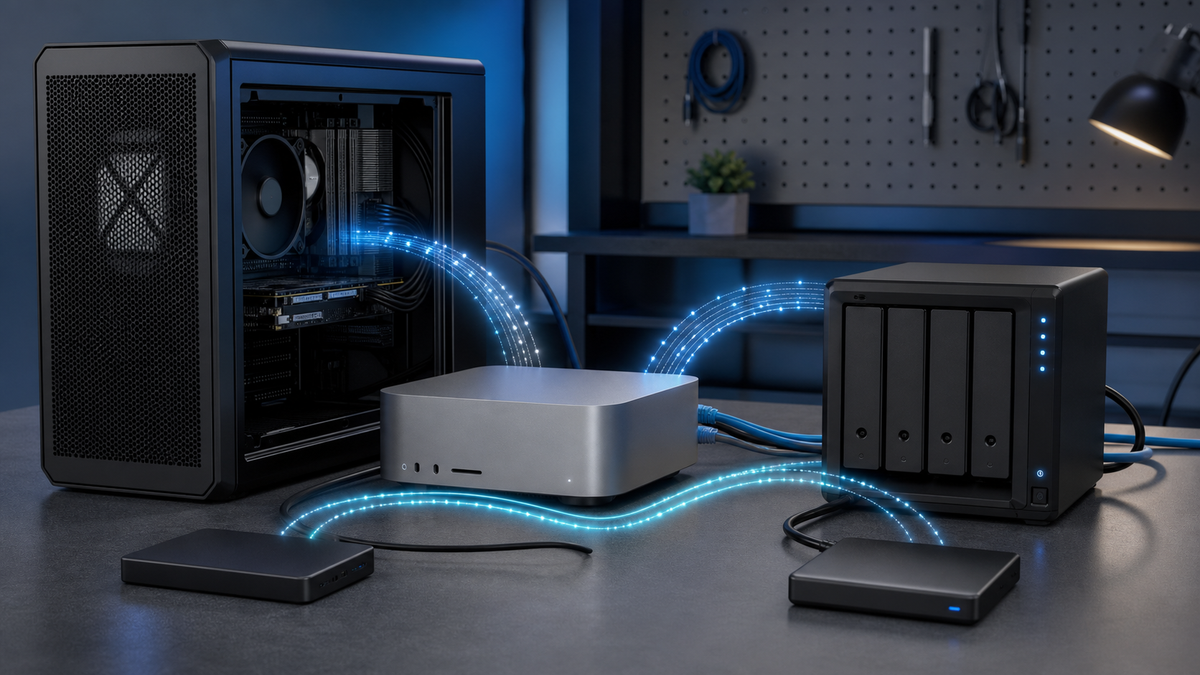
A Mac Mini plus GPU box plus NAS setup can have files spread across four places:
- the Mac Mini internal drive
- an external SSD attached to the Mac
- a GPU workstation's NVMe drive
- a NAS or shared storage folder
ComfyUI's manual installation flow places a working install wherever you clone or unpack it, and its model paths can be redirected with extra_model_paths.yaml. Ollama's FAQ documents model storage locations and the OLLAMA_MODELS environment variable for changing where models live. Hugging Face Hub has its own cache behavior, including cache directories for downloaded models and snapshots.
That means "back up my AI stuff" is not a single checkbox.
Make a plain text inventory like this:
Mac Mini:
  ~/ai-notes/
  ~/Documents/ComfyUI-workflows/
  /Volumes/AI-SSD/outputs-selects/

GPU workstation:
  /opt/ComfyUI/
  /ai-active/models-in-use/
  /ai-active/outputs-current/
  /etc/systemd/system/comfyui.service

NAS:
  /ai-library/models/
  /ai-library/workflows/
  /ai-library/outputs-archive/
  /ai-library/setup-notes/
This inventory is more valuable than it looks. It prevents the classic failure where the NAS is backed up beautifully, but the one service file that starts ComfyUI on the GPU box only lived on the boot drive that died.
Separate active storage from archive storage
Local AI storage works better when you stop treating every folder the same.
Active storage is where work is happening now. It should be fast, local, and easy to wipe after you move the good parts out.
Archive storage is where the useful results, setup notes, and curated model library live. It should be boring, redundant, and backed up.
A practical split:
| Folder | Storage role | Backup treatment |
|---|---|---|
ComfyUI/output/ | Active scratch | Back up selected outputs, not every throwaway batch |
ComfyUI/user/default/workflows/ or your workflow folder | Working IP | Back up frequently |
ComfyUI/custom_nodes/ | Rebuildable plus configuration | Back up a node list, lock notes, and any local changes |
models/checkpoints/ | Large model library | Back up curated keepers, track the rest by URL/name/hash |
| Ollama model store | Large model library | Back up only if re-download time or availability matters |
| Hugging Face cache | Rebuildable cache | Usually document instead of backing up wholesale |
| Setup notes | Recovery map | Back up everywhere |
This is where storage buying becomes less silly. A fast external SSD can be a scratch or active-project drive. A NAS can be the library and archive. Cloud backup can protect notes, workflows, scripts, and selected outputs without forcing you to upload terabytes of easily re-downloadable model blobs.
What to back up from ComfyUI
ComfyUI deserves special attention because the valuable bits are scattered.
Back up:
- workflow JSON files
- custom workflow templates
- prompt notes
- custom node list and install notes
- any local patches or scripts
- selected outputs
- model lists for checkpoints, LoRAs, ControlNet, VAE, upscale models, and embeddings
extra_model_paths.yamlif you use shared model folders
Do not assume the whole ComfyUI folder is equally important.
If you installed ComfyUI manually, the code itself can usually be cloned again. Python environments can often be rebuilt. Caches can be regenerated. The painful part is remembering exactly which custom nodes, model folders, and workflow versions were involved when the setup worked.
At minimum, keep a README-restore.md near the backup with:
ComfyUI restore notes
- OS:
- GPU:
- Python:
- CUDA/PyTorch install notes:
- ComfyUI install path:
- Model library path:
- extra_model_paths.yaml location:
- Custom node manager used:
- Known working workflow:
- Last restore test:
That file should be boring. Boring is what you want during recovery.
What to back up from Ollama and local LLM apps
Ollama can become invisible because it runs quietly in the background.
That is convenient until you forget where the models and app behavior live.
The Ollama FAQ documents default model storage paths for macOS, Linux, and Windows, and it documents OLLAMA_MODELS for changing the model location. If you moved the model store to an external drive or NAS-backed path, write that down.
Back up:
- Modelfiles you created
- assistant prompts and templates
- app configuration
- model names and tags you rely on
- scripts that call Ollama
- small evaluation prompts or test cases
Consider not backing up:
- every default model blob
- temporary chat history you do not need
- duplicate downloads across machines
For the big model files, decide case by case. If a model is public, common, and easy to re-download, a name plus version tag may be enough. If it is a fine-tune, a quant you created, a model that took days to fetch on your connection, or something your workflow depends on every week, keep a local backup.
Use 3-2-1 thinking without making it theatrical
The classic 3-2-1 backup idea is simple: keep multiple copies, on more than one type of storage, with at least one copy away from the primary machine. You do not need to turn that into enterprise theater for a home lab.
A practical local AI version:
- Working copy on the Mac Mini, GPU box, or active SSD.
- Local backup on NAS or a separate external drive.
- Offsite copy for small critical data, or a rotated drive kept away from the lab.
The offsite copy does not have to include every 12GB checkpoint. It should include the things that would hurt most to lose:
- setup notes
- workflows
- scripts
- prompt libraries
- selected outputs
- invoices and warranty records for gear
- small benchmark logs
- model manifest
The model manifest is the trick. Instead of backing up every model everywhere, keep a tracked file that says:
model,source,why_keep,local_path,backup_policy
sdxl-base-1.0,source URL,baseline image workflow,/ai-library/models/checkpoints/,local NAS only
custom-product-lora,private training output,not recoverable,/ai-library/models/loras/,NAS + offsite
llama-family-quant,public download,daily assistant test,/ollama-models/,name and tag only
Now backup decisions have reasons.
Pick tools you can actually restore from
Apple's Time Machine is a reasonable layer for Macs, especially for user files, project folders, and external drives you deliberately include. It should not be your only plan if your lab spans a Mac, a Linux GPU box, and a NAS.
For cross-platform home-lab backups, tools like restic are worth knowing because they are designed around snapshots, repositories, encryption, and restore operations. You can point a backup job at the folders that matter instead of cloning a whole chaotic drive.
The exact tool matters less than the restore habit.
Good backup tools should let you:
- list snapshots
- restore one folder without restoring the world
- encrypt offsite backups
- exclude caches and temp folders
- run on a schedule
- log failures
- test restore to a different path
If a tool cannot answer "what did it back up last night?" without guesswork, do not trust it with the lab.
Exclude the junk on purpose
Local AI folders can be huge because they contain both useful work and disposable churn.
Common exclusions:
ComfyUI/temp/- failed output batches
- package caches
- duplicate model downloads
- generated thumbnails
- build folders
- old Python environments
- browser downloads
Be careful with broad exclusions, though. Do not exclude a parent folder because one child folder is noisy. If workflows and selected outputs live beside temp files, split them into clearer folders first.
A clean structure beats a clever exclude file.
Test restore before you need it
A backup you have never restored is a hope, not a system.
Once a month, restore a small slice to a different folder:
- Restore one ComfyUI workflow.
- Restore the matching notes.
- Restore or re-link the required model.
- Open the workflow.
- Confirm missing nodes and paths are obvious.
- Write down what broke.
You do not need to run a full GPU job every time. The test is about proving the map works.
For a deeper quarterly test, pretend the active SSD died. On a spare drive or temporary folder, rebuild enough of the stack to open one known workflow and one known Ollama prompt. Time how long it takes. The first result may be ugly. That is useful information.
Keep secrets out of the backup pile
Local AI automation often accumulates tokens, tunnel credentials, SSH keys, cloud sync keys, and service files.
Do not throw secrets into a random shared backup folder and forget about them.
Use a password manager or a deliberate encrypted secret store. If backup software encrypts the repository, that helps, but it does not make sloppy secret handling harmless. Document where secrets are stored without copying the secrets into the article notes, model manifest, or plain text restore guide.
Write this instead:
Secrets:
- SSH keys: password manager secure note
- Cloud backup key: password manager
- Tunnel token: rotate from provider dashboard if lost
- Ghost/API keys: not stored in AI lab backup
Recovery notes should tell you how to recover access, not leak the keys themselves.
A simple weekly backup routine
Here is a sane starting point for a Mac Mini plus GPU box plus NAS lab.
Daily:
- sync workflow files and notes
- copy selected outputs out of scratch folders
- export or update model manifest
Weekly:
- back up ComfyUI workflows, scripts, setup notes, and selected outputs
- back up Ollama Modelfiles and automation scripts
- snapshot the NAS folders that hold archive data
- send small critical folders to offsite backup
- review backup logs
Monthly:
- restore a workflow and one output folder to a test location
- prune failed output batches
- remove duplicate model downloads
- update the model manifest
- confirm the UPS and NAS are healthy
Quarterly:
- do a partial rebuild test
- check that external drives still mount
- confirm offsite credentials still work
- review whether any private model or fine-tune needs stronger protection
This is not glamorous work. It is what lets the fun work survive.
What to buy first
If your backup plan is weak, do not start with the fanciest NAS.
Start with the missing layer:
| Problem | Better first buy |
|---|---|
| No second copy | A reliable external SSD or HDD |
| Too many machines | A small NAS or shared storage box |
| Power cuts during writes | A UPS sized for the Mac, NAS, and network gear |
| Slow model movement | 2.5GbE or 10GbE networking where it matters |
| Offsite gap | Cloud backup for small critical folders or a rotated drive |
| Messy folders | Time, labels, and a restore note before more hardware |
The boring answer is often the correct one. Buy enough storage to protect the work you cannot recreate, then document the rest so you can rebuild it.
The restore-first checklist
Before you call the lab backed up, make sure you can answer these:
- Where are ComfyUI workflows stored?
- Where are selected outputs archived?
- Where is
extra_model_paths.yaml, if used? - Where are Ollama models stored?
- Which models are backed up, and which are re-download only?
- Where are Modelfiles, prompts, scripts, and benchmark logs?
- What folders are excluded?
- Is there an offsite copy of small critical data?
- Are secrets stored separately?
- When was the last restore test?
That list is the difference between a storage pile and a recovery plan.
Local AI labs are allowed to be experimental. The backup system should not be.
Build the restore path while everything still works.