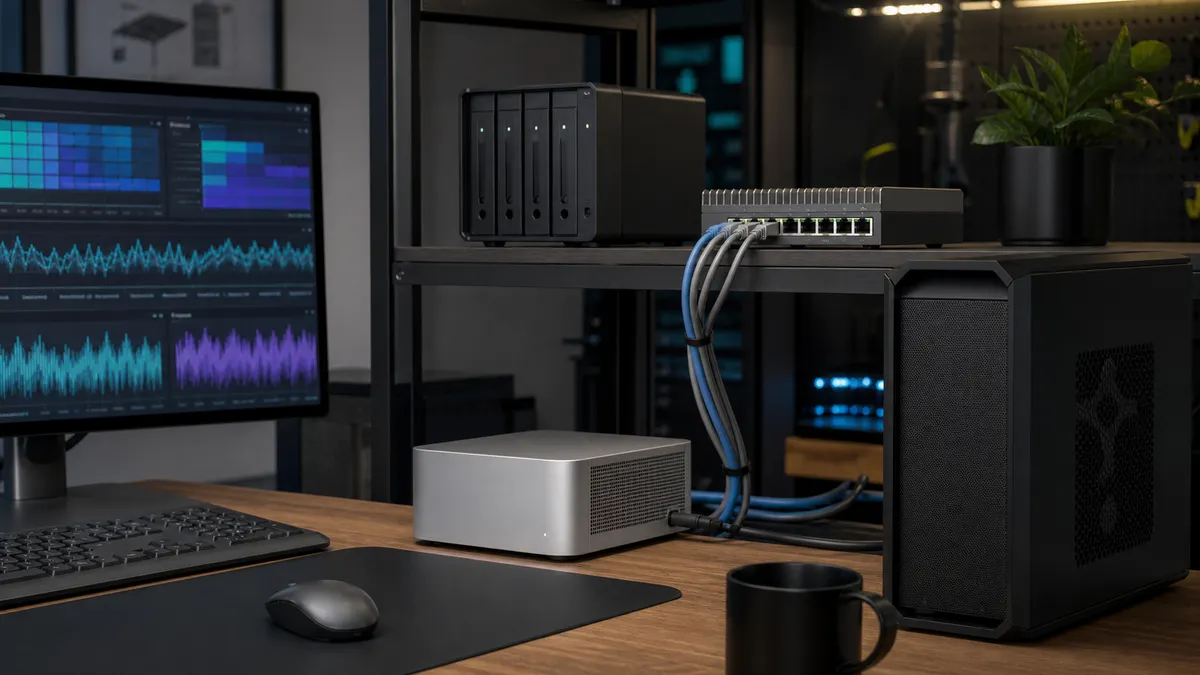
The fastest GPU in the room does not make a slow file copy feel better.
That sounds obvious until a local AI lab starts growing. A Mac Mini becomes the control machine. A GPU workstation handles ComfyUI. A NAS stores checkpoints, LoRAs, outputs, backups, and the model folder you promised yourself would stay organized this time. Then one day you drag a 30GB checkpoint across the network, watch the transfer crawl, and start blaming the wrong part of the setup.
Sometimes the bottleneck is the NAS. Sometimes it is Wi-Fi. Sometimes it is a single hard drive. Sometimes it is a cheap switch doing exactly what you bought it to do.
And sometimes the answer is simple: your local AI lab has outgrown 1GbE.
Affiliate disclosure: TokenByte may earn a commission when you buy through future retail links, at no extra cost to you. This guide is based on current public documentation, vendor specifications, and practical home-lab planning, not sponsored testing or TokenByte hands-on benchmark results.
If you are still planning the rest of the lab, use this alongside TokenByte's local AI build picker, recommended gear, Mac Mini local AI guide, ComfyUI GPU guide, and how we test page. Network speed only matters when the storage, workflow, and machines on both ends can use it.
The short answer
Most local AI home labs should think in three tiers:
| Network tier | Raw line rate | Real-world role |
|---|---|---|
| 1GbE | 125 MB/s before overhead | Fine for admin, small files, light sync, and occasional model transfers |
| 2.5GbE | 312.5 MB/s before overhead | The sensible first upgrade for many NAS and mini PC setups |
| 10GbE | 1,250 MB/s before overhead | Worth it when a fast NAS, SSD cache, direct workstation link, or frequent large transfers justify the cost |
The important phrase is "before overhead." Ethernet, SMB/NFS, filesystem behavior, drive speed, CPU load, encryption, switch quality, cables, and the workload all eat into the number.
Still, the rough shape is useful. If you regularly move 10GB to 80GB model files between machines, 1GbE can feel painfully dated. 2.5GbE often turns "go make coffee" into "wait a minute." 10GbE is where shared storage starts to feel closer to a local SSD for big sequential work, assuming the disks behind it can keep up.
Do not start by buying the fastest switch. Start by deciding what traffic needs to be fast.
What local AI actually sends over the network
Local AI traffic is not one kind of traffic.
A ComfyUI image generation job might barely touch the network after the model is loaded. A model-library cleanup session might move hundreds of gigabytes. A Mac Mini controlling a headless GPU box might only need a browser tab, SSH, and small workflow JSON files. A backup job might hammer the NAS for hours while you are trying to work.
Common traffic in a TokenByte-style lab:
- downloading checkpoints, LoRAs, VAEs, ControlNet models, and upscalers
- copying models from a workstation to a NAS library
- mounting a shared model folder into ComfyUI
- syncing ComfyUI workflows and selected outputs
- moving image batches from a GPU box back to a Mac or NAS
- backing up Ollama Modelfiles, app configs, notes, and curated outputs
- streaming a web UI from a headless machine to a Mac Mini
- pulling Docker images, packages, and updates
Those jobs do not all deserve the same network.
Interactive control is easy. Bulk model movement is not. Backup traffic can wait. Active model loading sits in the middle: it can benefit from fast networking, but it can also become annoying if the NAS, switch, or protocol is inconsistent.
When 1GbE is still fine
Do not upgrade just because the port says "Gigabit."
1GbE is still fine if your setup looks like this:
- one main Mac or PC runs the AI work locally
- the NAS is mostly for backups and archives
- you do not regularly copy large model folders between machines
- ComfyUI models live on a local SSD
- you are patient with occasional large downloads
- Wi-Fi is not in the critical path for model storage
The classic 1GbE ceiling is easy to understand: 1 gigabit per second is 125 megabytes per second before overhead. In practical file copies, you should expect less than that.
That sounds slow next to NVMe, but it is not useless. A 1GbE link can move small workflows, prompt notes, scripts, logs, and selected images without drama. It can also keep a NAS useful as a backup target.
The mistake is asking 1GbE to behave like shared scratch storage for a busy AI lab.
If you frequently copy 30GB, 50GB, or 100GB folders around, 1GbE makes every housekeeping task feel like a maintenance window.
Why 2.5GbE is the boring upgrade that often wins
2.5GbE is not glamorous, and that is why it is useful.
It is fast enough to make large model copies less annoying, cheap enough to fit a normal home-lab budget, and common enough that many newer mini PCs, NAS boxes, and compact switches support it.
Synology's current DS925+ page, for example, lists two built-in 2.5GbE ports. QNAP's QSW-2104-2T product page describes an unmanaged fanless switch with two 10GbE RJ45 ports and four 2.5GbE RJ45 ports. That sort of mixed-port switch is exactly the shape many AI labs need: the fast machines get the fast ports, and the rest of the lab gets a meaningful bump without turning the network rack into a science project.
2.5GbE is a good fit when:
- your NAS has 2.5GbE built in
- your mini PC or workstation has 2.5GbE built in
- you mostly copy files in the 5GB to 80GB range
- you want a quiet fanless switch
- you use hard drives or modest SSDs behind the NAS
- you do not want to chase heat, cables, drivers, and adapter quirks
For many people, 2.5GbE is the "stop being annoyed" tier.
It will not make a single slow hard drive act like a workstation NVMe drive. It will not fix a badly organized model folder. It will not make Wi-Fi clients magically consistent. But it can remove the obvious Gigabit choke point without making the whole lab more complicated.
When 10GbE is worth the money
10GbE becomes interesting when you have a specific high-throughput path to accelerate.
Good reasons:
- a Mac Mini needs to move large ComfyUI output batches to a NAS often
- a GPU workstation pulls active models from shared storage
- the NAS has SSDs, cache, multiple drives, or enough RAID performance to use more than 2.5GbE
- you want a direct high-speed link between a Mac and a workstation
- you routinely move large checkpoints, datasets, video assets, or image archives
- you are building a lab that will grow into several machines
Apple's current Mac mini specs list Gigabit Ethernet configurable to 10Gb Ethernet, with M4 models using Thunderbolt 4 ports and M4 Pro models using Thunderbolt 5 ports on the rear. For existing Macs without built-in 10GbE, Thunderbolt adapters are another route. OWC's Thunderbolt 4 10G Ethernet Adapter page claims over 900MB/s real-world tested transfer speed for large file transfers and lists compatibility with Thunderbolt 3, Thunderbolt 4, Thunderbolt 5, and USB4 Macs or Windows computers.
Treat that as vendor context, not a promise for your lab. Your NAS disks, protocol settings, cable run, switch, and workload still matter.
On the storage side, Synology's E10G22-T1-Mini page describes a 10GbE RJ45 upgrade module for compact Synology servers, with autonegotiation across 10, 5, 2.5, 1 Gbps, and 100 Mbps on compatible models. That matters because many home labs do not jump cleanly from 1GbE to full 10GbE everywhere. Mixed-speed gear is normal.
10GbE is worth it when there is a clear route where both ends can keep up.
If the only thing behind the NAS is one hard drive, spend the money somewhere else first.
The best first upgrade path
Do this in order.
First, wire the machines that actually move data. If the GPU box and NAS are on Ethernet but the Mac Mini is on Wi-Fi, fix that before arguing about 10GbE.
Second, identify the three important endpoints:
- control machine, often a Mac Mini or laptop
- compute machine, often an RTX workstation or headless ComfyUI box
- storage machine, often a NAS or always-on server
Third, check the ports you already own. Does the NAS have 2.5GbE? Does the workstation have 2.5GbE or 10GbE? Did the Mac Mini ship with the 10Gb Ethernet option, or will it need a Thunderbolt adapter?
Fourth, upgrade the smallest shared path that blocks you.
For many labs, that means:
- Add a small unmanaged 2.5GbE switch.
- Put the NAS, Mac Mini, and GPU workstation on Ethernet.
- Use the 10GbE ports only for the NAS and the main workstation if you buy a mixed 10G/2.5G switch.
- Leave printers, smart-home devices, and casual clients on the old network.
This is not fancy. It is just enough structure to stop every file copy from becoming a project.
Shared model storage: good idea, bad idea, or both?
Shared model storage can be excellent if it is used carefully.
ComfyUI supports external model locations through extra_model_paths.yaml, which can point the app toward model folders outside the default layout. Ollama documents where models live and how OLLAMA_MODELS can change the model storage location.
That flexibility is useful. It also makes it easier to build a slow setup by accident.
Good shared-storage uses:
- one curated model library on the NAS
- one place to archive checkpoints you are not actively testing
- shared LoRA and workflow organization across machines
- backup-friendly output archives
- a clean source of truth for "models worth keeping"
Risky shared-storage uses:
- loading every active model over a flaky Wi-Fi connection
- pointing a GPU workstation at a slow NAS volume for everything
- keeping scratch outputs on the NAS during heavy generation
- mixing backups, active cache, and model library folders in one messy share
- assuming 10GbE fixes poor drive layout
The practical compromise is simple: keep active models on fast local storage when responsiveness matters, and use the NAS as the library, staging area, archive, and backup target.
When a model graduates from "testing" to "keeper," copy it to the NAS. When a project becomes active again, copy the needed files back to fast local storage or mount them from a fast enough share.
Direct 10GbE link or switch?
A direct 10GbE link between two machines can be a smart move.
For example, a Mac Mini with 10GbE or a Thunderbolt 10GbE adapter can connect directly to a GPU workstation or NAS secondary port. That can give your most important transfer path a private fast lane while the rest of the network stays boring.
Direct links are useful when:
- only two machines need high speed
- you want to avoid buying a bigger 10GbE switch
- you are comfortable setting static IP addresses or a dedicated subnet
- the machines sit close together
A switch is better when:
- three or more machines need fast access
- the NAS, Mac, and GPU box all share data
- you want simple cabling and fewer special-case routes
- you expect the lab to grow
Do not overbuild the first version. A mixed switch with a couple of 10GbE ports and several 2.5GbE ports can be the sweet spot because it keeps the fast path fast without making every device expensive.
Cables matter, but do not turn them into a religion
For short home-lab runs, cable choice is usually straightforward.
Use known-good Cat6 or better for new copper runs, keep cables away from sharp bends and power clutter, and replace mystery cables when troubleshooting. If a link negotiates down to 1GbE when both devices support faster speeds, suspect the cable, port, adapter, or switch before blaming the NAS.
Also check link speed in the operating system or switch interface. A 10GbE adapter plugged into a 1GbE switch will not become fast because the product page said 10G.
The most useful cable test is not theoretical. Copy a large file you already understand, check negotiated link speed, and compare it against the expected tier.
The hidden bottleneck: storage behind the port
Network upgrades expose storage problems.
That is not bad. It is useful information.
A 10GbE port can carry far more than a single hard drive can usually deliver in a sustained real-world workload. A NAS with multiple drives, SSDs, good caching, or all-flash storage has a better chance of using the link. A small two-bay box with slow disks may feel better on 2.5GbE, but 10GbE might sit mostly idle.
Before buying 10GbE, ask:
- Are my large transfers mostly sequential files or many tiny files?
- Is the NAS volume built from hard drives, SATA SSDs, or NVMe SSDs?
- Does the NAS CPU handle encryption, checksums, and file services comfortably?
- Are backups running during active work?
- Is the same disk pool serving media, Time Machine, snapshots, and AI models?
If the answer is "one drive is doing everything," fix the storage layout before chasing the network ceiling.
A practical buying map
Here is the no-drama version.
If you are on one machine, do nothing. Spend money on RAM, local SSD capacity, backup, or a better GPU before buying multi-gig networking.
If you have a Mac Mini plus a NAS, start with 2.5GbE if both sides support it or can support it cheaply. This is the easiest upgrade to feel.
If you have a Mac Mini, NAS, and GPU workstation, use a mixed 10GbE/2.5GbE switch. Give 10GbE to the busiest pair, usually NAS plus workstation or Mac plus NAS, and give 2.5GbE to everything else.
If you have a serious NAS with SSDs or enough drive performance, consider 10GbE as part of the storage build, not as an afterthought.
If you mostly use remote control, browser UIs, SSH, and occasional workflow sync, save the money. Your lab needs reliability more than speed.
What to test after the upgrade
Do not declare victory because the lights turned green.
Run a simple acceptance pass:
- Confirm every fast device negotiated at the expected link speed.
- Copy one large model file from NAS to workstation.
- Copy one large output folder from workstation to NAS.
- Try the same copy while a backup is running.
- Open ComfyUI and confirm workflows still find their model paths.
- Check that the Mac Mini can still reach the GPU box by browser and SSH.
- Document which ports and cables are the fast path.
If you keep shared ComfyUI paths, test a real workflow that uses a checkpoint, LoRA, and output folder you care about. Do not wait until a client job, benchmark run, or weekend project to discover that the network share mounted under a different path.
Write down the result in plain language:
Fast path:
Mac Mini 10GbE -> switch port 1
GPU workstation 10GbE -> switch port 2
NAS 2.5GbE -> switch port 3

Model source:
NAS /ai-library/models/

Active work:
GPU workstation /ai-active/

Rule:
Copy active models local before long ComfyUI sessions.
Archive keepers back to NAS after cleanup.
This note is boring. That is the point. You are building a lab you can understand later.
The TokenByte recommendation
For most practical local AI labs, 2.5GbE is the first upgrade to consider and 10GbE is the upgrade to justify.
2.5GbE is the sensible fix for annoying model copies, NAS housekeeping, and small multi-machine labs. 10GbE is excellent when there is a real fast path between machines that can use it. A mixed switch often beats an all-or-nothing rebuild.
The best network is not the one with the biggest number on the box. It is the one that makes your normal work boring: models move when you expect them to, ComfyUI paths stay predictable, backups do not choke the desk, and the Mac Mini can control the lab without becoming the bottleneck.
Upgrade the path that wastes your time. Leave the rest alone until it earns its cable.
Found something that needs correcting? Tell the editor. Research, estimates, and hands-on measurements should be identified in the article. Read our affiliate disclosure.