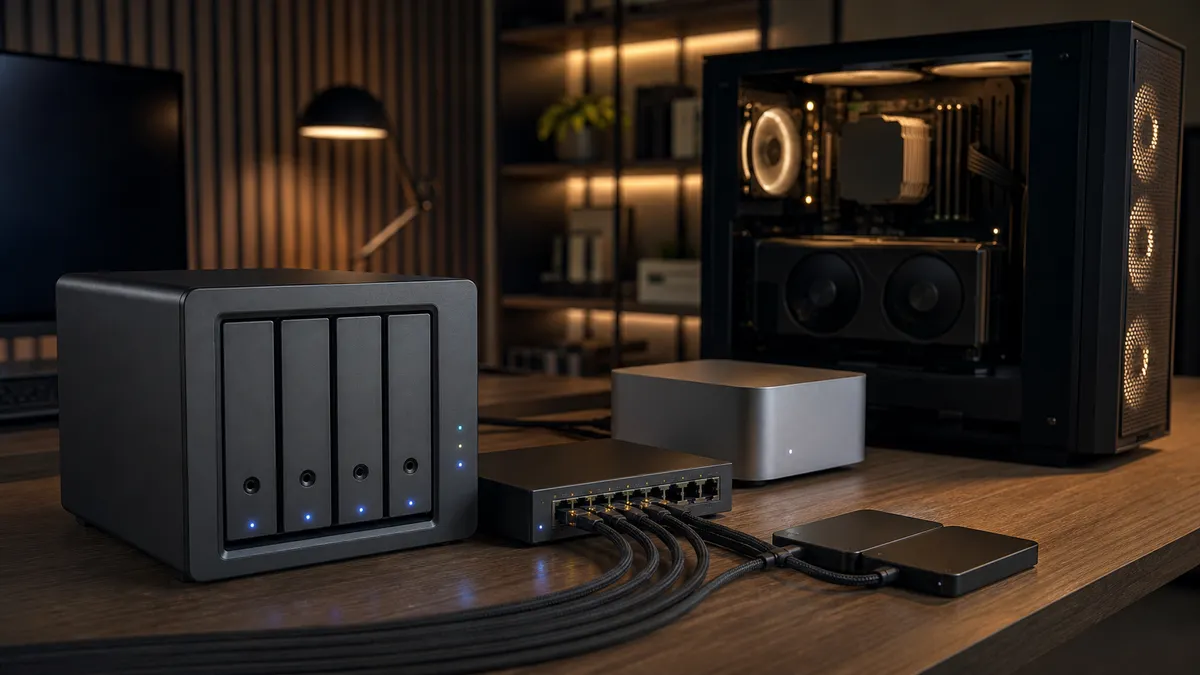
The first local AI storage problem is easy to spot: your internal SSD fills up. The second one sneaks up later: the same models get downloaded three times, your ComfyUI folder becomes a junk drawer, and nobody remembers which checkpoint is the one that actually worked.
A NAS can fix that. It can also make your setup feel slower if you treat it like a magic external drive.
The right goal is not "run every model directly from the NAS." The right goal is to build a shared model library that keeps large files organized, backed up, and available to every machine in the lab, while still letting your Mac mini or GPU workstation use fast local storage for the work that is sensitive to latency.
Affiliate disclosure: TokenByte may earn a commission when you buy through future retail links, at no extra cost to you. This guide is based on current public documentation and practical planning, not sponsored testing.
If you are still choosing the rest of the setup, pair this with TokenByte's local AI build picker, Mac mini local AI guide, ComfyUI GPU guide, recommended gear page, and how we test notes. Storage choices make more sense when they are tied to the machine and workflow they are supporting.
What belongs on the NAS
Put the boring, heavy, repeatable files on shared storage:
- LLM model files you may want on more than one machine
- ComfyUI checkpoints, LoRAs, VAEs, ControlNet models, text encoders, and upscalers
- Stable Diffusion, FLUX, Wan, and other image or video model downloads
- datasets, reference image packs, workflow exports, and prompt libraries
- installers, drivers, benchmark logs, and test output you want to preserve
Do not automatically put every active cache, temporary output folder, or scratch directory there. Local AI tools often create small files, metadata, thumbnails, intermediate tensors, logs, and temp output. Those are better on a local NVMe SSD unless you have a deliberately fast all-flash NAS.
Think of the NAS as the library shelf, not the GPU's desk.
That distinction matters because modern model folders are not small. A single GGUF model can be several gigabytes to dozens of gigabytes depending on model size and quantization. Image and video generation stacks can be worse because one workflow may need a base model, text encoders, VAE, LoRAs, ControlNet models, and upscalers. Public model pages for projects like Qwen3-32B-GGUF and Wan2.1-T2V-14B make the trend clear: the useful local AI files are large enough that duplicate downloads become expensive fast.
When a NAS is the wrong upgrade
If you have one machine, one workflow, and one external SSD that is already tidy, a NAS may be premature. Start with the simpler fix: a fast local SSD, a backup plan, and a clean folder structure.
A NAS starts to make sense when at least two of these are true:
- you use a Mac mini and a separate GPU workstation
- you test ComfyUI on more than one machine
- you keep redownloading the same models
- your model folder is larger than the internal SSD you want to buy
- you want snapshots and recovery, not just more space
- you are already planning 2.5GbE or 10GbE networking
The mistake is buying a NAS because it sounds like an upgrade, then using it over 1GbE for everything. Gigabit networking is fine for backups and browsing files. It is not fun when you are repeatedly moving 20GB model files or trying to feed a workflow that expects local-disk behavior.
The network decides how good this feels
A hard drive NAS can be fast enough for many library tasks. A slow network can make it feel bad anyway.
Here is the practical ladder:
| Network | Useful role in a local AI lab |
|---|---|
| 1GbE | Backups, archives, light file sharing, occasional model copies |
| 2.5GbE | Good home-lab baseline for shared model storage and frequent transfers |
| 10GbE | Best fit for serious NAS use, multi-machine labs, and large model libraries |
Apple's current Mac mini specs list standard Gigabit Ethernet with a configurable 10Gb Ethernet option using RJ-45. That option matters if the Mac mini is going to sit next to a NAS as a local AI node, automation box, or model-management machine. You can add networking later with adapters, but built-in 10GbE keeps the setup cleaner.
On the switch side, small 10GbE boxes are no longer exotic. For example, current QNAP QSW-3205-5T listings show a compact five-port 10GbE unmanaged switch class aimed at desktop upgrades. That does not mean everyone needs that exact model. It means 10GbE has moved from rack-only home-lab theater into normal desk gear.
Cable choice still matters. For short desk runs, known-good Cat6 or Cat6A is usually the least dramatic path for 10GBASE-T. Keep the NAS, switch, and main compute machines on the same wired segment. Wi-Fi is fine for reading notes from a laptop; it is not where your model library should live.
HDD pool, SSD pool, or both?
The cleanest home-lab answer is boring:
- HDD pool for the big library
- SSD or NVMe storage for active work
- backups for anything you cannot afford to lose
NAS hard drives still make sense for bulk model libraries. WD Red Plus, for example, is positioned as a NAS drive family with capacities up to 12TB and a 180TB/year workload rating in its current data sheet. Similar NAS-focused drives from other vendors fill the same role. The buying point is not that one drive label is magic. It is that you should buy CMR NAS drives sized for the pool you actually want, not random bargain disks with unclear recording technology and duty assumptions.
SSD pools make sense when the NAS is doing more than holding files: active project directories, frequent small-file work, multiple clients, or virtualized services. They are also attractive if you hate drive noise. The tradeoff is cost per terabyte.
SSD cache is the easy feature to misunderstand. Synology's own SSD cache guidance says cache helps random access patterns and is not useful for large sequential access patterns. A model file being copied or read in large chunks is not automatically a cache-friendly workload. If you are choosing between "small HDD NAS plus cache" and "more RAM, more drive bays, or a real SSD volume," do not assume cache wins. Cache can help the right workload. It is not a universal model-loading accelerator.
Four bays is the practical starting point
Two-bay NAS units are tempting because the entry price is lower. For a local AI model library, four bays usually age better.
Four bays give you room to balance capacity, redundancy, and future expansion. A 4-bay unit also lets you avoid painting yourself into a corner when today's "just a few models" folder becomes a multi-terabyte archive of LLMs, checkpoints, LoRAs, video models, test outputs, and backups.
The Synology DS923+ is a useful reference point for this class because Synology's materials describe a 4-bay system with optional 10GbE networking and M.2 NVMe SSD support. TrueNAS is the other common path if you want more control, commodity hardware, and ZFS-first design. TrueNAS's current hardware guide lists 8GB memory, a 20GB SSD boot device, and two identically sized devices for a single storage pool as minimum requirements, while also explaining why RAM and storage layout matter as the system grows.
The difference is temperament:
- Buy a Synology-style appliance if you want a managed NAS experience, polished file sharing, snapshots, package support, and fewer build decisions.
- Build or buy a TrueNAS box if you want more control over hardware, ZFS layout, networking, and future expansion.
Neither choice removes the need for backups.
A sane folder structure
Do not dump everything into one folder called models.
Use a predictable structure before the library gets large:
/ai-library/
  /llm/
    /gguf/
    /ollama-imports/
  /comfyui/
    /checkpoints/
    /diffusion_models/
    /loras/
    /vae/
    /controlnet/
    /text_encoders/
    /upscale_models/
  /datasets/
  /workflows/
  /outputs-archive/
  /downloads-staging/
Keep downloads-staging separate so half-finished files and experiments do not pollute the clean library. Keep outputs-archive separate so you can back up finished work without mixing it into model paths. If you share the NAS with family storage or business files, make the AI library its own share with its own permissions.
Also add a tiny text note next to models that came from confusing places:
source-url: https://huggingface.co/...
download-date: 2026-06-09
reason-kept: best Q4_K_M test for Mac mini
license-note: check model card before commercial use
That last line is not legal advice. It is a reminder to respect model licenses before turning a lab workflow into a product or client deliverable.
Point ComfyUI at the library carefully
ComfyUI gives you a clean way to use model folders outside the default install directory. Its extra_model_paths.yaml.example file shows a central-folder pattern for checkpoints, text encoders, CLIP models, VAEs, LoRAs, ControlNet models, upscalers, and more.
That is exactly what you want for a shared model library, but use it deliberately:
- Mount the NAS share at a stable path.
- Create model subfolders that match ComfyUI's expected categories.
- Rename or create
extra_model_paths.yamlin the ComfyUI folder. - Point each category at the NAS library or at a local mirror.
- Restart ComfyUI and verify models appear before reorganizing more files.
On macOS, avoid casual paths that change depending on how the share was mounted. On Windows, avoid drive letters that move when USB disks or network mounts change. On Linux, systemd mounts or stable /mnt/ai-library style paths are easier to reason about than "whatever the file browser mounted today."
The conservative setup is a hybrid:
- keep your most-used checkpoint and active LoRAs on local NVMe
- keep the full archive on the NAS
- copy models from NAS to local storage when you are actively testing
- use ComfyUI extra paths for folders that are stable and fast enough
This avoids turning every generation into a network-storage experiment.
Handle Ollama differently
Ollama's FAQ documents environment variables including OLLAMA_MODELS, which can be used to change where models are stored. That is useful, but it is not always the best first move.
For a single Mac mini with enough local SSD space, keep Ollama models local and back them up. For a lab with multiple machines, use the NAS as a source of truth or archive, then let each active machine keep its own local Ollama model store. That uses more space, but it avoids making every prompt depend on NAS latency and network mount behavior.
If you do point Ollama directly at a NAS path, test it like you mean it:
- reboot the machine and confirm the mount is present before Ollama starts
- pull a small model first
- restart Ollama and confirm the model still loads
- test what happens when the NAS is offline
- document the mount path for future you
The failure mode you are trying to avoid is simple: Ollama starts, the mount is missing, and now your model directory behavior is confusing.
Backup is not optional
RAID is not backup. A mirror or parity pool can protect you from a drive failure. It does not protect you from accidental deletion, bad sync rules, ransomware, a failed NAS, theft, fire, or a model cleanup script pointed at the wrong folder.
For a local AI NAS, back up three things:
- workflows, prompts, scripts, and notes
- datasets and generated work you care about
- the model manifest, even if you do not back up every model file
You may not need to back up every public model if it can be redownloaded. You absolutely should back up the list of what you used, where it came from, and which version mattered. The metadata is often more valuable than the raw file.
DSM includes file sharing across Windows, macOS, and Linux and supports Time Machine in its current technical specifications, so appliance NAS users have straightforward backup options. TrueNAS users get ZFS snapshots and replication options, but they still need to design the destination. For either platform, snapshots are useful, but a second copy is what saves you when the NAS itself is gone.
A practical buying map
For a Mac mini-first lab:
- 4-bay NAS if you expect the library to grow
- 2.5GbE minimum, 10GbE preferred if you move large models often
- CMR NAS HDDs for bulk storage
- local NVMe SSD for active ComfyUI and Ollama work
- UPS support for the NAS and network gear
For a GPU workstation lab:
- 10GbE between workstation, NAS, and switch
- local NVMe scratch disk in the workstation
- NAS for shared models, archived outputs, datasets, and backups
- optional SSD pool if multiple machines actively read small files
- snapshots plus off-NAS backup
For a quiet apartment setup:
- consider fewer larger HDDs, but understand the rebuild and capacity tradeoffs
- consider SSD storage if silence matters more than cost per terabyte
- keep the switch fanless if it sits on the desk
- avoid rack gear unless you actually want rack noise and heat
The affiliate-friendly answer is not "buy the biggest NAS." It is "buy the storage tier that matches your workflow." A single Mac mini running small local models does not need the same setup as a workstation testing diffusion, LLM, and video models every week.
The setup I would build first
For most TokenByte readers, the sane first version looks like this:
- A 4-bay NAS with snapshots.
- Two or four CMR NAS drives, sized with future model growth in mind.
- 2.5GbE as the floor, 10GbE if the Mac mini or workstation supports it cleanly.
- A local NVMe SSD on each active compute machine.
- A shared
/ai-libraryfolder with strict organization from day one. - ComfyUI pointed at stable shared folders only where performance is acceptable.
- Ollama kept local unless you have tested NAS-hosted models carefully.
- A backup plan that does not live only inside the NAS.
That setup keeps the NAS in its strongest role: organized, resilient shared storage. It also respects the machines doing the actual work. Your GPU wants fast local scratch. Your Mac mini wants predictable paths. Your future self wants to know why there are six versions of the same checkpoint.
Build for those three realities and the NAS becomes one of the least flashy, most useful upgrades in the local AI lab.
Found something that needs correcting? Tell the editor. Research, estimates, and hands-on measurements should be identified in the article. Read our affiliate disclosure.