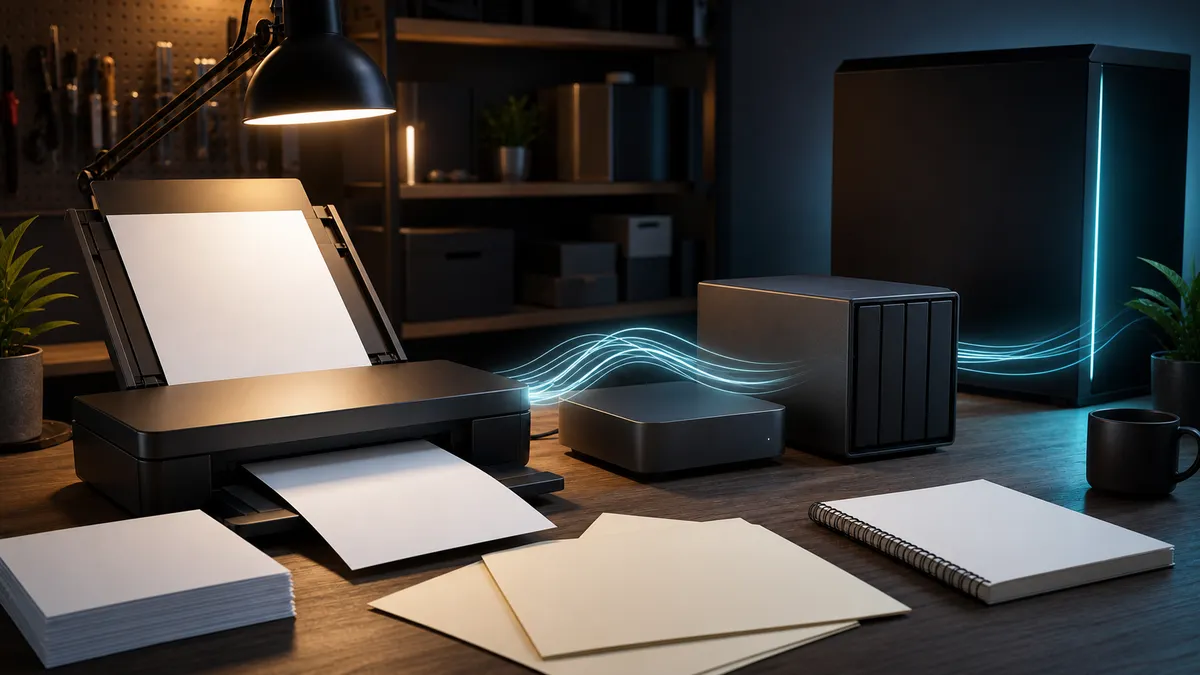
The fastest way to make a local AI lab feel useful is to give it better input.
Most people start with prompts. Then they add models, a GPU, Open WebUI, ComfyUI, a NAS, maybe a small control machine. The stack gets smarter, but the useful documents are still scattered across email attachments, scanned receipts, hardware manuals, warranty PDFs, handwritten project notes, network diagrams, and photos of labels taken during setup.
That is a strange gap. A home-lab AI system can answer questions only from the context it can actually read. If the document is an image-only PDF, a phone photo, a scan without selectable text, or a pile of files named scan_0047.pdf, the model is starting from a mess.
A local OCR inbox fixes the first layer. It does not magically make every document safe for AI. It does not make OCR perfect. It does not turn a shoebox of receipts into clean accounting records by itself. It gives your lab a repeatable place where paper, scans, PDFs, and image files become searchable local text before they reach summaries, RAG, automations, or long-term archives.
This is researched home-lab guidance for July 1, 2026, not a TokenByte benchmark or hands-on review of a specific scanner, OCR engine, NAS, Mac Mini, or document system. TokenByte has not measured OCR accuracy, ingest speed, storage growth, GPU acceleration, or retrieval quality for the tools discussed here. Treat this as a practical build plan, then test it with your own scans, invoices, manuals, lighting, paper quality, and hardware.
Affiliate disclosure: TokenByte may earn a commission when you buy through links on this site. That does not change the recommendation here: start with the scanner, phone, computer, and storage you already own. Buy only after you know whether your bottleneck is capture quality, OCR accuracy, privacy, storage, backup, or review time.
The short version
A good local OCR inbox has six pieces:
- a capture habit for paper and screenshots
- an incoming folder that every tool can reach
- OCR that creates searchable text without destroying originals
- simple metadata so files can be found later
- a review step before summaries or automations trust the text
- backup and access rules because documents are private by default
For many home labs, Paperless-ngx is the obvious first system to evaluate. Its documentation describes a local document management app that stores data on your server, performs OCR, uses Tesseract, creates PDF/A archive versions, keeps originals alongside archived versions, and provides search, tags, correspondents, document types, custom fields, email intake, workflows, and permissions.
OCRmyPDF is a better fit when you want a command-line step that adds a searchable text layer to scanned PDFs before they go somewhere else. Tesseract is still the underlying OCR engine many open-source flows depend on. Docling becomes interesting when your goal is downstream AI processing: conversion, chunking, document serialization, OCR options, and RAG-oriented workflows.
If you are still deciding where this should run, use the TokenByte build picker first. Then compare the Mac Mini local AI guide, the ComfyUI GPU guide, the recommended gear hub, and TokenByte's how we test page before buying a new machine for documents.
Why OCR belongs in the lab
Local AI is usually discussed like a model problem. Which LLM? Which quant? Which GPU? Which context length? Which embedding model?
Those choices matter, but they are not the whole system. The boring document layer often decides whether the lab becomes useful in daily life.
A local OCR inbox can turn scattered material into something the rest of the stack can use:
- hardware manuals become searchable before a repair
- warranty PDFs can be found by product, date, or vendor
- receipts can be grouped by project or machine
- rack notes and network diagrams can stay near the lab they describe
- screenshots of settings can become searchable reference material
- printed letters and invoices can be archived without using a cloud document service
- selected text can be reviewed, summarized, or loaded into a local RAG tool
The privacy angle is not theoretical. Documents contain names, addresses, serial numbers, account details, invoices, medical information, school records, client notes, tax data, and device identifiers. The first pass should not be "upload everything to whichever AI service is easiest." A local OCR inbox gives you a calmer default: extract and organize locally, then decide what deserves AI processing.
Pick the inbox shape first
Do not begin by choosing a scanner.
Start by deciding what the inbox has to do. A good first version is small:
/srv/documents/
  incoming/
  originals/
  archive/
  exports/
  review/
That layout is not sacred. The habit matters more than the folder names. You want one place where new files arrive, one place where originals survive, one place where OCR or archive versions land, and one place where reviewed exports are safe to feed into an LLM or search tool.
Paperless-ngx has its own version of this idea. Its usage docs describe a consumer that watches a specified folder and adds documents to Paperless. When documents are added, Paperless can OCR them if they lack text, create an archivable PDF/A document, and perform automatic matching of tags, correspondents, and types before storage. The docs also warn that consumed files are removed from the consumption directory and stored inside the Paperless file structure, so the consume folder should be treated as temporary.
That is an important home-lab lesson even if you do not use Paperless: an inbox is not an archive. The inbox is a loading dock. The archive is where reviewed, recoverable files live.
Paperless-ngx is the practical first stop
Paperless-ngx is compelling because it solves more than OCR.
The project describes itself as an open-source document management system for turning physical documents into a searchable online archive. Its feature list includes local storage on your server, OCR using Tesseract, PDF/A archived versions beside unaltered originals, full text search, tags, correspondents, document types, custom fields, email intake, workflows, and multi-user permissions.
That feature set matches the real home-lab problem. You do not just need text extraction. You need to find the receipt for the GPU, the warranty PDF for the UPS, the static IP note for the mini PC, the invoice for the SSD, and the manual for the switch without remembering which folder name made sense two months ago.
The install path also fits the existing TokenByte-style stack. Paperless-ngx recommends Docker for most users because it is faster to set up, easier to maintain, and ships with sensible defaults. The setup docs also describe Docker Compose templates, PostgreSQL as the recommended database backend for new installations, bind mounts for consume and media directories, and user ID mapping so the host and container can write to the consumption directory.
This is not a reason to expose Paperless to the open internet. Documents are too sensitive for casual publishing. The configuration docs call out settings such as secret keys, allowed hosts, CSRF trusted origins, media roots, data directories, and consumption paths for a reason. Keep the first version LAN-only or behind a private access layer you already trust.
OCRmyPDF is the clean command-line tool
If Paperless is a document system, OCRmyPDF is a document-processing step.
Its documentation says it adds an OCR text layer to scanned PDF files so they can be searched. That sounds small, but it is exactly what many AI workflows need. A PDF that looks readable to a human may be useless to search or RAG if it is only page images. OCRmyPDF can sit in front of your archive, your NAS folder, your notes system, or a manual review queue.
The command-line shape is useful when you want a plain pipeline:
scan or drop PDF
copy original
run OCRmyPDF on a working copy
check output
store searchable PDF
export reviewed text only when needed
OCRmyPDF also documents batch jobs, directory trees, hot folders, Docker usage, language packs, image-processing options, and PDF security considerations. That is exactly the sort of practical detail that matters when a home-lab service moves from "I tried it once" to "this folder runs every night."
The caution is that OCR is not cleanup. A searchable PDF can still have wrong text. It can still misunderstand serial numbers, part names, handwriting, old scans, skewed pages, faint ink, and tiny labels. Treat OCRmyPDF as a reliable way to create a text layer, not as a guarantee that the text layer is correct.
Tesseract is still the workhorse
Tesseract is the OCR engine underneath a lot of open-source document flows. The Tesseract user manual notes that version 4.0 added an OCR engine based on LSTM neural networks and points to official language model data for more than 100 languages and 35 scripts. It also distinguishes the tessdata, tessdata_best, and tessdata_fast traineddata repositories used by current Tesseract 5.x setups.
That matters because OCR quality is not just "Tesseract on or off." Language data, scan quality, page rotation, resolution, contrast, layout, and document type all affect output. A receipt, a laser-printed manual, a photo of a whiteboard, and a handwritten note are different problems.
For a home lab, the right stance is conservative:
- use one OCR path first
- make the input scans cleaner before blaming the engine
- install only the language packs you actually need
- keep originals because you may reprocess later
- mark low-confidence or important documents for human review
Do not build an automation that treats OCR text as ground truth. It is an extraction layer. It still needs judgment.
Where Docling fits
Docling is worth watching when the goal is not just "make PDFs searchable" but "prepare documents for AI systems."
The docs show support for document conversion, supported formats, OCR options, serialization, chunking, table export, multimodal export, RAG integrations, local VLM annotation examples, and API/server paths. That makes it more AI-adjacent than a simple scan archive. It can sit closer to the point where documents become chunks, Markdown, JSON, or other structured material for retrieval.
The practical way to use that in a home lab is not to replace the archive. Keep the archive boring and durable. Then use a conversion layer when a document deserves deeper AI processing.
For example:
- Store the original and searchable PDF in the document archive.
- Export a reviewed copy of the text or structured document.
- Chunk it for a local RAG experiment.
- Ask a local model questions with citations back to the source file.
- Keep the AI output separate from the archival document.
That separation matters. AI-friendly chunks are not a replacement for the source document. They are a working representation.
Do not pour raw documents straight into RAG
Docling's documentation points toward the AI side of the document problem: conversion, serialization, chunking, extraction, and RAG integrations. That is useful, but it should come after the archive layer is sane.
The problem is not only whether a document can be converted or uploaded. It is whether the retrieved text is clean, relevant, current, and short enough to be used well by the model you are running.
A better flow is:
- OCR locally.
- Review the document title and metadata.
- Spot-check the extracted text.
- Remove private sections that should not enter chat.
- Export only the subset needed for the question.
- Use RAG for retrieval, not for unquestioned truth.
This is especially important for invoices, legal documents, medical records, financial statements, client material, and anything with account numbers. Local processing reduces exposure. It does not remove the need for access control, retention rules, and human review.
Where the Mac Mini fits
A Mac Mini is a very sensible document node if the workload is light, quiet, and always-on.
It can host an inbox, run Docker services, receive scans over the LAN, and handle moderate OCR jobs without turning the desk into a heat source. It also pairs well with a NAS: keep the service on the Mini, store the archive on resilient storage, and back up the database and media directories together.
This is the kind of work a small control machine is good at:
- receive scanner output
- watch an incoming folder
- run Paperless-ngx or a small OCR pipeline
- sync important outputs to the NAS
- export reviewed text for local LLM use
- stay quiet while the RTX box handles GPU-heavy work
If your local AI lab already has a Mac Mini or mini PC for control-plane work, OCR is a natural service to add. If it does not, do not buy one only because OCR sounds interesting. Test with a folder and a few documents first.
Where the RTX box fits
Most document OCR does not need your flagship GPU.
The RTX workstation becomes relevant when document processing joins a wider AI workflow: local VLM experiments, large-scale conversion, table extraction, multimodal document analysis, or batch processing that competes with other workloads. Even then, the boring CPU document archive may still be the safer default.
The reason is operational. A document inbox should be reliable. It should not fail because ComfyUI is using the GPU, an LLM is loaded, or a driver update broke a side experiment. If the RTX box is the only machine you have, keep the OCR path simple and schedule heavier jobs. If you also have a Mini, NAS, or small server, let the document archive live there and send special jobs to the GPU machine only when needed.
That split keeps the lab calm. Documents arrive and become searchable. The GPU remains available for the workloads that actually need it.
Capture quality still wins
OCR quality often fails before the software has a fair chance.
Bad input looks like this:
- phone photos with shadows across the page
- curled receipts
- skewed scans
- low-resolution screenshots
- glossy manuals with glare
- tiny white text on a dark label
- handwriting that only you can read on a good day
- multipage PDFs with mixed rotations and blank pages
Before buying software or changing engines, fix capture. Use better light. Flatten the page. Avoid glare. Scan at a reasonable resolution. Make sure the document is straight. Give receipts a dark background if the scanner needs edge contrast. Do not crop off serial numbers or dates. Keep the original.
The best purchase may not be a bigger computer. It may be a document scanner, a better phone scanning habit, a small desk light, or a workflow that stops dumping random images into the archive.
What to buy first, if anything
Most people should not buy new hardware on day one.
Start with ten real documents:
- one clean manual page
- one invoice
- one receipt
- one warranty PDF
- one phone photo of a label
- one handwritten lab note
- one screenshot of settings
- one multi-page scanned PDF
- one document with sensitive information
- one document you expect to search later
Run them through the first version of your inbox. Then decide what failed.
If capture failed, consider a better scanner or lighting. If storage is messy, fix folders and backup. If the archive is hard to search, try Paperless-ngx. If searchable PDFs are all you need, try OCRmyPDF. If the documents need to feed local AI workflows, test Docling or a reviewed export path before adding RAG. If the machine is loud or unavailable, move the document service to a Mini, mini PC, or NAS-adjacent host.
The useful buying order is usually:
- better capture
- reliable storage and backup
- a quiet always-on host if needed
- document software you will maintain
- GPU-assisted document AI only after the basic archive works
That order is less exciting than buying a new box. It is also more likely to solve the problem.
The weekend build
Here is a clean first build that will teach you enough to make the next decision:
- Make an incoming folder and an originals folder.
- Pick either Paperless-ngx or OCRmyPDF, not both.
- Process ten real documents.
- Search for names, dates, serial numbers, model numbers, and weird technical terms.
- Mark every OCR failure you would not want an AI summary to hide.
- Write down your folder, backup, and retention rules.
- Export one reviewed document to a local chat or RAG tool.
- Ask three practical questions and compare answers with the source.
The last step matters. A local AI document workflow is only useful if it can answer the question you actually have. "What breaker is the rack on?" "When did I buy this SSD?" "Which BIOS setting did I change?" "What does the UPS manual say about battery replacement?" "Which invoice matches this serial number?"
If those questions fail, do not add more documents yet. Fix the input, metadata, OCR, or retrieval path first.
Keep the archive separate from the assistant
The most important design rule is simple: the archive is not the assistant.
The archive should be durable, searchable, backed up, and boring. It should keep originals. It should make sense without a model. It should survive when you change LLMs, swap GPUs, rebuild Open WebUI, or move from one machine to another.
The assistant layer can be experimental. It can summarize, search, chunk, explain, and cross-reference. It can be rebuilt. It can use a local LLM today and a different tool later.
Do not let the assistant become the only place where the document meaning lives.
That is how a local OCR inbox earns its place in the home lab. Not by pretending every scan is perfect. Not by turning private paperwork into prompt fuel. By giving the lab a dependable front door for documents, preserving the original, extracting useful text, and letting AI help only after the boring parts are under control.
Start with ten documents. Keep the originals. Search before you summarize. Review before you trust. Then let the local AI stack work from documents it can actually read.
Found something that needs correcting? Tell the editor. Research, estimates, and hands-on measurements should be identified in the article. Read our affiliate disclosure.