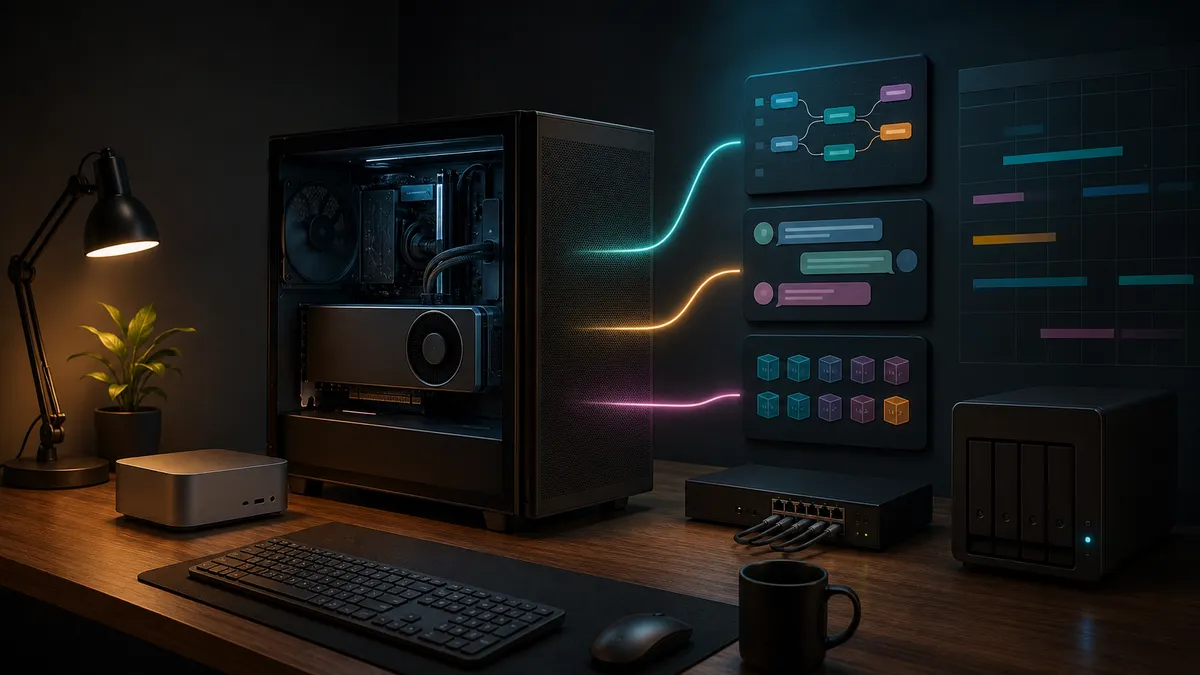
A single good GPU can make a home AI lab feel bigger than it is.
It can run a local chat model in Ollama. It can push ComfyUI through image batches. It can serve a containerized tool for a notebook, agent, or small web app. It can do enough useful work that the obvious next upgrade is not always another graphics card.
The problem starts when everything wants the card at once.
One minute the lab feels clean: Ollama is answering from localhost:11434, ComfyUI is open in a browser tab, and a Docker container is ready for experiments. The next minute a model will not load, a workflow slows down, or a service quietly falls back to CPU. Nothing is technically broken. The GPU is just full, and the machine is doing exactly what you accidentally asked it to do.
This is the one-GPU local AI problem. It is not solved by buying the biggest card you can afford and hoping every service behaves. It is solved by treating VRAM like a shared resource.
If your home lab has one RTX 3090, 4090, 5090, or a compact AI box with one serious GPU, you need a schedule, a few hard limits, and a monitoring habit. Not enterprise orchestration. Just enough discipline that Ollama, ComfyUI, and containers stop stepping on each other.
The Real Bottleneck Is Usually Residency
People talk about "running on the GPU" as if it is a yes-or-no state. In practice, the painful question is what stays resident in VRAM.
Ollama can keep a language model loaded after a request so the next response starts faster. ComfyUI can keep diffusion models, text encoders, cached node outputs, and working tensors around depending on the workflow and startup flags. A container can grab the GPU through Docker and hold memory while a notebook, API process, or experiment sits idle.
That is fine when each tool has the GPU to itself. It becomes messy when a supposedly idle service is still occupying enough VRAM to block the next thing.
Ollama's own FAQ is clear about this behavior. Models are kept in memory for a default period before being unloaded, and the API supports a keep_alive parameter. A value of 0 can unload a model immediately after generating a response, while a negative value can keep it loaded. Ollama also documents ollama ps as the command to see loaded models and whether they are on GPU, CPU, or split between them.
ComfyUI has a different shape. Its current startup flags include VRAM modes such as --highvram, --lowvram, --novram, --gpu-only, and --reserve-vram, plus cache modes that can affect memory behavior. The useful takeaway is not that one flag is always best. It is that ComfyUI is configurable enough that you should choose a mode for the machine's role instead of launching it with whatever worked once.
The GPU is not confused. Your lab just needs rules.
Start With a Simple Role Map
Before changing flags, decide what the machine is supposed to be doing most of the time.
For a one-GPU TokenByte-style setup, I would split the day into three roles:
| Role | Best for | GPU behavior you want |
|---|---|---|
| LLM desk service | Coding help, notes, local chat, small automation calls | One model loaded, predictable context, quick unload when image work starts |
| ComfyUI session | Image generation, upscaling, ControlNet, workflow testing | ComfyUI gets the GPU window, Ollama is stopped or unloads quickly |
| Experiment container | Notebooks, custom APIs, testing new projects | Explicit GPU access, short run window, checked before and after |
This sounds obvious, but it prevents the most common one-GPU mistake: treating every AI tool as a background service.
If ComfyUI is the only heavy job tonight, give it the card. If Ollama is the daily driver, make that the default and only open ComfyUI when you intend to run image jobs. If Docker is for experiments, do not leave old containers alive just because they are out of sight.
TokenByte's ComfyUI GPU guide covers why VRAM matters for image workflows. This article is the operating plan for what happens after you install more than one tool on the same box.
Make Ollama Polite First
Ollama is easy to leave running because it is useful. That is also why it needs boundaries.
The first command to build into muscle memory is:
ollama psOllama documents that this shows what models are currently loaded into memory and whether the model is on GPU, CPU, or split across both. If a ComfyUI workflow suddenly cannot fit, check here before blaming the image tool.
For a shared GPU, the most useful Ollama controls are:
ollama stop <model>when you want a loaded model out of the way.keep_alive: 0in API calls when a one-off request should unload immediately.OLLAMA_KEEP_ALIVEwhen you want a global default for how long models stay loaded.OLLAMA_MAX_LOADED_MODELSwhen you do not want several models resident at once.OLLAMA_NUM_PARALLELwhen parallel requests are increasing memory pressure.OLLAMA_CONTEXT_LENGTHwhen an oversized context is consuming more memory than the task deserves.
The important detail is that parallel requests and context length are not free. Ollama's FAQ says parallel request processing increases the context size by the number of parallel requests, and required RAM scales with OLLAMA_NUM_PARALLEL times OLLAMA_CONTEXT_LENGTH. On a one-GPU box, that can be the difference between a comfortable local chat service and a model that blocks everything else.
A conservative Linux systemd override for a shared GPU might look like this:
[Service]
Environment="OLLAMA_KEEP_ALIVE=2m"
Environment="OLLAMA_MAX_LOADED_MODELS=1"
Environment="OLLAMA_NUM_PARALLEL=1"
Environment="OLLAMA_CONTEXT_LENGTH=4096"
That is not a universal performance recommendation. It is a stability starting point. It favors a predictable single-model local service over aggressive concurrency.
If the box is mostly an Ollama server and only occasionally runs ComfyUI, you can loosen those values later. But start with boring behavior. Boring is what lets a one-GPU home lab feel reliable.
Give ComfyUI a Clean Window
ComfyUI should not have to guess whether the GPU is half full.
Before a serious image session, stop the loaded LLM:
ollama ps
ollama stop llama3.2
Then start ComfyUI for the role you actually need.
For a local-only workstation session, the plain launch is still the simplest:
cd ComfyUI
python main.py --disable-auto-launch
For a headless GPU box on your LAN, ComfyUI documents --listen and --port:
python main.py --listen 0.0.0.0 --port 8188 --disable-auto-launchFor shared VRAM behavior, the startup flags are where you choose your tradeoff. The current ComfyUI Startup Flags reference lists --reserve-vram for reserving a specified amount of VRAM for the OS and other software. It also lists mutually exclusive VRAM modes, including --highvram, which keeps models in GPU memory instead of unloading them to CPU after use, and --novram, which aims for minimal VRAM usage when low VRAM behavior is not enough.
That gives you a practical split:
- Use a normal launch when ComfyUI has the GPU window and your workflows fit.
- Use
--reserve-vramif the box must keep a small companion service alive. - Avoid
--highvramon a shared box unless ComfyUI is the only important job. - Consider lower-memory modes only when the workflow needs them, and expect speed tradeoffs.
Do not turn every memory-saving flag on at once and call it tuning. Change one thing, run the same workflow, and watch memory.
Containers Need Explicit GPU Manners
Docker makes local AI experiments easy to start and easy to forget.
On Linux, Ollama's FAQ says GPU acceleration in its Docker container requires the NVIDIA Container Toolkit. NVIDIA's own Container Toolkit installation guide starts with a plain prerequisite: install the NVIDIA GPU driver for your Linux distribution, then install and configure the toolkit packages for your platform.
That is the access side. The hygiene side is simpler: do not let containers become invisible GPU tenants.
Before starting a containerized AI job, check the card:
nvidia-smi
docker ps
After stopping the job, check again:
docker ps
nvidia-smi
If a notebook container still owns memory after you thought the experiment was over, stop it. If a service should not see the GPU at all, do not pass GPU access into it. If the machine has multiple GPUs, both Ollama and ComfyUI have documented device-selection paths: Ollama can use CUDA_VISIBLE_DEVICES, and ComfyUI documents --cuda-device.
For a single-GPU machine, device selection is less about choosing GPU zero and more about preventing accidental access. Only the workload that needs the card should get the card.
Monitor Memory Like a Normal Person
You do not need a full observability stack to run one GPU well.
Start with the basic checks:
nvidia-smi
ollama ps
docker ps
When you are testing a workflow, use a simple nvidia-smi query loop:
nvidia-smi --query-gpu=timestamp,memory.used,memory.total,utilization.gpu,power.draw,temperature.gpu --format=csv -l 2That gives you a moving view of memory, utilization, power, and temperature. If a job fails, stalls, or falls back to CPU, you have something better than vibes.
For one-GPU planning, write down three numbers for each normal job:
- idle memory after boot
- memory with the daily Ollama model loaded
- peak memory during the ComfyUI workflow you actually run
This is TokenByte evidence only after you measure it on your own box. Until then, it is a test plan, not a benchmark. A 24GB RTX card, a 32GB RTX card, and an integrated-memory mini PC will behave differently. Model size, quantization, context length, ComfyUI workflow, custom nodes, driver version, and cache settings all matter.
The goal is not to make a perfect spreadsheet. The goal is to know when a model is resident, when a workflow peaks, and how much headroom is left before the next tool crashes into the wall.
A Practical Daily Schedule
Here is a sane one-GPU rhythm for a home lab that runs both text and image workloads.
Morning and normal desk work:
ollama ps
# Keep one useful model loaded, with modest context and no aggressive parallelism.
Before image work:
ollama ps
ollama stop <loaded-model>
nvidia-smi
cd ComfyUI
python main.py --listen 0.0.0.0 --port 8188 --disable-auto-launch
After image work:
# Stop ComfyUI from the terminal where it is running.
nvidia-smi
ollama run <daily-model> ""
ollama ps
Before container experiments:
docker ps
nvidia-smi
# Start only the container that needs GPU access.
After container experiments:
docker ps
docker stop <container-name>
nvidia-smi
This is not glamorous, but it works because it makes residency visible. You are not wondering whether a model is loaded. You are checking.
If you want to turn this into automation later, keep the logic simple: a "ComfyUI mode" script that stops Ollama models, starts ComfyUI, and logs nvidia-smi; an "LLM mode" script that stops ComfyUI, starts or preloads the preferred Ollama model, and confirms ollama ps. That is enough for most home labs.
When One GPU Is Still the Right Choice
A second GPU is tempting, especially if you already have a used RTX 3090 or a spare workstation slot. But do not assume it is the clean answer.
Two GPUs can add power draw, heat, driver complexity, PCIe spacing issues, case airflow problems, and PSU/cable pressure. TokenByte's recent RTX power-budget guide is the reminder: every GPU decision becomes a system decision.
One good GPU is still the right choice when:
- you mostly run one heavy workload at a time
- the machine lives near your desk
- you care about noise and power
- your biggest pain is process discipline, not raw capacity
- your current workflows fit when the GPU is not already occupied
Add another GPU only after measuring the conflict. If the conflict is "I forgot Ollama had a model loaded," buy discipline before hardware. If the conflict is "my LLM service and ComfyUI both need to be fast at the same time every day," then a second machine or second GPU may actually be justified.
TokenByte's build picker is useful here because the right answer might be a Mac Mini plus headless GPU box, a single RTX tower, or a compact high-memory mini PC. The best setup is the one that matches your actual rhythm.
Buying and Setup Guidance
For a shared one-GPU AI box, spend money where it reduces friction:
- enough VRAM for your largest normal workflow
- enough system RAM for offload and containers
- a fast NVMe drive for models, cache, and ComfyUI outputs
- a quiet case and PSU that make long sessions tolerable
- a small UPS if the box runs unattended
- a network setup that lets the machine live somewhere cooler or quieter
Do not overbuy accessories before you have measured the memory conflict. A better PSU will not fix an LLM model that you left resident. A faster SSD will not fix a container that is still holding GPU memory. A 10GbE switch will not help if your image workflow simply does not fit.
But good supporting gear does matter once the workflow is stable. TokenByte's recommended local AI gear is the right place to compare the less exciting parts: storage, networking, power, and desk-friendly infrastructure.
The One-GPU Checklist
Before you call the setup done, make sure you can answer these questions:
- Which Ollama model is allowed to stay loaded by default?
- How long should Ollama keep models resident?
- Is
OLLAMA_MAX_LOADED_MODELSset conservatively? - Is
OLLAMA_NUM_PARALLELreasonable for the VRAM you actually have? - Which ComfyUI launch command do you use for normal sessions?
- Do you need
--reserve-vram, or can ComfyUI have the whole card? - Which Docker containers are allowed to see the GPU?
- What does idle
nvidia-smilook like after boot? - What does peak ComfyUI memory look like for your real workflow?
- What is the manual recovery command when the GPU is full?
That last one matters. A useful local AI lab should not require a reboot every time a model overstays its welcome.
Bottom Line
One GPU is enough for a lot of serious local AI work, but only if you stop treating VRAM like an unlimited background service.
Ollama, ComfyUI, and Docker can live on the same machine. They just need manners. Keep one default LLM service. Give ComfyUI a clean window when image work matters. Do not let containers linger. Watch memory before and after the job. Use documented controls such as keep_alive, OLLAMA_MAX_LOADED_MODELS, OLLAMA_NUM_PARALLEL, ComfyUI VRAM flags, --cuda-device, and CUDA_VISIBLE_DEVICES deliberately.
The payoff is a home lab that feels calm. The GPU is not randomly "broken." The machine is not mysteriously slow. You know what is loaded, what is running, and what gets the card next.
That is how a one-GPU AI box earns its place in the lab instead of becoming another machine that only works when nothing else is open.
Affiliate disclosure: TokenByte may earn a commission if you buy gear through future links on this site. This article is based on current public documentation and practical home-lab planning guidance, not paid placement or undisclosed hands-on benchmark testing.
For the next step, pair this operating plan with TokenByte's RTX and ComfyUI GPU guide, Mac Mini local AI guide, local AI build picker, recommended local AI gear, and how we test.
Found something that needs correcting? Tell the editor. Research, estimates, and hands-on measurements should be identified in the article. Read our affiliate disclosure.