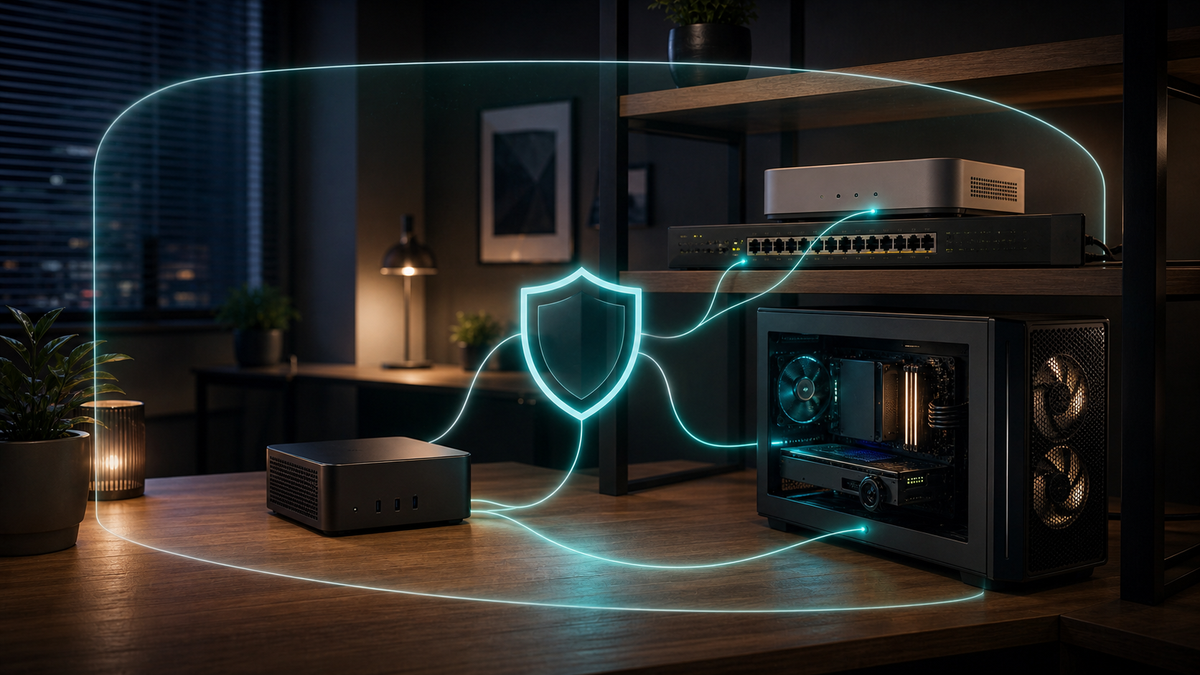
A local AI box gets a lot more useful when it stops being a single-machine toy.
Ollama on one desktop is fine. Ollama plus Open WebUI on a small server, reachable from your laptop, phone, and workbench machine, is where a home lab starts to feel like infrastructure. You can keep models on the GPU box, use a clean browser interface from the Mac Mini, and stop copying prompts between machines.
That convenience is also where people make the dangerous jump.
They bind a service to 0.0.0.0, publish a Docker port, poke a hole in the router, and call it done. A week later, the same private model server is one firewall mistake away from the public internet. Local AI tools are often built for fast iteration first, not for being hardened public web apps. Treating them like a random blog or static website is the wrong default.
This guide is the practical middle path: make Open WebUI and Ollama useful across your home lab, but keep the default posture boring and private. No invented benchmarks. No fake threat theater. Just the setup rules I would want before letting a local AI server become part of the daily workflow.
Start With the Rule: LAN Is Not the Same as Internet
There are three different access patterns, and they should not be mixed up.
| Access pattern | Good use | Risk level |
|---|---|---|
| Localhost only | Testing on the same machine | Lowest |
| Private LAN only | Home machines on a trusted subnet | Manageable |
| Remote access through identity | Your laptop or phone away from home | Manageable if done deliberately |
| Raw public port forwarding | "It works from anywhere" | Avoid for this stack |
That last row is the trap. Open WebUI and Ollama are useful tools, but a home-lab AI endpoint should not become a public service just because Docker made a port easy to publish.
The current Open WebUI quick start says Docker is the officially supported and recommended path for most users, and it documents release-specific images such as v0.9.6 and v0.9.6-cuda. That is good for repeatability. Docker also makes it very easy to expose more than you meant to expose.
Docker's own documentation says that when a port is published without a host IP, it is published to all network interfaces by default. The CLI reference gives the same warning in different words: -p 80:80 publishes on 0.0.0.0, and those ports are externally accessible if traffic can reach the host. That does not mean every Docker service is instantly on the internet. It means your firewall and router now matter.
So the TokenByte rule is simple: bind narrowly first, then open access intentionally.
The Clean Home-Lab Shape
For most local AI labs, the clean shape looks like this:
- Ollama runs on the machine with the model storage and GPU or Apple Silicon memory.
- Open WebUI runs on the same box or a nearby small server.
- Other home machines reach Open WebUI, not Ollama directly.
- Remote access uses a private network tool such as Tailscale, or a protected tunnel such as Cloudflare Tunnel with Access controls.
- Router port forwarding is not part of the normal plan.
This fits the way many TokenByte readers are already building. A Mac Mini local AI setup can be the quiet daily driver. A GPU tower can handle heavier local models or image jobs. The Build Picker can decide which box should own the models. Open WebUI becomes the front door, not a public billboard.
The setup is also easier to debug because there is one main human-facing service. If Open WebUI is down, you fix Open WebUI. If a model will not answer, you check Ollama. If remote access breaks, you check the private access layer.
Keep Ollama Private Unless You Have a Reason
Ollama's default local API is useful because applications can talk to it on the same machine. The moment you change host binding, you are changing who can reach it.
Ollama's FAQ documents OLLAMA_HOST examples, including 0.0.0.0:11434 for listening beyond localhost. That can be legitimate on a trusted LAN, but it should not be the first reflex. If Open WebUI is on the same machine, keep Ollama local to that machine and let Open WebUI connect internally.
A conservative mental model:
- Same machine only: keep Ollama on localhost.
- Open WebUI on the same host: keep Ollama on localhost.
- Open WebUI on another trusted LAN machine: bind Ollama to a private LAN interface only if the OS and service setup support it cleanly.
- Remote use: do not expose Ollama directly. Put remote users through the web UI and an access layer.
The reason is boring but important. Ollama is powerful because it can load local models, accept prompts, and potentially connect to tools or workflows depending on how you build around it. You do not want that raw API casually reachable by every device, guest, compromised browser extension, or misconfigured subnet in your house.
If you need LAN access, document it. Put the server IP, port, and reason in your lab notes. If you cannot explain why Ollama is reachable from another machine, it should probably be localhost only.
Run Open WebUI Like a Front Door, Not a Secret Back Door
Open WebUI is a better surface for people than a raw model API. It has accounts, settings, models, and a browser interface. That does not make it a public SaaS app. It makes it the right front door inside your lab.
For a single host test, the basic idea is:
docker run -d \
  --name open-webui \
  -p 127.0.0.1:3000:8080 \
  -v open-webui:/app/backend/data \
  --restart unless-stopped \
  ghcr.io/open-webui/open-webui:v0.9.6
The important part is not the exact command. It is the 127.0.0.1:3000:8080 binding. That keeps the service on the host loopback interface for local testing. Open your browser on the server and confirm it works before widening access.
If the web UI should be available to other machines on your private LAN, make that a deliberate change:
docker run -d \
  --name open-webui \
  -p 192.168.10.25:3000:8080 \
  -v open-webui:/app/backend/data \
  --restart unless-stopped \
  ghcr.io/open-webui/open-webui:v0.9.6
Replace 192.168.10.25 with the server's actual private IP. The point is to avoid a lazy all-interfaces bind when you only meant "this box on this LAN."
If you use Docker Compose, the same habit applies:
services:
  open-webui:
    image: ghcr.io/open-webui/open-webui:v0.9.6
    restart: unless-stopped
    ports:
      - "127.0.0.1:3000:8080"
    volumes:
      - open-webui:/app/backend/data

volumes:
  open-webui:
Start local. Verify. Then widen only as much as the use case demands.
Pin Versions Before It Becomes a Daily Tool
The Open WebUI quick start notes that production environments should pin a specific version instead of using floating tags. That is the right instinct even in a home lab.
Floating tags are convenient when you are experimenting. They are less fun when a breakfast-time container pull changes behavior right before you needed the system to answer from a saved model list. On 2026-06-18, the latest Open WebUI GitHub release page resolved to v0.9.6, and the docs showed matching image tags such as v0.9.6 and v0.9.6-cuda.
That does not mean v0.9.6 is the forever recommendation. It means you should choose a known version when the tool becomes part of your routine.
Use a small upgrade habit:
- Pin the current version in Compose.
- Export or back up Open WebUI data before upgrades.
- Read the release notes before changing tags.
- Upgrade during a time when local AI being down is not a problem.
- Keep one short note with the version, date, and reason.
This is not enterprise change control. It is the same discipline you already want for model drives, UPS settings, and GPU drivers. TokenByte's How We Test page uses the same idea: make changes traceable so you know what actually changed.
Do Not Use Router Port Forwarding as Remote Access
The fastest way to reach a home service from outside the house is often the worst default: forward a router port to the box.
For Open WebUI and Ollama, avoid that pattern. You usually do not need it.
Tailscale Serve is one clean option for personal access. Tailscale's docs describe it as a way to share a local service securely within your Tailscale network, known as a tailnet. That is the shape most home labs want: your devices can reach the service after identity-based device enrollment, while random internet traffic cannot.
The practical version looks like this:
tailscale serve --bg 3000That is not a full security architecture by itself. You still need to manage which devices and users belong to your tailnet. But it is a better default than exposing port 3000 to the whole internet.
Cloudflare Tunnel is another reasonable pattern when you want a public hostname without opening an inbound port on your home network. Cloudflare's docs describe Tunnel as using a lightweight daemon, cloudflared, that creates outbound-only connections to Cloudflare's network, so the resource does not need a publicly routable IP address. If you use this route for a personal AI UI, pair it with Cloudflare Access or another identity gate. A tunnel without access control is not a privacy plan.
The simple decision tree:
- Personal devices only: use Tailscale or a similar private network.
- A few trusted users with identity controls: consider Cloudflare Tunnel plus Access.
- Public demo: do not put your real home-lab Open WebUI and Ollama behind it.
- Raw public port: skip it.
Separate the AI LAN From the Everything LAN
If you already have VLANs, this is where they pay off.
Put the AI box on a trusted lab network, not the same flat network as every TV, random IoT device, printer, and guest phone. TokenByte's VLAN your local AI box guide goes deeper on that network plan, but the short version is enough for this article:
- Your main laptop can reach Open WebUI.
- Open WebUI can reach Ollama.
- The GPU box can pull models and updates as needed.
- Guest devices cannot reach the AI services.
- IoT devices cannot reach the AI services.
- The AI box does not need broad access back into every personal device.
This is not about paranoia. It is about blast radius. If a random device on the network has a bad day, it should not automatically have a path to your local model server, saved chats, or automation experiments.
If you do not have VLANs yet, use the simpler version: keep the service on localhost until needed, bind to a specific private IP when needed, and do not forward it through the router.
Make the Hardware Match the Role
Security choices get harder when the hardware plan is messy.
If Open WebUI, Ollama, ComfyUI, storage, and experiments all live on one box, the service map needs to be more careful. You are deciding not only who can connect, but also which service owns GPU time, model storage, and updates.
If the lab has multiple machines, divide the work:
- Mac Mini or efficient mini PC: daily browser access, light local AI, admin tasks.
- GPU tower: Ollama models, ComfyUI jobs, heavier experiments.
- NAS or external model drive: backups and model storage, not a public file dump.
- Router or firewall: access rules, not a place to improvise AI exposure.
For buying decisions, this is where the Recommended Gear hub matters. A cheap mini PC can be a good Open WebUI front end. A bigger RTX box can be the inference worker. A quieter network switch and a real UPS may matter more than another decorative dashboard.
This article is not claiming a measured performance win from one layout over another. The practical win is operational: each box has a job, and each service has a smaller access surface.
A Sensible First Configuration
If I were setting this up from scratch for a small home lab, I would start here:
- Install Ollama on the machine that owns the models.
- Keep Ollama on localhost if Open WebUI runs on the same host.
- Run Open WebUI with a pinned image tag, not
latest. - Bind Open WebUI to
127.0.0.1for first setup. - Add Tailscale on the host and test private access.
- Only then decide whether LAN binding is needed.
- Skip router port forwarding entirely.
- Back up Open WebUI data before upgrades.
The first version should feel almost too restrained. That is fine. You can widen access later. It is much harder to notice that you accidentally widened it on day one.
One practical check after setup:
docker psLook at the PORTS column. If you see 0.0.0.0:3000->8080/tcp, ask whether that is really what you intended. For a local-only setup, you want a loopback bind. For a private LAN setup, you want a private interface and firewall rule you can explain.
Then test from a machine that should not have access. A phone on guest Wi-Fi is a good sanity check. If it can load your AI UI, your boundaries are not what you think they are.
Where ComfyUI Fits
Open WebUI and Ollama cover the local chat side. ComfyUI is a different service with different behavior, but the access rule is the same: do not expose it casually.
If you use a GPU box for image workflows, keep ComfyUI reachable only where it needs to be reachable. TokenByte's ComfyUI GPU guide is about hardware limits and VRAM, but the network lesson is simpler. A workflow UI that can load models, read paths, and run jobs should not be treated like a public static page.
For a Mac Mini plus GPU box setup, a private VPN or tailnet is cleaner than making every service public. Open your laptop, connect to the private network, use Open WebUI or ComfyUI, then disconnect. That is the home-lab version of good manners.
The One Thing to Remember
The goal is not to hide local AI from yourself. The goal is to stop convenience from silently changing the threat model.
Open WebUI is worth running. Ollama is worth putting on a real machine. A local AI lab is much nicer when the UI follows you around the house and the models stay on the box built to run them. Just do not confuse "reachable from my devices" with "open to the world."
Start with localhost. Pin the version. Bind ports deliberately. Use Tailscale or a protected tunnel for remote access. Keep raw Ollama private unless there is a clear reason. Put the AI box on a network segment that matches its power.
That gives you the good part of a home-lab AI server: private models, useful interfaces, repeatable setup, and fewer surprises.
Affiliate disclosure: TokenByte may earn a commission if you buy through links on the site. This article does not include paid placement, and no vendor reviewed or approved it before publication.