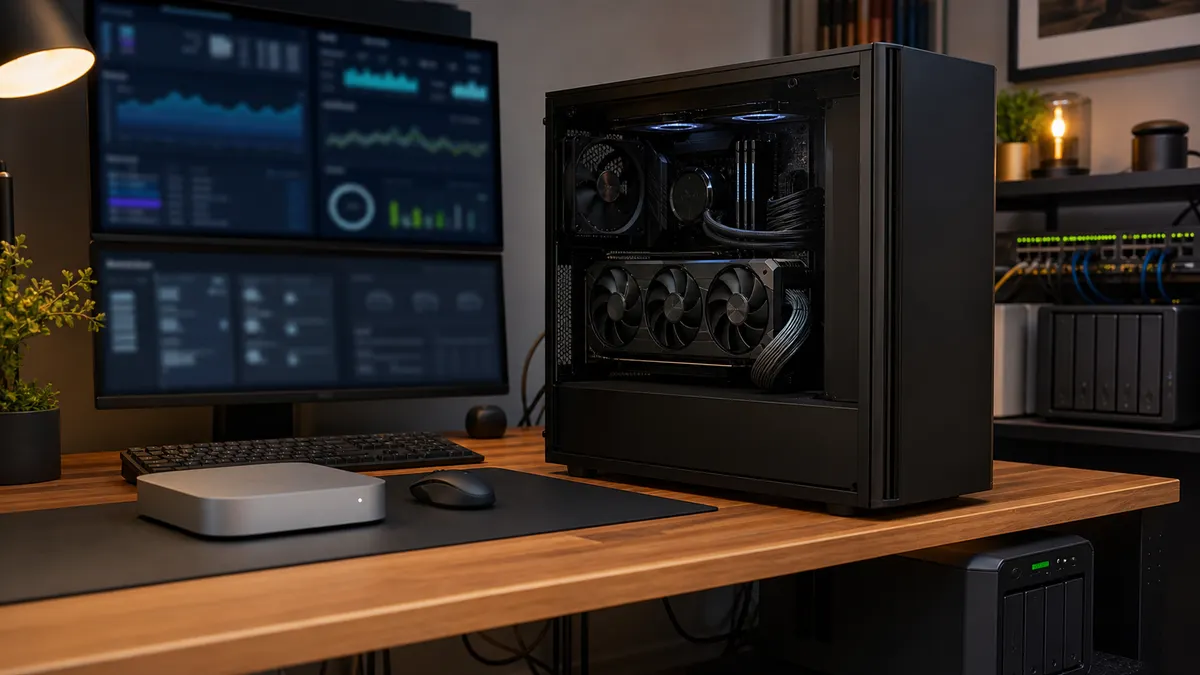
The easiest way to make a local AI tower miserable is to treat the GPU like the only component that matters.
That works right up until the machine lives beside your desk. A full-power RTX card can turn a tidy home lab into a hot, loud, cable-stressed box that you only want to use when you are feeling patient. The model may fit. ComfyUI may run. Ollama may see the GPU. But if every image batch makes the room warmer and every long inference run reminds you that the tower is under the desk, the build has missed the point.
A better local AI tower starts with a power budget.
Not a vague "buy a big PSU" budget. A real one: which GPU, which CPU, how much headroom, what cable path, what case clearance, what UPS load, and what power limit you are willing to use when the last few percent of performance is not worth the noise.
This is especially important in 2026 because the top of the GeForce stack is no longer modest. NVIDIA lists the GeForce RTX 5090 Founders Edition at 32GB of GDDR7 and 575 watts total graphics power, with a 1000W required system power note for its reference configuration. The RTX 4090 is listed at 24GB of GDDR6X, 450 watts total graphics power, and 850W required system power. The RTX 3090 still matters for budget local AI because it also has 24GB of memory, but NVIDIA's own specs list it at 350W graphics card power and 750W required system power.
Those numbers do not tell you what your exact workflow will draw. They do tell you the shape of the problem: a serious local AI GPU is a home-lab infrastructure decision, not just a card purchase.
Why AI Loads Feel Different From Gaming Loads
Gaming power draw moves around. A scene changes, the CPU gets busy, frame-rate caps intervene, menus happen, and the GPU rarely sits at the same kind of useful load for hours unless you force it to.
Local AI can be less forgiving. A ComfyUI batch, a long diffusion upscale, a local LLM service under steady use, or a containerized experiment can hold the GPU in a high-power state for a long stretch. If the box is under your desk, you feel that as fan speed, exhaust temperature, and UPS runtime. If the machine is in a closet or rack, you feel it as room heat and noise spilling into the rest of the house.
That is why "the card works" is too low a bar. A good RTX AI build should be something you can leave running without babysitting.
TokenByte's ComfyUI GPU guide focuses on why VRAM and CUDA support matter. This article is the companion decision: once you pick the GPU, how do you make the whole tower livable?
Start With the Card's Real Power Class
The GPU choice sets the floor for the rest of the build.
Here is the simple way to think about the current high-end local AI lanes:
| GPU class | Official memory | Official board/card power figure | What it means at home |
|---|---|---|---|
| RTX 3090 | 24GB GDDR6X | 350W graphics card power | Still attractive used, but older, hot, and worth inspecting carefully |
| RTX 4090 | 24GB GDDR6X | 450W total graphics power | Strong AI tower choice when 24GB VRAM is enough |
| RTX 5090 | 32GB GDDR7 | 575W total graphics power | More VRAM and new-generation performance, but a much bigger power and cooling commitment |
The trap is buying the biggest card your budget can tolerate and then treating the rest of the machine as an afterthought.
An RTX 5090 is not just "a faster 4090." In a home lab, it may mean a higher class of power supply, more careful cable clearance, stronger airflow, and a UPS that needs to be sized around a short, heavy load rather than a quiet office PC. NVIDIA's own RTX 5090 page notes 575W total graphics power, a 1000W required system power reference, and a 600W PCIe Gen 5 cable option. It also calls out case clearance and additional space for the power cable.
That does not make the 5090 a bad local AI card. It means the build around it has to be honest.
Pick the PSU for the Whole Machine, Not the GPU Sticker
For a single-GPU local AI tower, the boring PSU answer is usually the correct one: buy a high-quality unit with enough continuous wattage, the right native GPU cable, and enough headroom that the fan is not screaming during every workload.
For an RTX 3090 system, NVIDIA's reference guidance lists 750W required system power for a configuration based on an Intel Core i9-10900K. For an RTX 4090, NVIDIA lists 850W required system power for a Ryzen 9 5900X configuration. For an RTX 5090, NVIDIA lists 1000W required system power for a Ryzen 9 9950X configuration, while also noting that power requirements vary by system configuration.
In a practical home-lab build, that means:
- Do not size the PSU exactly to the official minimum if the machine will run long AI jobs.
- Do not assume a low-power CPU makes cable quality, airflow, or transient headroom irrelevant.
- Do not reuse an old PSU just because the wattage label looks high enough.
- Do not mix random adapter chains to reach the GPU.
For a 4090-class local AI tower, a good 1000W PSU is often the comfortable choice. For a 5090-class build, 1200W is a reasonable planning point if you want quieter PSU operation and more headroom for a high-end CPU, drives, fans, USB devices, and transient load. That is not a benchmark claim. It is a practical planning recommendation based on official board power and system-power guidance.
If you are choosing parts through TokenByte's local AI build picker, treat the PSU as part of the GPU budget. A cheap power supply can erase the value of an expensive card.
Respect the Cable Before You Respect the Aesthetic
The power connector is not the place to get decorative.
NVIDIA's RTX 5090 page lists supplementary power options as either multiple PCIe 8-pin cables through the adapter or a 600W PCIe Gen 5 cable. The RTX 4090 page lists either three PCIe 8-pin cables through the adapter or a 450W-or-greater PCIe Gen 5 cable. The RTX 3090 page lists two PCIe 8-pin cables for the 3090 Founders Edition.
The practical rule is simple: use the PSU maker's correct native cable when you can, avoid sharp bends near the GPU connector, and leave physical room for the cable path. NVIDIA's own system-prep guidance for 4090 and 5090 Founders Edition cards calls out clearance around the card and additional space for power cables.
That matters more than a clean photo.
A local AI tower may sit under constant load for hours. A cable pressed hard against a side panel, forced into a tight bend, or routed through an adapter stack is not a smart trade just because the side panel closes. If the case cannot close without stressing the connector, the case is too small for that card or cable setup.
This is where many compact builds become false economy. Small cases are attractive, but high-end RTX cards reward physical space: space for the GPU, space for the cable, space below the card, and space for air to leave.
Airflow Is a Workload Feature
For local AI, airflow is not just about avoiding thermal throttling. It is about making the machine pleasant enough to use.
A tower that can keep the GPU alive at full power is not necessarily a tower you want in the room. The better question is how much fan speed the system needs to hold a stable workload. A large case with slow intake fans, a clear path to the GPU, and open exhaust can feel dramatically better than a smaller case that technically supports the card dimensions.
For a single-GPU AI box, prioritize:
- direct intake air near the GPU
- enough case width for the power cable
- a clear exhaust path
- dust filters you can clean without disassembling the machine
- fan curves that do not ramp up and down every few seconds
If the tower will live near a Mac Mini, NAS, or network switch, it also needs to avoid cooking the rest of the setup. Keep the GPU exhaust from blowing directly into a storage box or into the back of another machine. TokenByte's recommended gear leans toward practical parts for this reason: the surrounding gear matters once the lab is more than one computer.
Use a Power Limit as a Daily-Driver Tool
The most underrated move in a home RTX AI build is setting a lower GPU power limit for normal use.
NVIDIA's nvidia-smi documentation includes a --power-limit option that sets a maximum power limit in watts on supported devices, with the value constrained between the device's reported minimum and maximum. It requires administrator or root permissions. On a Linux AI box, this can be part of a simple startup routine or a manual switch before long workloads.
The workflow looks like this:
nvidia-smi
sudo nvidia-smi -pl 320
nvidia-smi --query-gpu=power.draw,power.limit,temperature.gpu,utilization.gpu,memory.used --format=csv -l 2
That example is not a universal recommendation for every card. It is a pattern. First read the card, then apply a conservative limit inside the supported range, then monitor power draw, temperature, utilization, and memory use while running the workload you actually care about.
For an RTX 4090, many home-lab users will find the daily sweet spot somewhere below the card's maximum power. For an RTX 5090, the incentive to test a reduced limit is even stronger because the official power class is so high. For an RTX 3090, a power limit can help tame an older hot card, especially if it came from a previous gaming, rendering, or mining life.
The important part is not the exact number. The important part is measuring your own workflow before you decide that full power is required.
Do Not Pretend Power Limits Are Benchmarks
Power limits are workload-specific. A setting that barely changes one ComfyUI workflow might noticeably slow another. A local LLM may respond differently from an image-generation batch. A small model that fits easily in VRAM may care more about clocks than a memory-heavy workflow. A card's cooler, factory BIOS, case airflow, driver version, and ambient room temperature all matter.
So the correct TokenByte stance is conservative: do not buy a card assuming that an internet power-limit result will match your machine.
Instead, make a small test plan:
- Run your normal workflow at stock settings for a short, controlled period.
- Record wall power if you have a meter, plus GPU power, temperature, and time to finish.
- Apply a lower GPU power limit.
- Run the same job again.
- Keep the limit only if the noise, heat, and power savings are worth the speed tradeoff.
If you do not have a wall meter, nvidia-smi is still useful for GPU-side visibility. Just do not mistake GPU power draw for whole-system wall draw. The CPU, motherboard, drives, fans, USB devices, monitor, and PSU efficiency all affect what the UPS and outlet actually see.
That distinction matters for anyone planning power protection alongside TokenByte's recommended local AI gear. A GPU power limit can reduce load, but the UPS should still be sized and tested against the whole machine.
A Practical Buying Split
If you are building today, here is the practical split.
Choose an RTX 3090 if the used price is compelling, you need 24GB of VRAM, and you are willing to inspect the card, repaste or service it if needed, and accept older efficiency. It can still be a serious local AI card, but do not build around it like it is a cool-running modern part.
Choose an RTX 4090 if you want a strong, mature 24GB NVIDIA local AI tower and can find the card at a price that makes sense. It is still a big-power card, but its 450W official total graphics power is easier to plan around than a 575W flagship.
Choose an RTX 5090 if you specifically value 32GB of VRAM, want the newest high-end GeForce card, and are ready to build the supporting system properly. That means a higher-class PSU, careful cable routing, a case that gives the connector room, and a realistic plan for heat.
Do not choose the 5090 just because it is the top card. Choose it because your workflows need what it uniquely gives you.
The Quiet Build Checklist
Before buying the last part, run through this checklist:
- GPU memory target: 24GB or 32GB, based on your actual models and ComfyUI workflows.
- PSU: high-quality unit with enough continuous wattage and the correct native GPU cable.
- Case: enough card length, slot width, side-panel clearance, and cable bend room.
- Airflow: front or bottom intake that actually feeds the GPU, plus clear exhaust.
- UPS: sized for the whole tower, not just the GPU spec sheet.
- Monitoring:
nvidia-smiavailable, with temperature and power visible during workloads. - Power-limit plan: a known daily setting and a known stock-performance setting.
- Internal routing: links from the tower to storage, network, and backup are planned before the desk fills up.
That last point is easy to miss. A GPU tower rarely stays alone. It ends up talking to a NAS, a Mac Mini, a web UI, a model drive, a backup target, and maybe a small automation server. The best RTX tower is the one that fits into the lab without becoming the lab's only problem.
Bottom Line
For local AI, power is not just an electrical number. It is noise, heat, cable stress, UPS runtime, room comfort, and how often you actually use the machine.
An RTX 3090, 4090, or 5090 can all make sense in a TokenByte-style home lab. The right choice depends on whether you need used-value 24GB VRAM, mature high-end 24GB performance, or a newer 32GB flagship. But the build only works if the supporting system is honest about the GPU's power class.
Buy the PSU and case like they are part of the AI stack. Leave the power cable room. Test a sane power limit. Measure the workflow you actually run. Then decide whether full power is worth the extra heat.
That is how a high-end RTX box earns its place beside the desk instead of becoming the thing you only turn on when you have no other choice.
Affiliate disclosure: TokenByte may earn a commission if you buy gear through future links on this site. This article is based on published specifications, current documentation, and practical home-lab planning guidance, not paid placement or undisclosed hands-on benchmark testing.
For the next step, compare this power plan with TokenByte's RTX and ComfyUI GPU guide, Mac Mini local AI guide, recommended local AI gear, and how we test.
Found something that needs correcting? Tell the editor. Research, estimates, and hands-on measurements should be identified in the article. Read our affiliate disclosure.