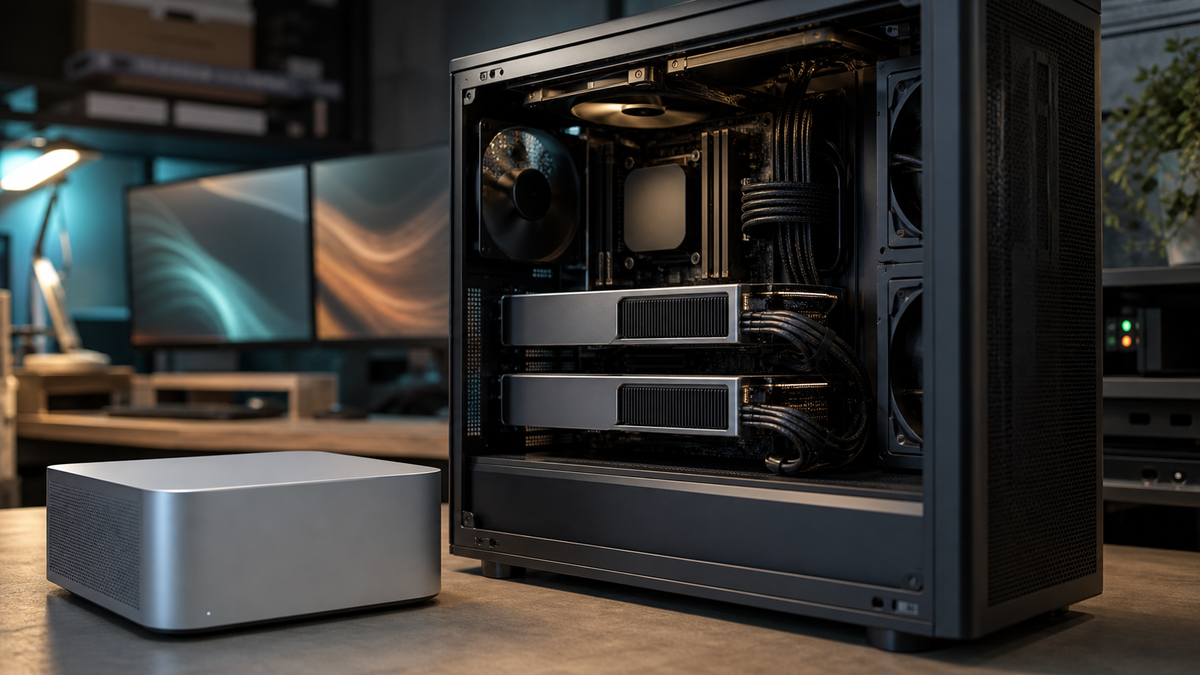
The second GPU is one of those upgrades that sounds obvious until the machine is open on the floor.
You already have one RTX card doing useful work. ComfyUI can eat the whole card during image runs. Ollama can keep a model warm for chat or coding. Maybe Open WebUI is on the LAN. Maybe a Mac Mini is acting as the quiet front end. The temptation is simple: add another GPU and the box becomes twice as capable.
Sometimes it does. More often, it becomes a hotter, louder, more expensive version of the same scheduling problem.
This guide is researched operating guidance, not a TokenByte benchmark report. TokenByte has not measured every two-GPU board, riser, case, driver stack, or model mix. The goal is to help you decide whether a second card solves a real bottleneck in your local AI lab, and if it does, how to assign work cleanly instead of hoping every tool scales on its own.
Affiliate disclosure: TokenByte may earn a commission when you buy through links on this site. That never changes the recommendation: buy the second GPU only when you have a second job for it, not because an empty PCIe slot looks lonely.
The short answer
A second GPU makes sense when you want two separate workloads available at the same time.
Good examples:
- Run ComfyUI on one GPU while Ollama stays responsive on another.
- Keep a smaller local LLM loaded for the household while a larger image workflow runs.
- Dedicate one card to experiments so the stable daily setup does not break.
- Use a lower-power card for always-on inference and a bigger card only when needed.
Weak examples:
- Expecting one ComfyUI job to automatically become twice as fast.
- Buying a second smaller GPU because the first GPU runs out of VRAM.
- Adding a card before the case, PSU, motherboard spacing, and cooling plan are ready.
- Trying to fix a bad workflow layout with more hardware.
For most home labs, the better mental model is not "one bigger computer." It is "two GPU seats in one box." If you can name the job that belongs in each seat, the upgrade may be worth it. If you cannot, finish tuning the first card first.
If you are still deciding what kind of box to build, start with the TokenByte build picker and the recommended gear hub. This article assumes you already have a working RTX local AI machine and are deciding whether to complicate it.
Two GPUs do not merge VRAM for normal home-lab workflows
The most expensive misunderstanding is thinking two consumer GPUs become one bigger pool of VRAM.
For a practical TokenByte build, that is not how to plan. If your ComfyUI FLUX workflow needs more memory than a single card can provide, adding a smaller second card will not magically turn two cards into one larger image-generation card. If your local LLM does not fit well on one GPU, assume you need a model, quant, context, or GPU choice that works on the card you are assigning to that job.
There are distributed inference and training setups in the broader AI world, but that is not the default path for a practical home-lab stack built around Ollama, Open WebUI, ComfyUI, and a few durable scripts. Those tools can use GPUs, and they can often be limited to specific GPUs, but you should not buy hardware on the assumption that every consumer workflow will split perfectly across cards.
This is where the ComfyUI GPU guide matters. VRAM per card still matters. A single 24 GB card is usually cleaner than two smaller cards when the real problem is one image workflow that barely fits. A second card is more useful when the problem is concurrency.
The best two-GPU setup has a boring assignment
Do not let every process see every GPU unless you have a reason.
The cleanest pattern is usually:
- GPU 0: ComfyUI, image workflows, experiments, high VRAM bursts.
- GPU 1: Ollama, Open WebUI-backed chat, coding assistant models, always-on inference.
Or reverse it if your case airflow and display outputs make the second slot a worse thermal home for the big card.
The point is not the numbering. The point is the contract. ComfyUI should know which GPU it owns. Ollama should know which GPU it owns. Your notes should say the same thing. If a restart swaps device ordering or a driver update changes what the tools see, you want the mismatch to be obvious.
Ollama's hardware support docs say NVIDIA GPU selection can be limited with CUDA_VISIBLE_DEVICES, and they specifically note that UUIDs are more reliable than numeric IDs because ordering can vary. The docs also point to nvidia-smi -L for discovering GPU UUIDs. That is the habit to build: identify the cards, assign the jobs, then make the assignment part of your service config.
On the ComfyUI side, the current CLI arguments include --cuda-device, which sets the CUDA device IDs an instance will use and hides the others from that instance. It also includes --default-device, which sets the default while leaving other devices visible. For a simple home lab, prefer the narrower assignment first. One ComfyUI instance, one visible GPU, fewer surprises.
A practical service layout
On Linux, the clean version looks less glamorous than the hardware receipt.
For Ollama as a systemd service, Ollama's FAQ documents setting server environment variables with systemctl edit ollama.service, adding environment lines under [Service], then reloading systemd and restarting the service. For a two-GPU box, that gives you a durable place to set the GPU assignment.
The sketch looks like this:
[Service]
Environment="CUDA_VISIBLE_DEVICES=GPU-uuid-for-ollama"
Environment="OLLAMA_HOST=0.0.0.0:11434"
Use the actual UUID from nvidia-smi -L, not the placeholder above. If you are using a Docker layout, put the same decision in Compose instead of hiding it in a one-off shell command. Yesterday's Docker stack article covers why durable service files beat terminal archaeology.
For ComfyUI, use a launch script or service unit that makes the assignment equally explicit:
python main.py --listen 127.0.0.1 --port 8188 --cuda-device 0If you run more than one ComfyUI instance, give each instance a different port, output directory, temp directory, and GPU. Do not do that on day one. First prove that one stable ComfyUI instance and one stable Ollama service can coexist.
If a Mac Mini is the quiet browser and automation station, the second-GPU box should still behave like a service machine, not a mystery workstation. The Mac Mini local AI guide is useful context here: the Mac can be the comfortable client while the RTX box does the heat, fan noise, and CUDA work elsewhere.
What to check before you buy the card
The PCIe slot is only one part of the question.
Check these first:
- Physical spacing. Many RTX cards are thick. Two large air-cooled cards can leave the upper card starved for air.
- PSU capacity and cable quality. A second high-end GPU changes transient load, connector count, cable routing, and heat.
- Case airflow. If the side panel has to stay open, the build is not done.
- Motherboard lane layout. A second mechanical x16 slot may not mean full lanes, and for local inference that may or may not matter depending on model loading and workflow shape.
- Heat near storage. NVMe drives and chipset heatsinks can sit directly under GPU exhaust.
- Noise budget. Two cards at moderate load may be easier to live with than one card screaming, but two cramped cards can be worse.
- Driver and OS plan. If the box is already fragile, add discipline before adding silicon.
None of this means a second GPU is a bad idea. It means the second card is a system upgrade, not just a GPU upgrade.
The official NVIDIA product pages put the context in plain sight: RTX 3090 and RTX 4090 class cards are large, high-power desktop GPUs, while the RTX 5090 generation raises the ceiling again. Those cards can be excellent local AI hardware, but they are not casual add-ins for a small case with spare optimism.
When a cheap second card is actually smart
The second card does not have to match the first.
A mixed setup can be sensible when the roles are different. A 24 GB card can stay focused on ComfyUI or larger local models. A smaller or more efficient card can handle a lighter always-on model, embeddings, experiments, or low-priority jobs. The key is to avoid pretending the smaller card solves the same problem as the bigger one.
Here are the cases where a cheaper second card can be the right call:
- You want Ollama available during image generation, but the model you serve is modest.
- You run a lot of short test jobs and do not want to disturb the main card.
- You already own the second card and the power/cooling math works.
- You want to learn multi-GPU operations before buying a serious second card.
Here are the cases where it is usually not smart:
- Your main ComfyUI workflow needs more VRAM than either card has.
- You expect mixed cards to behave like one big accelerator.
- The cheap card forces a new PSU, new case, new board, and more noise.
- You will spend more time debugging device assignments than using the lab.
The highest-value home-lab upgrades are usually the ones that remove friction every day. A second GPU that lets the household chat endpoint stay alive while a long image job runs can be valuable. A second GPU that adds another page of troubleshooting notes may not be.
How to prove the bottleneck before buying
Before shopping, run a week-long annoyance log.
Not a benchmark suite. A plain log.
Write down when the current card blocks you:
- "ComfyUI run prevents Ollama chat for 20 minutes."
- "The model I want does not fit unless I drop context."
- "Image job crashes because another process already has VRAM."
- "I cannot test custom nodes without risking the stable setup."
- "The GPU is fine, but the machine is too loud under load."
Only some of those are second-GPU problems.
If the issue is one model or one workflow not fitting in VRAM, a better single GPU, smaller model, lower quant, different workflow, or more careful VRAM settings may be the answer. If the issue is two different jobs fighting for the same card, a second GPU starts to make sense.
Use the tools you already have. nvidia-smi can list GPUs, show device identifiers, and report utilization, memory use, temperature, and power-related fields. NVIDIA's own documentation warns that output compatibility is not guaranteed for tooling that depends on exact text layout, but for human inspection and simple lab notes it is still the standard first look. If you are writing maintainable scripts, build around NVML bindings instead of scraping fragile terminal output.
Ollama's ollama ps command is also worth checking. The FAQ shows that it reports whether a loaded model is in GPU memory, CPU memory, or split between CPU and GPU. If your supposedly GPU-backed model is mostly on CPU, a second GPU is not the first thing to buy. Fix the model size, context length, driver support, and service assignment first.
TokenByte's how we test page is the right standard to keep in mind: separate measured evidence from researched context. If you have not measured your own bottleneck, do not turn a feeling into a hardware order.
Keep failure modes boring
A two-GPU AI box should have a boring recovery story.
Write down:
- Which GPU is physically in which slot.
- Each GPU UUID from
nvidia-smi -L. - Which service is assigned to each GPU.
- Which service file or Compose file owns that assignment.
- Which ports are expected to be open.
- How to start ComfyUI without loading custom nodes if it breaks.
- How to force Ollama onto CPU temporarily if the GPU stack needs work.
ComfyUI currently exposes --disable-all-custom-nodes and --whitelist-custom-nodes, which are useful escape hatches when a custom-node problem looks like a GPU problem. Do not overlook that. Multi-GPU debugging gets messy quickly if custom nodes, model paths, driver updates, and service assignments are all changing at once.
If the box is important, change one thing at a time. Install the second card. Confirm the OS sees it. Confirm nvidia-smi -L shows stable identifiers. Assign Ollama. Restart. Assign ComfyUI. Restart. Run a small known workflow. Run a small known chat model. Then try the real workload.
That sounds slow because it is slower than jamming the card in and hoping. It is much faster than losing a weekend to five simultaneous unknowns.
The buying recommendation
Buy the second GPU when you can finish this sentence:
"GPU A will run ____, GPU B will run ____, and I know which problem that fixes."
For a practical TokenByte home lab, the strongest reasons are concurrency and isolation. One card for image generation, one card for chat. One card for stable services, one card for experiments. One efficient always-on card, one high-power card that wakes up only for heavy work.
Do not buy the second GPU because a single workflow needs more VRAM unless you have verified that your specific stack can use both cards the way you expect. Do not buy it before the case, PSU, airflow, and service plan are ready. Do not buy it because multi-GPU sounds more serious.
A clean one-GPU box is better than a chaotic two-GPU box. A clean two-GPU box, with each card doing a job you can name, is where the upgrade starts to earn its keep.