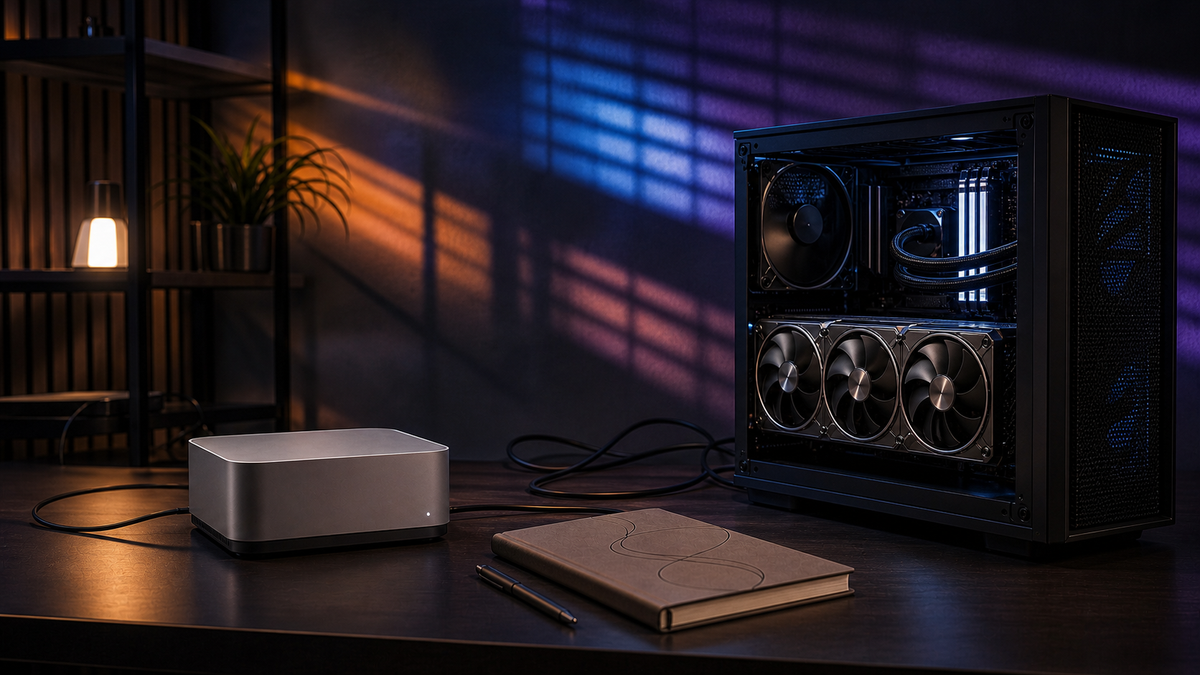
The easiest local AI upgrade to justify is the one you have not measured yet.
The model feels slow, so the GPU must be too small. ComfyUI takes a while, so the answer must be a new card. Ollama stalls during a long chat, so maybe the machine needs more RAM. The NAS feels annoying, so maybe it is time for 10GbE. Sometimes those guesses are right. Often they are just expensive guesses wearing a confident jacket.
Before the next hardware order, start a benchmark log.
Not a lab-grade review suite. Not a spreadsheet with fake precision. A practical home-lab log that captures the same few facts every time: what ran, where it ran, how long it took, what the GPU was doing, what changed, and whether the result actually affects your daily workflow.
This guide is operating guidance, not a TokenByte benchmark report. TokenByte has not measured your RTX box, Mac Mini, ComfyUI workflow, model library, room temperature, driver version, or NAS path. The goal is to help you create repeatable evidence before you buy the next GPU, SSD, network adapter, power supply, or mini PC.
Affiliate disclosure: TokenByte may earn a commission when you buy through links on this site. That does not change the recommendation here: the best upgrade is the one your own log says will remove a real bottleneck.
The short version
Keep one simple benchmark log before you upgrade.
Track these six things:
- The exact workload.
- The exact model or workflow files.
- The machine, OS, driver, and app version.
- The timing result.
- GPU memory, power, temperature, and utilization notes.
- What changed since the last run.
That is enough to separate useful evidence from vibes.
If a new GPU makes image generation faster but turns the room into a space heater, the log should show both. If a faster SSD only helps model loading and not actual generation, the log should show that. If a Mac Mini is perfectly fine for the quiet always-on job but not the ComfyUI job, the log should make the role obvious.
If you are still choosing the first build, use the TokenByte build picker first. This article is for the moment after the lab already works and you are deciding whether the next purchase is actually justified.
What a benchmark log is not
A home-lab benchmark log is not a public leaderboard.
Do not compare your numbers against a random forum post unless you can match the model, quant, context, backend, driver, OS, power limit, cooling, prompt size, and test method. Even then, treat the comparison as rough context, not a verdict.
Do not invent confidence. A single run after a reboot is not a truth tablet. A result captured while another process is downloading models, indexing files, or running a browser full of tabs may still be useful, but only if the log says what else was happening.
Do not turn every metric into a buying decision. Some slowdowns do not matter. If a model takes an extra ten seconds to load once in the morning but then stays responsive all day, a faster drive may not be the best upgrade. If a ComfyUI workflow is slow because it uses a heavy upscaler or too many steps, a different workflow might beat a bigger receipt.
The log is there to make the next conversation honest:
- Is this a compute problem?
- Is this a VRAM problem?
- Is this a model-loading problem?
- Is this a cooling and power problem?
- Is this a network or storage problem?
- Is this just impatience with a workflow that runs once a week?
TokenByte's how we test page exists for the same reason. Measured evidence, researched context, and buying opinion should not be blended together until nobody can tell which is which.
Start with one baseline workload
Do not start with ten tests.
Pick one thing you actually do.
For an Ollama-heavy setup, that might be a local coding prompt, a summarization prompt, or a fixed Q&A prompt against a model you use every day. For a ComfyUI box, it might be a single image workflow with the same checkpoint, resolution, steps, sampler, LoRA set, and seed. For a Mac Mini utility box, it might be how long a small local model takes to answer a note-cleanup prompt while the machine is doing normal background work.
The baseline should be boring enough to repeat.
Write down:
- Date and time.
- Machine name.
- CPU, RAM, GPU, and storage path.
- OS and driver version if relevant.
- App versions or commit dates where possible.
- Model name, quant, context, and source.
- Workflow file name for ComfyUI.
- Prompt or task description.
- Result time.
- Notes about heat, noise, failures, and anything unusual.
That list sounds longer than it feels. Once you have the template, each run takes a minute.
The biggest mistake is changing three things at once. If you update drivers, change the model quant, move the model to a NAS, and add a power limit, the next number is not very useful. The log should make one change visible.
Ollama gives you useful timing fields
Ollama's API response includes timing fields that are useful for home-lab logs.
The official API documentation lists total_duration, load_duration, prompt_eval_count, prompt_eval_duration, eval_count, and eval_duration. It also gives the tokens-per-second calculation for generation: divide eval_count by eval_duration, then multiply by one billion because the duration is in nanoseconds.
That is more useful than guessing from a stopwatch.
A practical Ollama log row might include:
| Field | Why it matters |
|---|---|
| Model and tag | Avoid comparing different quants as if they are the same model |
| Prompt token count | Longer prompts stress prompt processing differently |
| Response token count | Short answers can make runs noisy |
| Load duration | Shows whether storage and cold-start behavior matter |
| Prompt eval speed | Useful for long-context work |
| Generation speed | Useful for chat feel |
ollama ps note | Confirms whether the model is in GPU, CPU, or split memory |
The point is not to publish a universal number. The point is to know whether your change made your setup better.
If a model is slow because it is mostly running on CPU, buying a second GPU is not the first move. If the model is fast after loading but cold starts are painful, storage, keep-alive behavior, model choice, or service layout may matter more. If long prompts are the problem, context settings and memory pressure deserve attention before a GPU shopping tab.
This is where the Mac Mini local AI guide and the ComfyUI GPU guide meet in real life. The quiet Mac may be good enough for steady utility work. The RTX box may be the right machine for heavier CUDA work. Your log should show which job belongs where.
Use llama-bench for repeatable LLM snapshots
If you are comfortable with llama.cpp, llama-bench is a cleaner benchmarking tool than a homemade stopwatch.
The llama.cpp documentation describes llama-bench as a performance testing tool. It can run prompt processing tests, text generation tests, and combined prompt-plus-generation tests. It reports average tokens per second and standard deviation, and it can output markdown, CSV, JSON, JSONL, or SQL.
That matters because prompt processing and token generation are not the same bottleneck.
Prompt processing is the speed of reading the input into the model. It matters when you use long prompts, retrieval chunks, coding context, transcripts, or big documents. Text generation is the speed of producing the answer. It matters when you care about chat feel or long output.
For a benchmark log, keep the llama-bench setup modest:
- One model you actually use.
- One prompt-processing test.
- One generation test.
- Three to five repeats.
- JSON or CSV output if you want to track history.
Do not turn the first pass into a benchmarking hobby. You are trying to answer a buying question. Does this quant fit better? Does the power limit hurt enough to notice? Does the driver update change anything? Does the CPU-only path still make sense for a background job?
If the answer is obvious after three clean runs, stop.
ComfyUI needs workflow-level notes
ComfyUI is harder to reduce to one number because the workflow matters so much.
Resolution, model family, sampler, steps, VAE, ControlNet, LoRA stack, upscaler, custom nodes, output count, and seed can all change the result. Two "ComfyUI benchmarks" can be completely different jobs hiding under the same app name.
Keep ComfyUI logs at the workflow level.
For each baseline workflow, record:
- Workflow file name.
- Checkpoint or model family.
- Resolution.
- Batch size or image count.
- Step count and sampler.
- Major extras such as ControlNet, LoRAs, upscalers, or video nodes.
- Output directory location.
- Total wall-clock time.
- Peak VRAM note if you have it.
- Failure notes, especially out-of-memory errors.
ComfyUI's server source exposes useful API surfaces such as /prompt, /queue, and /history/{prompt_id}. That makes it possible to build a local helper that submits a fixed prompt, watches the queue, and records when the job lands in history. You do not need that automation on day one, but it is worth knowing the app has more structure than clicking and guessing.
The current ComfyUI CLI arguments also support practical logging discipline. The source includes flags for --listen, --port, --output-directory, --temp-directory, --cuda-device, and --disable-all-custom-nodes. Those are not benchmark features by themselves, but they help keep runs comparable. If the output path, GPU assignment, and custom-node state change every time, your timing notes get muddy.
If you are comparing GPUs for ComfyUI, use the recommended gear page as a starting point, but let your workflow decide the upgrade. A 24 GB card can be a smarter buy than a faster smaller card if the workflow actually needs the memory. A faster card can be a waste if the workflow is blocked by storage, custom-node overhead, or an upscaling choice you barely need.
Capture power and thermals without overcomplicating it
Performance without power and heat is only half the story.
NVIDIA's nvidia-smi documentation exposes query options and CSV formatting. It also documents power draw fields, memory usage, and related telemetry. For a home-lab log, the useful habit is simple: capture a few GPU fields while the workload runs.
The practical set:
- GPU name or UUID.
- Memory used.
- GPU utilization.
- Temperature.
- Power draw.
- Power limit if you changed it.
You can grab those with nvidia-smi in a separate terminal during a run, or use a small script later. Do not build a fragile parser around a pretty terminal table if you can query specific fields and format as CSV.
For buying decisions, power matters because the room matters. A GPU that saves twenty seconds but pushes fans into an annoying range may be the wrong daily setup. A modest power limit that barely changes generation time but cuts noise may be the best upgrade you did not have to buy.
That fits the advice in the RTX power-budget guide: a local AI box is not just a benchmark score. It is a machine that lives somewhere. If it is loud, hot, unstable, or scary under load, the raw speed number does not tell the whole truth.
Keep a change log beside the numbers
Numbers without context age badly.
Beside each benchmark run, keep a change log:
- Driver updated.
- Ollama updated.
- ComfyUI updated.
- New custom node installed.
- Model moved from internal NVMe to NAS.
- Power limit changed.
- Case fans adjusted.
- Room temperature unusually warm.
- Background job running.
- Browser and other apps closed.
This is the part future you will actually appreciate.
Three months from now, you will not remember why a result suddenly improved or got worse. The answer might be a real software improvement. It might be a smaller context. It might be a workflow change. It might be that the model was already loaded in memory.
The log does not need to be fancy. A markdown file, spreadsheet, SQLite database, or note app is fine. The only rule is that the context lives with the number.
If you use a NAS for model storage, this is where storage notes matter. The NAS model library guide explains why a shared model archive is useful, but active inference and image generation can still benefit from local NVMe. Your benchmark log should show whether a storage move affects model loading, generation, or only file management convenience.
A simple template you can steal
Start with this:
| Date | Machine | Workload | Model/workflow | Change | Time/result | GPU notes | Decision |
|---|---|---|---|---|---|---|---|
| 2026-06-26 | RTX box | Ollama prompt | model tag, context | baseline | tokens/s and load time | VRAM, watts, temp | keep |
| 2026-06-26 | RTX box | ComfyUI image | workflow name | baseline | wall-clock time | peak VRAM note | keep |
Add links to the exact workflow, model card, or local path if that helps. Do not paste secrets, private prompts, API keys, client data, or personal files into the log. If the prompt contains private material, describe the shape of the test instead.
The "Decision" column is important. Every run should say what you learned:
- Keep current setup.
- Try lower quant.
- Try smaller context.
- Move model back to local SSD.
- Add power limit.
- Improve airflow before buying GPU.
- Buy RAM before GPU.
- Buy GPU only if this workflow becomes weekly.
The decision does not have to be final. It just needs to be honest.
When the log says buy, buy the right thing
The benchmark log should point to the class of fix, not just the most exciting part.
If the issue is VRAM, the fix may be a larger GPU, a different model, a different quant, a smaller resolution, or a workflow change.
If the issue is generation speed, the fix may be a faster GPU, better backend support, a power setting, or simply using the RTX box instead of the Mac Mini for that job.
If the issue is cold-start time, the fix may be local NVMe, keep-alive settings, model cleanup, or service layout.
If the issue is heat and noise, the fix may be a power limit, case airflow, fan tuning, a different case, or moving the box away from the desk.
If the issue is two workloads fighting, the fix may be scheduling, separate services, or a second GPU only when the roles are clear.
That last point matters after yesterday's second-GPU discussion. A benchmark log is how you prove whether the second card has a job. "ComfyUI blocks Ollama every evening" is evidence. "I want more performance" is a mood.
The buying recommendation
Do not buy more local AI hardware until you have one baseline log for the thing that bothers you most.
If the log shows a real bottleneck, buy toward that bottleneck. If it shows the machine is already good enough, spend the money somewhere else. If it shows your workflow is inconsistent, fix the workflow before judging the hardware.
For most TokenByte readers, the first useful benchmark log is small:
- one Ollama prompt
- one ComfyUI workflow
- one power and temperature note
- one change at a time
- one decision after each run
That is enough to make better purchases. It is also enough to avoid the classic home-lab trap: replacing a system you have not understood yet.
Benchmark before you buy. Not because numbers are everything, but because the wrong upgrade is still wrong when it ships fast.