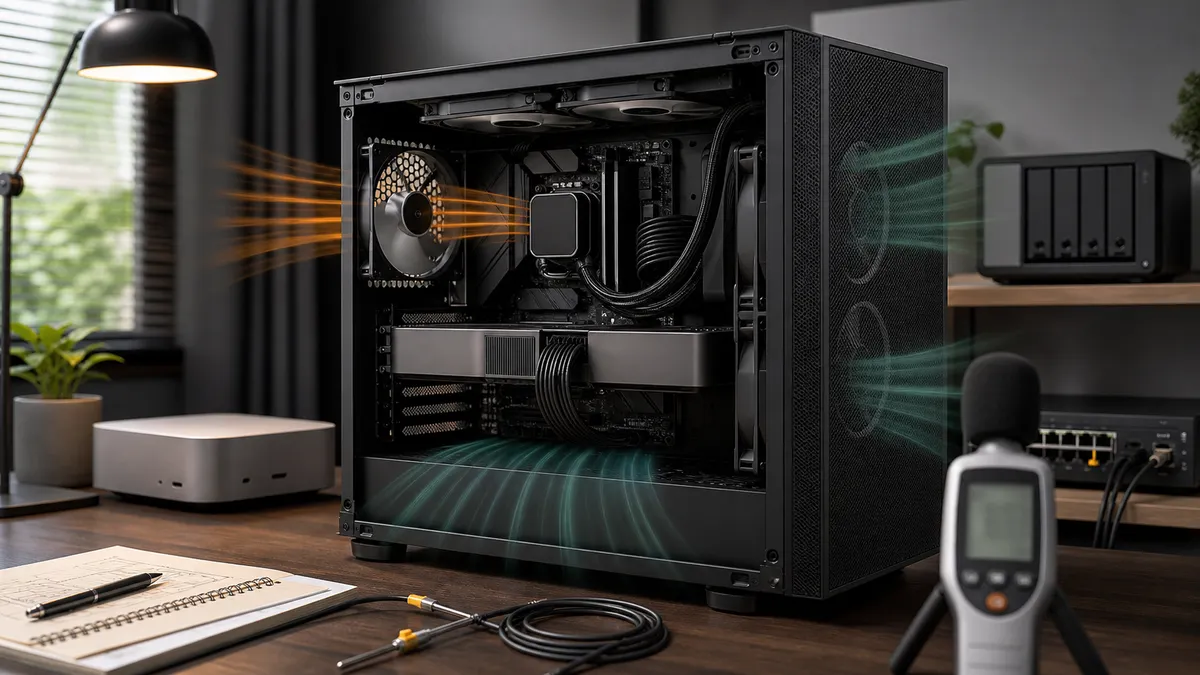
The loudest local AI mistake is usually made before the first model runs.
It happens when the build plan treats the GPU as the whole workstation. Pick the card. Pick the CPU. Pick the power supply. Pick the case because it looks good in a photo. Then the first long ComfyUI batch, local LLM test, captioning run, or overnight benchmark turns the machine into a heat source with fans trying to apologize for the parts list.
The problem is not that powerful GPUs are bad for home labs. They are often the right tool. The problem is pretending a 350W, 450W, or 575W graphics card is just another component instead of the center of the thermal plan.
If the workstation sits under a desk, next to a microphone, in a small room, or anywhere people actually live, airflow and noise are product features. They decide whether the box becomes a daily tool or a machine you only turn on when nobody else is home.
Affiliate disclosure: TokenByte may earn a commission when affiliate links are added to this guide later. That does not change the recommendation here: plan cooling and noise before buying a bigger GPU, bigger case, or louder fan kit.
The GPU Spec Is a Heat Plan
Start with the official board power, not the marketing name.
As of this writing, NVIDIA lists the GeForce RTX 5090 Founders Edition at 32GB GDDR7, 575W total graphics power, a 1000W required system power note, and a 90 C maximum GPU temperature. The RTX 4090 Founders Edition is listed at 24GB GDDR6X, 450W total graphics power, 850W required system power, and a 90 C maximum GPU temperature. The RTX 3090 Founders Edition is listed at 24GB GDDR6X and 350W graphics card power, with a 93 C maximum GPU temperature for the RTX 3090 column on NVIDIA's 3090/3090 Ti page.
Those numbers are not a complete thermal design, and add-in-card models vary by manufacturer. They are still a useful warning. A local AI workstation has to move the heat those parts create while keeping clocks stable enough for repeatable work.
The RTX 5080 is a good example of why the name alone is not enough. NVIDIA lists the RTX 5080 Founders Edition at 16GB GDDR7, 360W total graphics power, and an 88 C maximum GPU temperature. That is a very different heat and memory profile from a 5090, even though both are RTX 50-series cards.
Before choosing a case, write down:
- GPU model and board power
- card length, width, and slot thickness
- required power connector clearance
- number of intake and exhaust fan mounts
- whether the card is open-air, blower-style, liquid-cooled, or hybrid
- where the machine will sit in the room
- acceptable noise level for that room
If any of those fields are blank, the build is not ready for checkout.
Airflow Is Not Just More Fans
Good airflow is a path, not a parts count.
Noctua's airflow guide frames the basic job clearly: cool air has to be supplied to the components, and warm air has to be exhausted at roughly the same rate. It also points out the tradeoff home-lab builders feel immediately: more airflow usually means more noise, fan speed affects noise, and larger fans can often move the same air at lower speed.
That is the useful mental model. You are not trying to fill every fan slot. You are trying to give the GPU a steady intake path and a clean exhaust path without making the room miserable.
For a high-power RTX box, start with the case shape:
- open mesh intake instead of a sealed decorative front
- enough front or side intake area for the GPU
- direct exhaust path through rear and top
- space below the GPU if the cooler breathes from underneath
- cable routing that does not block the front-to-back path
- dust filters that can be cleaned without disassembling the whole workstation
Glass is not automatically bad. Small cases are not automatically bad. Vertical GPU mounts are not automatically bad. But every aesthetic choice has to answer one question: where does the GPU get fresh air after the machine has been running for an hour?
If the answer is "from a narrow gap against glass," rethink the build.
Clearance Matters More Than the Spec Sheet Photo
The Founders Edition dimensions do not cover every card on the shelf.
NVIDIA's own RTX 4090 page notes that graphics card specifications vary by add-in-card manufacturer and tells buyers to refer to the manufacturer specifications for actual shipping models. That caveat matters in local AI because many partner cards use enormous coolers. A card that fits the length spec may still crowd a side panel, block another PCIe slot, press a power cable into the glass, or sit too close to a bottom-mounted fan.
A case spec can be helpful, but only if you read the useful parts. Corsair's 5000D Airflow page, for example, lists maximum GPU length, fan support, radiator support, drive bays, and cable routing depth. That does not mean everyone should buy that case. It means a real case page should give you enough numbers to check your actual card, power cable bend, front radiator, drive cage, and fan layout before you buy.
Use a clearance checklist:
- GPU length fits with front fans or radiator installed
- power cable has room without a hard bend against the side panel
- GPU thickness leaves breathing room below the card
- front intake is not blocked by a drive cage
- bottom intake, if used, is not blocked by carpet or a desk shelf
- top exhaust does not fight a CPU radiator in a way that starves the GPU
- the case can be cleaned from the front and bottom
The expensive failure is not "the card does not fit." That gets caught quickly. The expensive failure is "the card fits, but only in the hottest possible way."
Measure Thermal Throttling, Not Just Temperature
A GPU can be hot and fine. It can also be hot enough that the driver has started saving the card by reducing clocks.
NVIDIA's support note says GPUs are designed to operate up to their specified maximum temperature. If the GPU reaches that maximum, the driver throttles performance to bring temperature down; if temperature keeps rising, the system can shut down to prevent damage.
For local AI, that means the number you care about is not only peak temperature. You also care whether clocks were reduced during the workload you actually run.
NVIDIA's nvidia-smi documentation exposes several useful ideas here. It documents temperature readings, board power readings, and clock event reasons. Those event counters can report time spent under software power capping, software thermal slowdown, hardware thermal slowdown, and power-brake conditions on supported systems.
You do not need a full lab instrument stack to start. For an NVIDIA Linux box, a simple first pass can log:
nvidia-smi --query-gpu=timestamp,name,temperature.gpu,power.draw,clocks.sm,clocks.mem,utilization.gpu,utilization.memory,clocks_event_reasons.sw_thermal_slowdown,clocks_event_reasons.hw_thermal_slowdown,clocks_event_reasons.sw_power_cap --format=csv -l 5Support varies by driver and GPU, so treat unsupported fields as a signal to simplify the query, not as proof nothing is happening. The habit matters more than the exact command: record temperature, power, clocks, utilization, and any throttling reason during a repeatable workload.
Pair that with the local AI benchmark log and how we test discipline. If you change the case fan curve, remove a dust filter, move the tower from the floor to the desk, or cap GPU power, write down what changed before trusting the next result.
Use Real Local AI Workloads
Do not validate a local AI workstation with a five-minute game benchmark and call it done.
Games are useful stress tests, but home-lab AI has different rhythms. A ComfyUI batch may run the GPU hard, pause between steps, write outputs, then hit VRAM again. A local LLM server may spend long stretches at moderate power with bursts under load. A captioning or embedding batch may run for hours and heat-soak the whole room. A badly placed NAS or external drive can add its own noise and heat to the desk.
Use the work you care about:
- one short ComfyUI workflow
- one long ComfyUI batch
- one local LLM prompt that fills a realistic context window
- one overnight queue or captioning job if that is part of the lab
- one idle test with services loaded but not working
- one restart and warm-room test after the machine has been on for a while
The ComfyUI GPU guide is the better place to think about VRAM fit and workflow class. This airflow plan is about whether the workstation can run that workload repeatedly without becoming loud, unstable, or thermally inconsistent.
Build Fan Curves for the Room
The right fan curve is not the loudest one you can tolerate for thirty seconds.
It is the curve that keeps the workstation predictable for the room it lives in.
For an under-desk GPU workstation, the target may be "never ramp sharply during calls." For a garage or utility-room box, the target may be "keep the GPU cool and ignore moderate fan noise." For a bedroom or shared office, the target may be "cap power and accept slower batches after 9 p.m."
Start conservative:
- keep intake fans moving slowly at idle
- avoid zero-RPM case fan behavior if heat pools near the GPU
- make GPU fan ramps gradual rather than spiky
- separate CPU and GPU curves if the motherboard software allows it
- prefer larger, slower case fans when the case supports them
- test with the side panel on, not only open-bench
Do not chase a silent benchmark if it costs stability. Quiet is good. Repeatable is better.
Power limits can also be part of the noise plan. Many local AI workloads do not need the card at its maximum board power every minute. A modest power cap can sometimes reduce heat and fan noise more than it reduces useful throughput. That needs to be measured on your workload, not assumed from someone else's gaming chart.
Decide When the Mac Mini Should Do the Quiet Work
Not every local AI job belongs on the GPU tower.
If the job is private notes, short summaries, light automation, file cleanup, or local utility work, a quiet Mac Mini-style box can be the better daily machine. The Mac Mini local AI guide is the right frame for that path: low noise, low friction, unified memory tradeoffs, and enough storage for the models that actually belong there.
The RTX workstation should handle the jobs that earn its heat:
- image generation
- upscaling
- model tests that need CUDA
- local LLM experiments that need more GPU memory or speed
- video, batch, or evaluation work that would tie up the quiet box
This split is not about being precious with hardware. It is about keeping the daily lab usable. A loud GPU box is less annoying when it only wakes up for GPU-shaped work.
If you are choosing the first build, use the build picker before defaulting to the biggest card. If you already own the parts, use a queue, router, or manual schedule so small jobs do not keep the hot machine awake all day.
Buying Guidance: Spend on Airflow Before Cosmetics
The best cooling purchase is often the least exciting one.
Before buying a flagship GPU, check whether the current plan also includes:
- a case with real intake area
- fans sized for quiet airflow
- enough GPU and cable clearance
- a power supply sized for the whole system, not only the card
- a clean dust plan
- a place for the machine that does not trap exhaust heat
- a measurement habit after the first build
The recommended gear page is useful when you are ready to compare parts, but the decision should start with the bottleneck. If the current case is choking a 3090, a better case and fan layout may beat a GPU upgrade. If the 4090 is already stable but loud, fan tuning or a power cap may be the first test. If the room itself is hot, no case fan can cheat physics forever.
Use this quick filter:
| Situation | First move |
|---|---|
| GPU hits thermal slowdown | Improve airflow and log again |
| GPU is cool but loud | Tune fan curves, then measure clocks |
| GPU is power capped, not thermal capped | Review PSU, power limit, and workload |
| Case fits the card but cable is crushed | Fix connector clearance before long runs |
| Workstation heats the room | Schedule jobs, cap power, or move the box |
| Small jobs wake the GPU tower | Move them to the Mac Mini or a queue |
Do not buy noise and then try to hide it.
A Practical First Build Runbook
Before the parts order:
- Pick the actual workload.
- Pick the GPU class by VRAM and workload, not status.
- Read the exact card dimensions from the card maker.
- Check case length, thickness, cable clearance, fan support, and dust access.
- Plan intake and exhaust before planning lights.
- Decide where the workstation will sit.
- Decide what noise is acceptable in that room.
After assembly:
- Run idle logging for ten minutes.
- Run a short workload and record temperature, power, clocks, and noise impression.
- Run a long workload until the case is heat-soaked.
- Check for thermal or power clock event reasons where supported.
- Change one variable at a time: fan curve, side panel, filter, power cap, or machine location.
- Record the result in the benchmark log.
- Only then decide whether the next purchase is a fan, case, power supply, storage move, or GPU.
That last step is where the money gets saved.
A local AI workstation should not be a mystery heater with a graphics card inside. It should be a tool with known limits: how hot it gets, how loud it gets, what makes it throttle, and which jobs are worth waking it up for.
Build the airflow path first. Measure the workload you actually run. Let the noise budget decide the room, the case, and the fan curve before the GPU turns a promising AI lab into a desk-side furnace.
Found something that needs correcting? Tell the editor. Research, estimates, and hands-on measurements should be identified in the article. Read our affiliate disclosure.