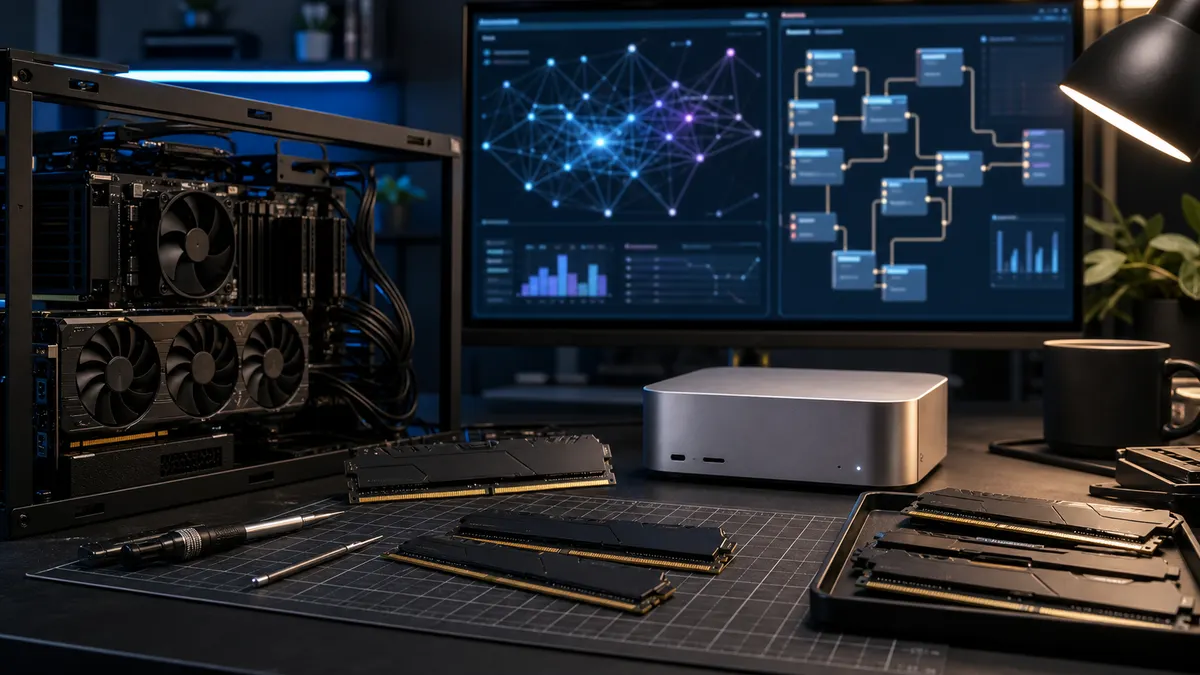
RAM is the part of a local AI build that gets ignored until the machine starts acting weird. The GPU gets the glory. The SSD gets blamed when models load slowly. But system memory is the quiet buffer between a smooth home-lab box and a desktop that starts paging, stuttering, crashing, or refusing to keep more than one serious thing open at a time.
For TokenByte builds, I would stop treating RAM as a checkbox. If the machine is only for gaming, 32GB may be fine. If it is for ComfyUI, Ollama, browser tabs, model downloads, automation tools, remote access, and maybe a few containers, the RAM decision deserves more attention.
This guide is the practical version: what 32GB, 64GB, and 128GB actually mean for local AI, where Mac unified memory changes the math, and when spending more on RAM is smarter than chasing a faster SSD or a slightly better GPU.
Affiliate disclosure: TokenByte may earn a commission when affiliate links are added to this guide later. The guidance here is based on current platform specs, software behavior, and practical home-lab fit, not paid placement.
If you are planning the whole machine instead of just the memory kit, keep the TokenByte build picker, ComfyUI GPU guide, Mac mini local AI guide, recommended gear page, and how we test page open next to this article.
The Fast Answer
| Memory amount | Best fit | TokenByte verdict |
|---|---|---|
| 16GB | Basic desktop use, light model testing, Mac mini entry configs | Too tight for a serious local AI lab unless the workflow is narrow |
| 32GB | Learning ComfyUI, one local model at a time, budget PC builds | Acceptable starter floor |
| 64GB | ComfyUI plus Ollama plus browser/tools, most practical home labs | Best default for a new local AI PC |
| 128GB | Larger local LLM experiments, containers, video workflows, heavier multitasking | Worth it if the machine is becoming a workstation |
| 192GB+ | Advanced workstations, virtualization, multiple services, serious model staging | Not required for most readers, but no longer exotic |
If I were building a new PC for local AI today, I would treat 64GB as the sane default. I would use 32GB only for a budget starter machine. I would go 128GB if the box is meant to run local LLMs, ComfyUI, automation, databases, and background services at the same time.
RAM Is Not VRAM
The first trap is mixing up system RAM and GPU VRAM.
VRAM is memory on the graphics card. ComfyUI image models, tensors, active workflow pieces, and GPU-side inference work want VRAM. That is why yesterday's GPU guide focused on 16GB-class graphics cards and why 24GB cards remain interesting.
System RAM is the memory your operating system, Python environment, browser, model files, containers, CPU-side inference, and fallback/offload behavior use. It does not turn an 8GB GPU into a 24GB GPU. It can, however, keep the rest of the machine from falling apart when your workflow is loading, swapping, downloading, unpacking, or running helper services.
That distinction matters. A 16GB GPU in a PC with only 16GB of system RAM is not a balanced AI build. The GPU may be capable of running the workflow, but the rest of the system has no breathing room.
Why Local AI Eats System Memory
ComfyUI is not just an image generator. It is a Python application, a node graph, a model loader, a file manager, and a workflow runtime. The official ComfyUI system requirements page lists Windows, Linux, and macOS support, including Apple Silicon, and notes that ComfyUI runs in a separate Python environment. That separate environment matters because Python packages, custom nodes, model loaders, and the operating system all take memory before your actual generation starts.
Ollama adds another layer. Its documentation shows that ollama ps reports where a model is loaded, and its context-length guide is blunt about the tradeoff: larger context length increases memory requirements. Ollama also notes that concurrent requests depend on available memory and that, for GPU inference, new models need enough VRAM to fit.
Translated into home-lab terms: RAM is not only about one app. It is about everything you leave running while you work.
A realistic local AI session might include:
- ComfyUI running in a Python environment
- A browser with docs, model pages, and a workflow tutorial open
- Ollama or LM Studio serving a coding/model assistant
- Downloads or model copies in the background
- A monitoring dashboard
- n8n, Home Assistant, Docker, or another automation service
- Remote desktop, Tailscale, Syncthing, or file sharing
That is how a machine that looked fine on a spec sheet becomes cramped in real use.
32GB: The Starter Floor
Thirty-two gigabytes is the minimum I would recommend for a new local AI PC that is meant to do more than open a demo.
With 32GB, you can learn ComfyUI, run normal SDXL-style workflows, keep a modest browser session open, and experiment with smaller local language models. If the machine has a 12GB or 16GB GPU, 32GB of system RAM is enough to get started without feeling absurdly mismatched.
The limitation is multitasking. Once you start combining ComfyUI with local LLM serving, Docker services, video workflows, large model downloads, and a pile of browser tabs, 32GB can become the next bottleneck. It may not fail immediately, but the machine will feel more fragile. You will close apps before starting a run. You will think about memory instead of the workflow.
Buy 32GB if the budget is tight, the machine is for learning, or the motherboard has empty slots for an easy upgrade later. Do not buy 32GB soldered or non-upgradable if you already know this machine is going to become your main AI workstation.
64GB: The Practical Default
Sixty-four gigabytes is the best default for most TokenByte readers building a PC local AI box.
It gives the operating system room. It gives ComfyUI room. It lets you keep Ollama, a browser, downloads, monitoring, and a few services open without constantly babysitting the machine. It is also a common, easy-to-buy DDR5 capacity: two 32GB modules are widely available, and published datasheets from memory vendors show ordinary 64GB DDR5 kits at mainstream speeds like DDR5-5600 and DDR5-6000.
For a Ryzen or Intel desktop, I would usually prefer a clean 2x32GB kit over filling four slots with smaller sticks. It is simpler, easier on memory controllers, and leaves a clearer upgrade path on many boards. Fancy RGB does not matter for local AI. Stability matters more.
If the machine is going to run a 16GB GPU, I would pair it with 64GB of RAM unless there is a strong budget reason not to. That balance makes more sense than spending every dollar on the GPU and leaving the rest of the machine starved.
128GB: When the Lab Becomes a Workstation
One hundred twenty-eight gigabytes is where a local AI box starts feeling like a workstation.
This is not required for every ComfyUI user. If you mostly generate still images and run one workflow at a time, 128GB may sit unused. But it becomes attractive when the machine has multiple roles:
- Local LLM experiments with larger quantized models
- ComfyUI plus video or animation workflows
- Containers and self-hosted automation
- Development tools, databases, and agents
- Large datasets, indexing, or RAG experiments
- Remote access where you do not want to close everything before a run
The important detail is motherboard and CPU support. Do not assume every board handles high-capacity kits equally well at advertised speeds. High-capacity DDR5 is more common now, and high-end kits have pushed into 128GB and 256GB territory, but capacity, speed, and stability still need to match the platform. Check the motherboard memory QVL, update the BIOS, and be prepared to choose stability over maximum advertised frequency.
For local AI, I would rather have 128GB running stable than a showy overclock that fails once a week.
Mac Mini Unified Memory Is Different
Apple Silicon changes the conversation because unified memory is shared by CPU, GPU, and Neural Engine. It is not the same as adding DDR5 sticks to a PC, and it is not the same as having a discrete GPU with separate VRAM.
Apple's current Mac mini specs list the M4 model with 16GB unified memory and configurable 24GB, while the M4 Pro model starts at 24GB and is configurable to 48GB. Apple also lists 120GB/s memory bandwidth for M4 and 273GB/s for M4 Pro.
That means a Mac mini can feel better than its raw memory number suggests in some workflows, but the buying risk is higher because memory is not upgradeable later. If you buy too little, you live with it.
For a Mac mini local AI setup, I would think like this:
- 16GB: fine for light testing, not my pick for a serious local AI lab
- 24GB: reasonable entry point for Ollama, small models, and light ComfyUI
- 48GB: the better M4 Pro choice if this will be an actual AI workstation
- 64GB-class and above: look beyond Mac mini if your work demands it
The Mac mini is attractive because it is small, quiet, efficient, and easy to keep on a desk. But for ComfyUI-heavy work, a PC with a discrete GPU and upgradeable RAM is still the more flexible path.
What RAM Speed Should You Buy?
For local AI, capacity usually matters more than chasing the fastest RAM kit.
On a modern desktop, DDR5-5600 to DDR5-6000 is a sensible zone depending on CPU, motherboard, and kit support. Kingston's 64GB DDR5-6000 kit datasheet, for example, lists both JEDEC defaults and EXPO/XMP profiles. That is the kind of boring detail worth checking because it tells you whether the advertised speed depends on enabling a profile.
The practical buying rules:
- Buy a matched kit, not random sticks.
- Prefer two sticks over four when possible.
- Check motherboard support for the capacity you want.
- Enable EXPO or XMP only after the system is otherwise stable.
- Do not pay a huge premium for tiny latency gains if you are short on capacity.
If your choice is 32GB of very fast RAM or 64GB of normal-speed RAM for local AI, I would usually take the 64GB.
The Upgrade Path I Like
For a budget starter PC:
- 32GB DDR5
- 12GB or 16GB GPU
- One NVMe system drive
- Upgrade to 64GB when the machine proves useful
For the main TokenByte-style home-lab PC:
- 64GB DDR5 as the default
- 16GB to 24GB GPU depending on budget
- Fast NVMe for OS and active models
- Larger model storage drive
- Clean airflow and a stable power supply
For a serious workstation:
- 128GB DDR5 or more
- 24GB+ GPU or multi-GPU planning
- 2.5GbE or 10GbE networking if moving large model files
- Separate backup/storage plan
- Monitoring so you can see RAM, VRAM, disk, and thermals
The point is not to build the biggest machine immediately. The point is to avoid building a machine with no realistic upgrade path.
What I Would Not Buy
I would not buy a new 16GB-RAM desktop and call it a local AI workstation.
I would not spend extra on decorative RAM if the same money could move the machine from 32GB to 64GB.
I would not fill all four memory slots on a new platform unless I had checked the motherboard support list and accepted the stability tradeoffs.
I would not buy a soldered-memory Mac config at the lowest tier if I already knew I wanted to run local models every day.
And I would not confuse SSD space with RAM. A fast SSD helps load models and keeps the machine usable when it pages, but paging is still a penalty. RAM is where active work breathes.
Bottom Line
For most local AI home-lab readers, 32GB is the starter floor, 64GB is the right default, and 128GB is the workstation move.
If you are building around ComfyUI and a 16GB GPU, pair it with 64GB of system RAM. If you are running local LLMs, automation services, containers, and ComfyUI on the same box, start thinking about 128GB before the machine teaches you the hard way.
RAM is not the flashiest part of a local AI build. That is exactly why it is easy to underbuy. But a good home lab is not just a GPU with a power button. It is a balanced machine that can keep working after the first exciting demo turns into daily use. Pair this with the external SSD guide and starter GPU guide and you will have a much cleaner first build plan than most buyers start with.
Found something that needs correcting? Tell the editor. Research, estimates, and hands-on measurements should be identified in the article. Read our affiliate disclosure.