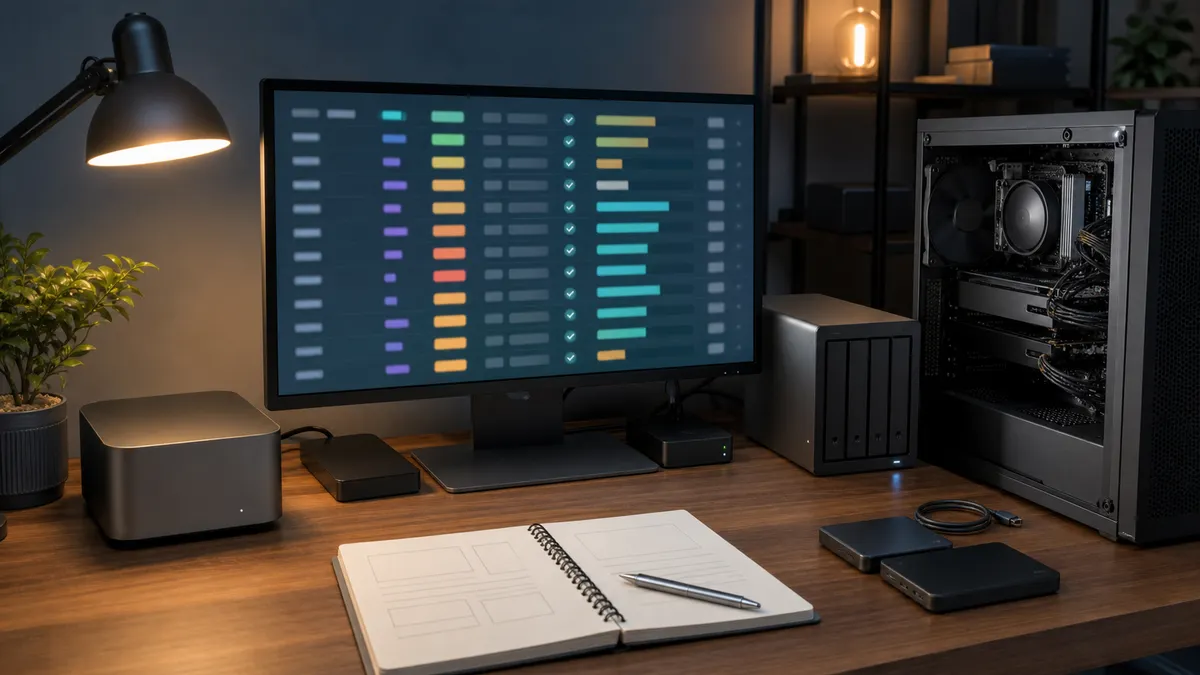
The local AI storage problem usually does not start with a dramatic failure.
It starts with one model pulled for a weekend test. Then a quantized copy lands on the Mac Mini because it was easier than mounting the NAS. A ComfyUI checkpoint sits on the RTX box. A LoRA gets downloaded into a custom node folder. A GGUF file arrives from a forum link. A second copy appears because a script used a different cache path. Three weeks later, the lab has hundreds of gigabytes of model files and nobody is completely sure which ones are safe to delete.
That is the point where buying another SSD feels productive.
Sometimes more storage is the right answer. Often the first answer is an inventory.
This is not a compliance lecture for a home lab. It is a practical way to know what you have, where it came from, what it is allowed to do, which machine uses it, and whether it deserves fast local storage. If the inventory says the model is useful, keep it. If it says the model is a stale experiment with an unknown source and no owner, delete or archive it before buying more hardware.
Affiliate disclosure: TokenByte may earn a commission when affiliate links are added to this guide later. That does not change the recommendation here: inventory the model pile first, then buy storage only when the keep list proves you need it.
The Problem Is Not Just Disk Space
Model files are awkward because they do not behave like normal app data.
They are large. They are often duplicated. They move between machines. They come in formats with names that sound similar but mean different things. They may have licenses that are fine for personal experiments but not fine for a product, client workflow, or public demo. They may depend on a specific prompt template, adapter, tokenizer, or runtime version.
A folder named models is not enough.
A useful inventory should answer plain questions:
- Which models are installed?
- Which machine or drive holds each copy?
- What is the source repo, page, or download URL?
- What exact revision, tag, or file was downloaded?
- What format is it?
- What license or use restriction came with it?
- What tool uses it?
- Is it active, experimental, archived, or ready to delete?
- Does it need local NVMe, shared NAS storage, or cold backup?
Those answers matter before hardware decisions. If the lab has 4 TB of models but only 900 GB are actually active, the next purchase may be cleanup time, not another enclosure. If the active set really is growing, the inventory tells you whether the next dollar belongs in a larger internal NVMe drive, a fast external SSD, a NAS, or a better backup plan.
Start With Three Places Models Hide
The first inventory pass should be boring and physical.
Look in three buckets:
- runtime caches
- hand-managed model folders
- app-specific folders
Hugging Face documents its Hub cache as a shared local cache used by libraries and tools, with a default location under ~/.cache/huggingface/hub and environment overrides such as HF_HUB_CACHE and HF_HOME. The cache layout stores repositories under names such as models--org--repo, with content-addressed blobs, snapshots, and refs.
That is useful, but it also means a model may not live where a normal Finder search would make it obvious. If one machine uses the default cache and another uses a custom HF_HUB_CACHE on an external drive, your lab already has two storage policies whether you meant to or not.
Ollama has its own model world. Its Modelfile reference describes a FROM instruction for base models, GGUF files, or Safetensors directories, plus fields such as parameters, templates, adapters, license text, and minimum Ollama version. The same documentation shows ollama show --modelfile as a way to inspect the generated Modelfile for an installed model.
ComfyUI adds another layer: checkpoints, VAEs, LoRAs, ControlNet models, upscalers, diffusion models, and custom-node downloads can sit in separate folders. Some are central to daily work. Some were downloaded once to test a workflow and then forgotten.
Do not try to make the inventory perfect on day one. Start by listing the model locations that actually exist on your machines.
Record Source, Revision, and Reason
The model name is not enough.
Write down:
- display name
- source URL or repo
- exact file name
- revision, branch, tag, or commit if available
- format, such as GGUF or Safetensors
- size on disk
- machine or drive path
- tool that uses it
- reason it exists
- owner or decision date
That last line is the one most people skip. It is also the one that saves the most money.
If the reason is "daily coding model on the Mac Mini," the model belongs in the active set. If the reason is "tested once for a video workflow and maybe never used again," it belongs in experimental or archive. If nobody can say why it exists, it should not be treated like sacred infrastructure.
This pairs well with the local AI benchmark log and how we test habit. The benchmark log says how a model behaved. The inventory says what the model is and whether it still belongs in the lab.
Licenses Are Part of the Setup
For a private home lab, it is easy to treat license text as somebody else's problem.
That is a mistake.
You do not need a legal department to keep a useful note. You need a field that says where the license is, what the obvious limitation is, and whether the model is safe for the way you plan to use it.
Hugging Face's model card documentation says model cards can include metadata such as license, datasets, base model, library name, task, and intended uses or limitations. That is exactly the kind of source material a home-lab inventory should point back to. If a model card is incomplete, say so in your notes instead of pretending the missing information does not matter.
For Ollama models you create yourself, the Modelfile supports a LICENSE instruction. That does not magically solve every downstream licensing question, but it gives you a place to keep the license text with the model definition.
Keep the field simple:
| Inventory field | Example note |
|---|---|
| License source | Model card, repo LICENSE, vendor page, or unknown |
| Personal use | OK, unknown, or avoid |
| Commercial/client use | OK, unknown, or avoid |
| Redistribution | OK, restricted, or avoid |
| Action | keep, replace, verify, or delete |
If the answer is unknown, write "unknown." Unknown is better than a blank cell because it stops the model from quietly becoming part of a client workflow, public demo, or shipped automation.
Hashes Help When Names Lie
Model names drift.
Files get renamed. Repos update. A latest tag changes. A friend sends a file with a friendly name. A download gets interrupted and resumed. A quantized model may share a family name with a larger base model while behaving very differently.
Record at least one durable identifier for important files.
That can be a Git commit, a Hub revision, a file hash, or a content-addressed blob path. The goal is not to build a formal supply-chain system for every weekend experiment. The goal is to stop treating two files with similar names as if they are automatically the same model.
Safetensors is helpful here because Hugging Face documents metadata parsing that can fetch and inspect tensor metadata with small HTTP range requests instead of downloading the whole weights file. That is not a complete inventory by itself, but it shows the right direction: model files should be inspectable, not just mysterious large blobs.
Git LFS has a similar lesson. GitHub's documentation explains that Git LFS stores a small pointer in the repository while the large file lives elsewhere; the pointer includes an object ID and size. That pointer is a reminder that big model files need identity and storage policy, not just a folder name.
If you want a more formal direction later, CycloneDX describes Machine Learning Bill of Materials support for representing models, datasets, dependencies, provenance, and related risk context. A solo home lab probably does not need a full ML-BOM on day one. But the concept is useful: models are components. Components deserve inventory.
Decide Where Each Model Belongs
The inventory should lead to a storage decision.
Use four states:
- active fast storage
- active shared storage
- archive
- delete
Active fast storage is for models used often enough that load time, workflow latency, or reliability matters. A daily Ollama model on a Mac Mini, a ComfyUI checkpoint used every week, or a local coding model on the RTX box may deserve local NVMe or a fast external SSD.
Active shared storage is for models that multiple machines need but do not all need at maximum speed. A NAS model library can make sense here, especially if the goal is to stop redownloading and keep a clean source of truth. TokenByte's NAS model library guide and recommended gear page are the better next reads when the inventory proves shared storage is the real bottleneck.
Archive is for models you may want later but do not need in the active path. Keep the source, revision, license note, and reason. Move the file out of the working folders so it stops confusing tools and people.
Delete is for duplicates, broken downloads, stale tests, unknown-source files, and models whose license or purpose does not fit your lab anymore.
Deleting a model is not failure. It is maintenance.
Make a Weekly Sweep Cheap
The inventory only works if updating it is easier than ignoring it.
A simple weekly sweep can be enough:
- List the largest model folders on each machine.
- Add new files to the inventory.
- Mark anything used this week as active.
- Mark one-off tests as experimental.
- Move old experiments to archive or delete.
- Check unknown licenses before they become dependencies.
- Note any model that caused a workflow failure.
Do not turn this into a dashboard project unless the lab has earned it. A spreadsheet, Markdown table, SQLite file, or tiny local web page is fine.
What matters is the decision field.
Every model should eventually say one of these:
- keep on this machine
- move to shared storage
- archive
- replace
- delete
- verify license first
That is enough to prevent the lab from becoming a pile of expensive uncertainty.
Buying Guidance: Let the Inventory Pick the Drive
Do not buy storage because the model folder looks scary.
Buy storage when the inventory says the active set needs it.
If the active models are mostly daily LLMs on a quiet utility box, the Mac Mini local AI guide is the right frame: unified memory, local SSD capacity, external drive speed, and low-friction operation matter more than a huge GPU tower.
If the active set is mostly image checkpoints, LoRAs, upscalers, and workflow assets, the ComfyUI GPU guide and local fast storage matter more. The GPU may be the exciting part, but the model library still needs a clean path and enough room for outputs.
If the inventory shows several machines all keeping their own copies, use the build picker to decide which box should be the always-on control point, then decide whether a NAS or faster network path is worth it.
The buying rule is simple:
- If the keep list is small, clean up.
- If the keep list is large but cold, archive.
- If the keep list is shared, plan NAS and network.
- If the keep list is active and latency-sensitive, buy fast local storage.
- If the keep list is unknown, stop shopping and finish the inventory.
That last rule saves the most money.
A local AI lab should feel like a set of tools, not a storage mystery. The model inventory is the boring document that makes the lab easier to maintain, easier to upgrade, and easier to trust.
One list. Real source links. License notes. Storage decisions. A keep/delete habit before the next drive order.
Found something that needs correcting? Tell the editor. Research, estimates, and hands-on measurements should be identified in the article. Read our affiliate disclosure.