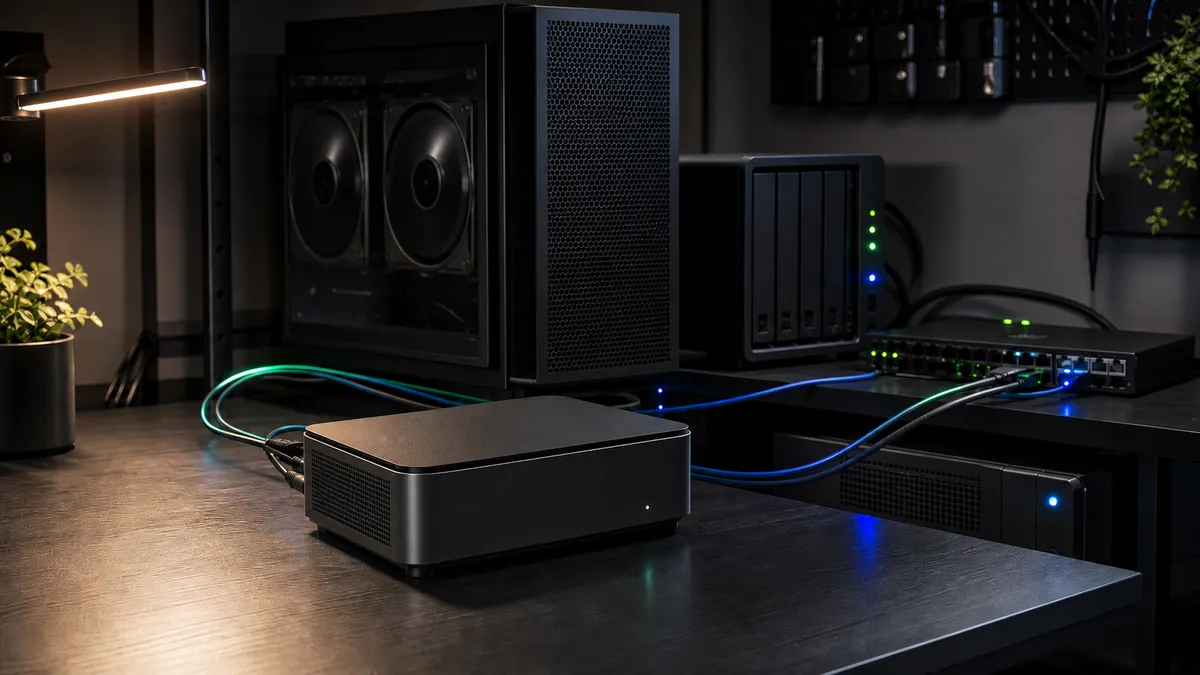
The most useful local AI box in the house may not be the machine with the biggest GPU.
That sounds wrong until the lab has more than one moving part. A Mac Mini on the desk. An RTX tower in another room. A NAS with model files. Open WebUI for the family. ComfyUI for image work. Maybe n8n for small automations. Maybe Tailscale for remote access. Maybe a reverse proxy because you got tired of remembering ports.
At that point, the question is not only "what runs the model?" The better question is "what keeps the lab organized?"
A small mini PC can be the answer. Not because it is secretly a monster AI workstation. It is not. The point is to stop treating the GPU box as the place where every dashboard, tunnel, database, proxy, updater, scheduler, and helper container must live. Use the GPU box for CUDA work. Use the mini PC as the quiet control plane.
This is researched home-lab guidance for June 28, 2026, not a TokenByte benchmark report. TokenByte has not measured a specific N100, N150, Ryzen mini PC, Open WebUI stack, or n8n workload for this article. Treat the recommendations as a practical architecture and buying checklist, then test your own box before depending on it.
Affiliate disclosure: TokenByte may earn a commission when you buy through links on this site. That never changes the rule here: do not buy a mini PC because the listing says "AI." Buy it because it has the ports, memory, storage, and reliability to run boring control services.
The short version
A mini PC makes sense as the control plane for a local AI lab when it handles:
- Open WebUI, pointed at an Ollama server or GPU box elsewhere
- reverse proxy and TLS for local web services
- n8n or other lightweight automation containers
- Tailscale, Cloudflare Tunnel, or another remote-access layer
- dashboards, uptime checks, log collection, and simple scheduled jobs
- light file syncing, notes, and model-library housekeeping
It does not make sense when you expect it to be:
- a serious ComfyUI machine
- a large local LLM runner
- a replacement for an RTX 3090, 4090, or 5090 box
- a NAS with no backup plan
- the only machine responsible for every heavy service in the lab
If you are still deciding the overall shape of the lab, start with the TokenByte build picker and the recommended gear hub. If your main workload is image generation, read the ComfyUI GPU guide before buying anything that calls itself an AI PC.
Why a control plane helps
Most local AI labs start as one machine. That is fine. One desktop runs Ollama. The browser opens Open WebUI. ComfyUI lives in a folder. The model drive fills up slowly. Nothing is elegant, but everything is visible.
The trouble starts when that one machine becomes the entire household AI service.
You want to reboot the GPU box for a driver update, but Open WebUI goes down with it. You want to test ComfyUI nodes, but your family chat interface is using the same box. You want to power-limit the GPU overnight, but the reverse proxy and automation jobs live on the same machine. You want remote access, but you are afraid to touch the router because every service is tangled together.
A control-plane mini PC gives you a cleaner split:
| Machine | Better job |
|---|---|
| GPU workstation | Ollama on NVIDIA, ComfyUI, CUDA-heavy tests, image/video workloads |
| Mac Mini or laptop | Quiet daily client, browser, editing, prompt work |
| NAS | Bulk storage, backups, shared model archive |
| Mini PC control plane | Web front end, automation, proxy, tunnels, monitoring, scheduled maintenance |
The mini PC is not glamorous. That is the point. It should be boring enough that you can leave it running, restart the GPU box, move models around, and still have the lab feel like infrastructure instead of a pile of experiments.
What a small mini PC can actually do
The low-end mini PC category is full of Intel N100-class machines, newer small-core variants, and compact Ryzen systems. The exact chip matters less than the role.
Intel's official Processor N100 specifications list four cores, four threads, a 6 W base processor power figure, and Intel UHD graphics. That is useful context because it frames the class correctly. An N100-type box is not where you put your heavy local model. It is where you run the services that help the real model server feel usable.
Good jobs for this class of machine include:
- Open WebUI connected to remote Ollama endpoints
- a Caddy reverse proxy for clean local service names
- n8n for small automations and scheduled workflows
- Tailscale for private remote access
- Cloudflare Tunnel for carefully chosen public-facing services, if you actually need that
- Uptime Kuma or similar monitoring
- a tiny Postgres or SQLite-backed service, if the workload is modest
- cron jobs that clean old logs, export notes, or check model-drive space
Bad jobs include:
- running big local LLMs on the CPU and pretending the experience is good
- using integrated graphics as if it were a CUDA card
- stacking too many databases and dashboards on an 8 GB machine
- treating a cheap eMMC storage config as a reliable always-on server
- exposing random containers directly to the internet
This distinction saves money. You do not need the control plane to be heroic. You need it to be steady.
The specs I would care about
Ignore the "AI mini PC" badge until the basics are handled.
For a local AI control plane, I would rather have:
- 16 GB RAM as the practical floor
- 32 GB RAM if you plan to run several containers, logs, and databases
- a replaceable NVMe SSD instead of tiny soldered storage
- two Ethernet ports if the box will sit between lab networks or VLANs
- 2.5GbE if your NAS and switch already support it
- quiet cooling that can survive always-on service
- easy BIOS power-restore settings after an outage
- enough USB ports for a UPS cable, external backup drive, or setup keyboard
I would be cautious with:
- 8 GB RAM boxes sold as "server" machines
- eMMC-only storage
- fanless cases that throttle in a warm closet
- unknown power adapters
- listings that promise gaming, AI, NAS, firewall, and workstation duty in one cheap box
A mini PC used this way is infrastructure. Buy for boring reliability. The "fast enough" threshold is low, but the "annoying enough to regret" threshold is also low.
Put Open WebUI in the right place
Open WebUI is a good example of why the control-plane split works.
Open WebUI's quick start documentation shows the container-based startup path, and its Ollama provider guide covers connecting Open WebUI to an Ollama backend. In a home lab, that lets you run the web interface on the small mini PC while pointing it at an Ollama server running on the GPU workstation.
That gives you a nicer failure mode.
If the GPU box is down, the front end can still be reachable and obvious about the backend being unavailable. If you move Ollama from one RTX machine to another, the control-plane box is where you update the routing. If you later add a second model server, the interface layer is not welded to whichever GPU tower happened to be first.
The same logic applies to ComfyUI access, but with a caveat. I would not run the heavy ComfyUI workload on the mini PC. Use the mini PC for links, proxying, access control, notes, and service discovery. Use the GPU box for the graph execution.
If you have not already separated the workloads, read TokenByte's guide on running a headless ComfyUI GPU box from a Mac Mini and the newer guide on running your local AI stack with Docker. The control-plane idea fits naturally next to those setups.
Keep automation close to the lab
The other obvious job is automation.
n8n's official Docker installation documentation gives a normal container path for self-hosting. That does not mean you should put a giant production automation system on a tiny box and forget backups. It does mean a mini PC can be a clean home for small lab automations:
- send a notification when the model drive is almost full
- restart a stuck helper container
- archive ComfyUI outputs to a NAS folder
- kick off a backup check after a model download
- watch a folder for new benchmark logs
- call a local endpoint from a phone shortcut
- record which model file was tested on which machine
Those jobs are not GPU-heavy. They are coordination work. Keeping them on the mini PC means they can keep running while the RTX box is busy, rebooting, power-limited, or off for the night.
This is also where a mini PC can support better buying decisions. If your automation captures simple facts such as model name, quant, runtime machine, VRAM pressure, output folder size, and failure notes, your future hardware upgrades become less emotional. That ties directly into TokenByte's local AI benchmark log advice and the broader How We Test approach: measure the annoying bottleneck before buying more gear.
Do not turn it into a security mess
A control plane is useful because it touches many things. That is also the risk.
Do not put every service on the public internet because the mini PC is convenient. Use the boring order:
- Keep local-only services local.
- Use Tailscale or another private network for personal remote access.
- Use Cloudflare Tunnel or a public reverse proxy only for services that genuinely need public reachability.
- Put authentication in front of anything that matters.
- Document which ports are open and why.
Tailscale's subnet router documentation is useful if you want one always-on machine to route access to a private home-lab network. Cloudflare Tunnel's documentation is useful when you need an outbound tunnel to publish a chosen service without opening inbound router ports. Caddy's reverse proxy quick start is useful for clean local service routing.
The architecture is not complicated:
| Service type | Better exposure |
|---|---|
| Open WebUI for personal use | LAN or private mesh network |
| ComfyUI | LAN or private mesh network |
| n8n admin UI | LAN or private mesh network |
| Public demo page | Cloudflare Tunnel or hardened reverse proxy |
| Ollama API | Usually not public |
| NAS admin page | Not public |
Local AI tools are often designed for fast iteration before hardening. Treat the control plane as a convenience layer, not a magic security boundary.
A sane first setup
If I were building this from scratch, I would keep the first version simple.
Install a stable Linux distribution the box supports well. Docker's Ubuntu install docs are a reasonable baseline if you are comfortable managing Ubuntu. Put the box on wired Ethernet. Give it a reserved DHCP address or a clean static address. Name it something boring.
Then add services slowly:
- Caddy or another reverse proxy for local service names.
- Open WebUI connected to the GPU box's Ollama endpoint.
- Tailscale for private remote access.
- n8n only after the basic web and access layer is stable.
- Monitoring after you know which services matter.
Do not start with a giant Compose file copied from three different guides. Start with the services you can explain.
Keep a small operations note beside the box:
- hostname
- IP address
- where Compose files live
- how backups work
- where persistent volumes are stored
- what services start automatically
- how to reach the GPU box
- which ports should be open
This is dull work, but it is the difference between a home lab and a mystery appliance.
Where the mini PC should not be in the path
The control plane should not become a bottleneck for everything.
Do not route heavy model files through it if the NAS and GPU box can talk directly over the switch. Do not store the only copy of your ComfyUI outputs on its internal SSD. Do not make it the one machine that must be alive for a local-only GPU job to run. Do not place it between networks unless you actually understand the routing and firewall rules.
The best version is light-touch:
- browsers and clients talk to the mini PC for web interfaces
- the mini PC points those interfaces at the right backend
- the GPU box pulls models and runs workloads
- the NAS stores large files and backups
- the switch moves traffic without unnecessary detours
If the mini PC fails, the lab should be less convenient, not destroyed.
Buying guidance without the listing nonsense
For this role, the buying checklist is short.
Buy a mini PC if:
- you already have or are planning a separate GPU machine
- you want Open WebUI, proxying, tunnels, and automation always available
- you want to reboot the GPU box without losing every lab service
- you have a wired network spot for it
- you are comfortable maintaining a small Linux server
Skip it for now if:
- your entire lab is one laptop and that is working
- you expected the mini PC to run big models
- you do not have backups for the services you plan to run
- your router, NAS, or existing Mac Mini already handles the control-plane role cleanly
- you are adding hardware because the lab feels messy but you have not documented the mess
The sweet spot is not the fanciest mini PC on the page. It is the smallest machine that can stay on, run the control services cleanly, and disappear into the workflow.
For many home labs, that means a modest mini PC with enough RAM, a real NVMe drive, wired Ethernet, and a clean Linux install. Spend the rest of the budget on the parts that actually move AI workloads: GPU VRAM, model storage, network reliability, backups, and power protection.
The practical default
The best local AI setup is rarely one perfect machine. It is a small set of machines with clear jobs.
The GPU box should be loud, fast, and allowed to change. The Mac Mini or laptop should be pleasant to use. The NAS should hold the heavy files. The network should be boring. The control-plane mini PC should keep the useful pieces reachable without pretending to be the star.
That split makes the lab easier to live with. You can update drivers without breaking the web front end. You can move Ollama to a new GPU machine without rebuilding every shortcut. You can add automation without burying it inside the same box you keep experimenting on.
A mini PC will not make your models smarter. It will make the lab less tangled. In a home-lab AI setup, that is often the upgrade that makes the expensive hardware feel useful every day.
Found something that needs correcting? Tell the editor. Research, estimates, and hands-on measurements should be identified in the article. Read our affiliate disclosure.