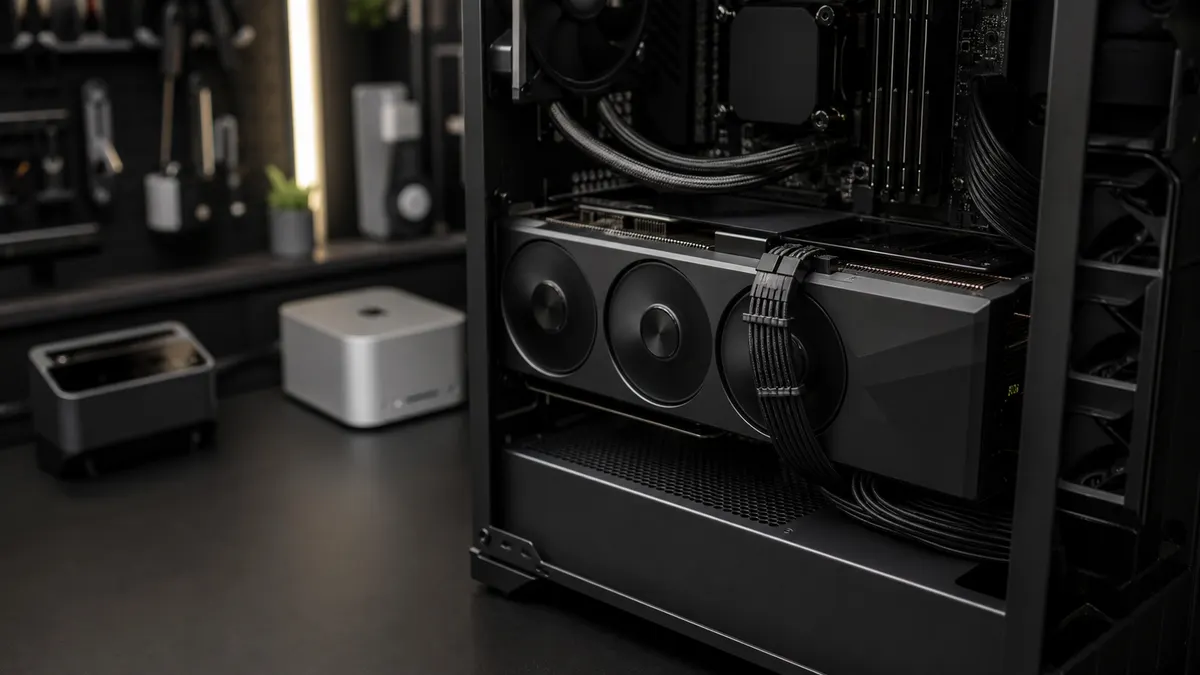
The small cable at the side of the GPU is not the exciting part of a local AI build.
It is also one of the easiest places to make the whole project worse.
People plan around VRAM, CUDA, case airflow, storage speed, and whether the build should be a used RTX 3090, RTX 4090, RTX 5090, or something quieter. Then the parts arrive and the uncomfortable detail shows up: the graphics card wants a specific power connector, the case side panel leaves less bend room than expected, the power supply has the wrong cable set, or the adapter needs more dedicated PCIe leads than the builder left available.
That is not a benchmark problem. It is a preflight problem.
For a home-lab AI workstation, the GPU power cable deserves its own plan before checkout. Not because the connector is mysterious, and not because every high-end card is unsafe. Because sustained local workloads are less forgiving than a quick gaming launch screen. ComfyUI batches, local video experiments, model tests, and queued automation can hold the GPU under load long enough for sloppy power planning to become the weakest part of the build.
Affiliate disclosure: TokenByte may earn from gear links when they are added. Recommendations here are based on workload fit, compatibility risk, and reasons not to overspend, not paid placement.
The Fast Verdict
Before buying a high-end RTX card or power supply for local AI, answer four questions:
- What does the exact card require: 8-pin PCIe leads, an adapter, or a native 12V-2x6/PCIe Gen 5 cable?
- Does the PSU provide enough system wattage and enough real 12V capacity for the whole machine?
- Does the case leave enough clearance for the cable to seat cleanly without a forced bend?
- Can you inspect the connector after the card is installed, or does the layout hide the riskiest part?
If those answers are vague, pause the purchase. The right power plan is cheaper than replacing a case, PSU, custom cable, or graphics card after the build is already assembled.
If you are still choosing the machine itself, start with the TokenByte local AI build picker. A quiet Mac Mini desk, a used 24GB GPU tower, and a premium RTX 5090 workstation have different power problems.
Why This Matters More For Local AI
A local AI box does not use its GPU like a normal desktop all the time.
Gaming load can be spiky. AI image generation, upscaling, batch workflows, and local model experiments can be more repetitive and more boring in the electrical sense: the card ramps up, stays busy, cools a little, ramps again, and does this for hours. If the build has weak airflow, a tight side panel, a bent cable, or a marginal PSU, the problem may not show up during the first boot. It may show up after the setup starts doing useful work.
That is why TokenByte keeps separating researched specs from measured evidence. Manufacturer pages can tell us the official power and connector requirements. They cannot prove your case, cable route, PSU age, outlet, airflow, and workload are clean. That proof happens after assembly with the actual machine.
Read the TokenByte how-we-test standard before treating any one number as a finished verdict.
Know The Connector Names Without Turning It Into Folklore
The practical home-lab vocabulary is simple enough:
| Connector path | What it means in practice |
|---|---|
| PCIe 8-pin leads | Traditional GPU power cables from the PSU |
| Adapter cable | Cable bundled with the GPU that combines multiple 8-pin PSU leads into the card connector |
| 12VHPWR | Earlier 16-pin high-power connector used with many RTX 40-series builds |
| 12V-2x6 | Updated 16-pin connector associated with ATX 3.1 / PCIe 5.1 era hardware |
| Native PCIe Gen 5 cable | One PSU cable intended to connect directly to the GPU-side high-power connector |
MSI's support note says 12VHPWR and 12V-2x6 are both 16-pin power connectors for high-performance graphics cards, and describes 12V-2x6 as an optimized design with more precise insertion detection. FSP's PSU FAQ similarly notes that ATX 3.1 references PCIe 5.1 and updates the 12+4 pin connector to 12V-2x6.
The important takeaway is not that everyone should panic-buy a new PSU. It is that the connector generation, cable rating, PSU compatibility, and card instructions need to match. Do not mix modular PSU cables across brands or model families. Do not assume a cable that physically plugs in is correct for your power supply. Modular PSU pinouts can differ, and the wrong cable can damage hardware.
RTX 4090 And RTX 5090 Are Different Planning Cases
NVIDIA's RTX 40-series power FAQ lists the RTX 4090 at 450 W total graphics power and says RTX 4090 and RTX 4080 16GB cards require at least three 8-pin PCIe connectors or a 450 W or greater PCIe Gen 5 connector.
The official RTX 5090 specifications raise the planning bar. NVIDIA lists the Founders Edition at 575 W total graphics power, 1000 W required system power for its reference system note, and supplementary power as either four PCIe 8-pin cables through the adapter or one 600 W PCIe Gen 5 cable. NVIDIA also says graphics card specifications can vary by add-in-card manufacturer.
That last sentence matters. Do not buy the PSU from a generic RTX 5090 memory. Buy it from the exact card page and the PSU's cable compatibility list.
The practical distinction:
| Card class | Planning implication |
|---|---|
| Used RTX 3090 | Usually conventional 8-pin power, but board-partner layouts vary and PSU age matters |
| RTX 4090 | 450 W class, high-power connector planning, real case-clearance concerns |
| RTX 5090 | 575 W Founders Edition spec, 1000 W reference system-power note, stronger reason to prefer a clean native cable path |
If the article you need is the broader power math, read TokenByte's RTX power budget guide. This guide is narrower: the cable route itself should be planned, inspected, and documented.
The Adapter Is Not A Free Pass
Adapters exist for a reason. They let a newer GPU work with power supplies that have enough capacity but do not have a native high-power GPU cable.
That does not mean the adapter can be treated casually.
NVIDIA's RTX 40-series FAQ says the adapter detects plugged-in 8-pin connector capacity and maps that to the sideband signals expected by the PCIe Gen 5 spec. It also says RTX 4090 and RTX 4080 16GB cards require at least three 8-pin PCIe connectors or a 450 W or greater PCIe Gen 5 connector.
So the local AI checklist is not "adapter in box, solved." It is:
- Use the number of separate PCIe leads the card maker requires.
- Avoid daisy-chaining where the vendor says to use dedicated leads.
- Keep the adapter visible enough to inspect seating.
- Leave physical clearance before closing the side panel.
- Confirm the PSU has the correct outputs available without starving other devices.
If your build already has a capture card, 10GbE NIC, multiple drives, fan controllers, RGB hubs, pumps, and a high-end CPU, the GPU adapter is not the only thing consuming build attention. The cable plan belongs next to the PCIe lane plan, not after it.
Cable Seating Is A Real Step, Not A Vibe
NVIDIA's 2022 RTX 4090 power-connector update said its findings at the time suggested a common issue was connectors not being fully plugged into the graphics card. NVIDIA recommended plugging the power dongle into the graphics card first so it is firmly and evenly seated before installing the card into the motherboard.
Seasonic's current 12V-2x6 cable guidance says connectors should be inserted, click-locked, and seated properly, and warns against bending or applying force too close to the connector.
Those are boring instructions. Follow them anyway.
In a local AI workstation, the build may sit under a desk, against a wall, or inside a case where the side panel presses near the GPU cable. That is exactly why you should dry-fit the card and cable before the rest of the build gets crowded.
The test is physical:
- Connect the GPU-side cable before the card is buried.
- Confirm it is fully seated and even.
- Route the cable with a natural curve, not a sharp bend at the plug.
- Install the card and check that the side panel does not push the cable.
- Recheck the connector after moving the machine to its final location.
Do not rely on a photo from a different case. The clearance that matters is the clearance in your build.
Case Clearance Is Part Of The PSU Decision
A power supply can be electrically correct and still make the build annoying.
If the PSU has a native 12V-2x6 cable but the cable is stiff, short, or exits at the wrong angle for your case, you still have a problem. If the card uses an adapter and the adapter bunches against the side panel, you still have a problem. If a vertical GPU mount hides the connector or forces a tight curve, you still have a problem.
NVIDIA's RTX 5090 page lists Founders Edition dimensions and tells buyers to plan additional space for power cables. Even if your specific card differs, the habit is right: card thickness and length are not the whole fit check. The cable route is part of the GPU envelope.
This overlaps with TokenByte's airflow and noise plan. A cable pressed into a cramped side panel is not only a cable concern. It can also make the case harder to close cleanly, restrict nearby airflow, and make maintenance awkward.
When To Buy A New PSU
Do not replace a good PSU just because the internet is loud.
Do replace or avoid it when any of these are true:
- It does not meet the GPU maker's required system-power guidance for your full build.
- It lacks the correct number of dedicated PCIe leads for the adapter path.
- It has no verified compatible native high-power cable.
- It is old enough that you do not trust it for sustained high-load work.
- Its modular cables are missing, mixed, or from an uncertain model.
- The 12V capacity, protections, or warranty path are unclear.
- The case/PSU/cable combination creates a forced bend at the GPU connector.
FSP's support FAQ recommends evaluating wattage, ATX standard, efficiency, build quality, cables, size, and 12V capacity when choosing a PSU. It also recommends native 12V-2x6 cables for new GPUs in its high-end GPU guidance. That does not turn one brand's FAQ into universal law, but it matches the practical checklist: buy the PSU as part of the system, not as a wattage sticker.
For an RTX 4090-class build, a known-good PSU with the right cable path may be fine. For an RTX 5090-class build, the case for a modern ATX 3.1 unit with a verified native cable is stronger, especially if this is a new workstation rather than a reuse project.
What I Would Avoid
I would avoid a build where the power story sounds like this:
- "The cable fits if I bend it hard and close the panel quickly."
- "The PSU came with a cable that looks similar, so it is probably fine."
- "I found a random modular cable in a drawer."
- "The adapter is using one cable with two ends because it reached."
- "The GPU works at idle, so the power plan is proven."
- "The card is temporary, so I do not need to route it well."
That last one is how temporary labs become permanent maintenance traps.
If you cannot route the cable cleanly, change something before declaring the build done. Use a roomier case, a different PSU cable, a different card orientation, or a different power supply. If the expensive GPU is already forcing compromises during assembly, the rest of the workstation is unlikely to become more pleasant after months of dust, heat, and service changes.
A Practical Build Checklist
Before checkout:
- Save the exact GPU model page.
- Save the exact PSU model page and cable compatibility page.
- Confirm required system wattage for the full build.
- Confirm whether the GPU expects three or four 8-pin leads through an adapter, or a native high-power cable.
- Confirm the case has enough width for the card and cable route.
- Confirm the card will not block the cable inspection area.
- Confirm the motherboard slot plan still works with the GPU installed.
- Confirm the return windows for GPU, PSU, and case overlap.
During assembly:
- Seat the GPU-side connector before the case is crowded.
- Verify it is fully inserted and locked.
- Route the cable without a sharp bend at the plug.
- Close the side panel slowly and watch for contact.
- Photograph the finished cable route for your own maintenance notes.
- Label the PSU cable set so you do not mix cables later.
After first boot:
- Confirm the GPU is detected normally.
- Run a short known workload before a long overnight batch.
- Watch power, temperature, and fan behavior under real AI work.
- Reinspect the connector after the machine has been moved.
- Add the PSU and cable details to your build notes.
This is not exciting documentation. It is the kind that saves a future afternoon.
Where This Fits In The TokenByte Lab
The cable is one part of a bigger local AI system.
Use the ComfyUI GPU guide when VRAM and image-workflow fit are the real question. Use the Mac Mini local AI guide when the smarter answer is a quiet control machine instead of a hotter tower. Use the recommended gear page when you are ready to compare parts.
But do not skip this boring step. A high-end RTX build is expensive enough that the power cable should never be an afterthought.
The best local AI workstation is not the one with the most dramatic spec sheet. It is the one that runs the real workload, stays serviceable, and does not make you wonder whether the side panel is pushing on the connector every time a batch starts.
Plan the cable before the GPU arrives. Then build the machine around a route you can trust.
Found something that needs correcting? Tell the editor. Research, estimates, and hands-on measurements should be identified in the article. Read our affiliate disclosure.